How to Back Up Your Phone and Computer So Nothing Is Lost
How to back up your phone and computer with the 3-2-1 rule: iCloud, Google, Time Machine and File History, plus chats, 2FA codes and a restore test.

Turning on iCloud Photos does not put your photos in your iPhone’s backup. Apple’s own help page says photos stored in iCloud Photos are not duplicated in iCloud Backup, that deleting one on any device deletes it everywhere (with 30 days to recover it from Recently Deleted), and that you should keep backup copies of your library.1 Google Photos works the same way: delete a picture there and it also disappears from your other phones and tablets that back up to it.2
How to back up your phone and computer so nothing is lost comes down to one rule and five setups: keep more than one copy of anything you can’t replace, in more than one kind of place, then prove you can get a file back. In practice:
- Turn on your phone’s own backup
- Back up your computer to an external drive
- Keep one copy away from home
- Back up chats and sign-in codes separately
- Test a restore before you need it
Where six first steps for keeping accounts and devices safe gives backups one short paragraph, this page covers the settings themselves: which switches to turn on, what each one misses, and how to check it worked.
The 3-2-1 backup rule, copy by copy
The 3-2-1 rule tells you how many copies to keep and where. As a 2012 guide prepared for US-CERT, a computer emergency team in the US government, sets it out, you keep 3 copies of any important file (the original plus 2 backups), on 2 different kinds of storage, with 1 copy kept offsite.3 Its footnote for the rule points to a 2009 book on managing digital photos by the photographer Peter Krogh.
Each number guards against a different accident. Wikipedia’s entry on backups explains that different kinds of storage fail for different reasons, and that a copy kept elsewhere, which can be cloud storage, protects against fire, theft and natural disasters.4 The third copy means that when one fails, you still have a backup while you replace it.
The UK’s National Cyber Security Centre (NCSC) calls 3-2-1 the most common way to build resilient backups, then points out a gap: the rule does not require any copy to be offline. It has seen ransomware lock not only the original files but also connected USB drives, network drives and cloud storage that held backups. So it adds a rule of its own: never have all your backups connected at the same time.5
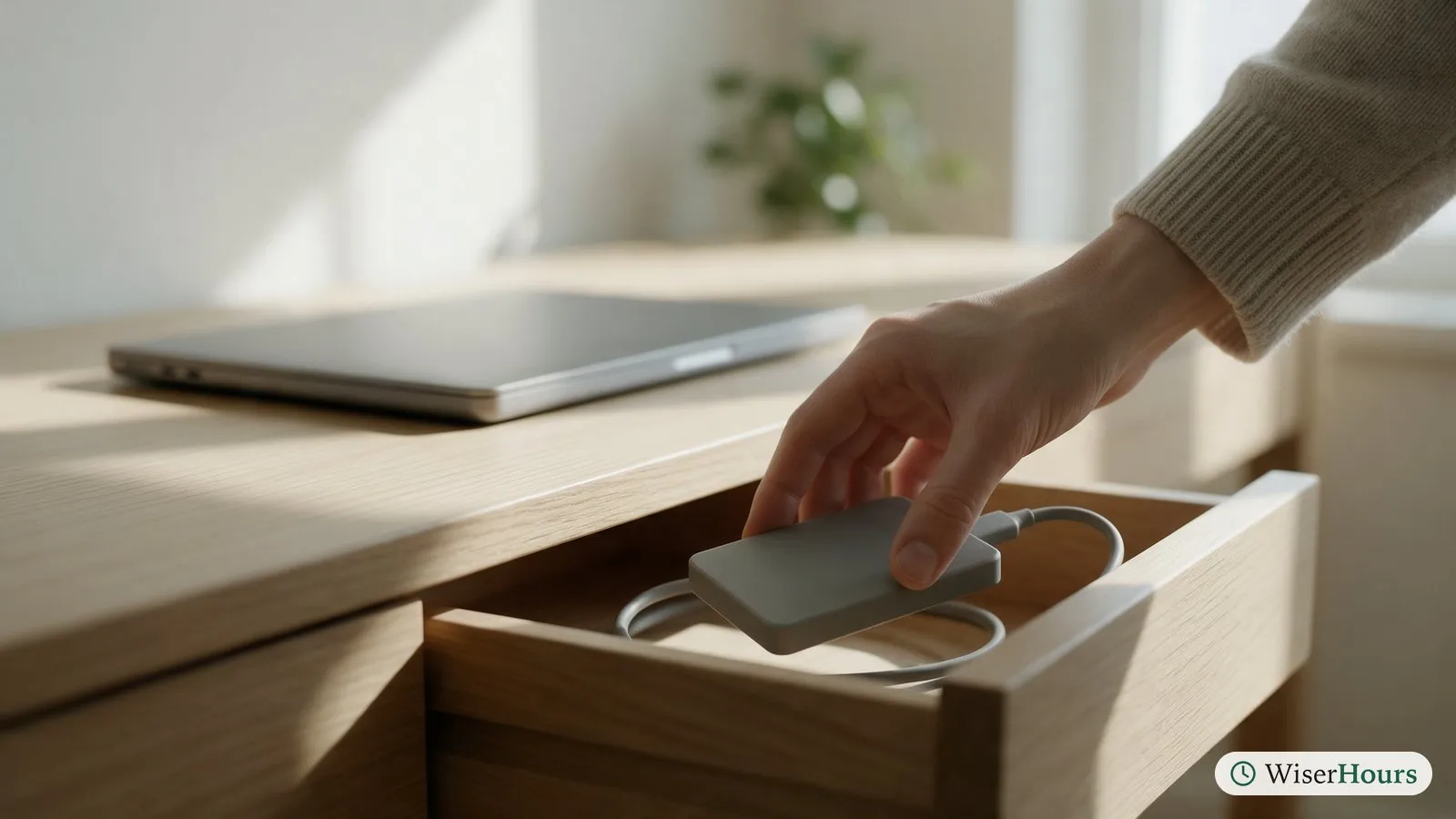
In a home, that looks like this. Your laptop holds the working files. An external drive kept in a drawer, plugged in only for the backup, holds the second copy on a different kind of storage. A cloud service holds the third, away from the house. For a phone, the cloud backup is the second copy, and photos copied to your computer ride along into its drive backup as the third.
If you only have one backup today, add whichever kind is missing: a drive at home or a copy online.
Sync spreads a deletion; a backup survives it
Cloud sync keeps the same files on all your devices, so a deletion or a damaged file spreads everywhere; a backup keeps a separate copy you can go back to. Apple’s help page on iCloud Backup says it covers what does not already sync to iCloud, which leaves out iCloud Photos, Messages in iCloud and files in iCloud Drive.6
Windows works the same way under a different name. Microsoft’s Windows Backup app “backs up” your Desktop, Documents and Pictures folders by syncing them to OneDrive.7 Sync services do keep a safety net: OneDrive keeps deleted files in its recycle bin for 30 days on personal accounts, and Microsoft 365 subscribers can roll their whole OneDrive back to any point in the last 30 days, for example after malware.8
- Myth
- My photos are in iCloud or Google Photos, so they are backed up.
- Fact
- They are synced. Delete one by mistake and it goes from every signed-in device; once the recovery window closes, it is gone for good.
Picture a child clearing space on the family tablet by deleting an album of holiday photos. Within minutes, the album is gone from your phone as well. You can rescue it from Recently Deleted, but only if someone notices before the recovery window closes.
Sync is a good first copy, and you should keep it. Just add a second copy that a deletion can’t reach, such as your photo library downloaded to a computer that backs up to a drive.
- Rescue from sync. Only from Recently Deleted (30 days on iCloud Photos) or, for OneDrive on a personal account, its recycle bin (30 days).
- Rescue from a backup. A copy on a computer or drive that a deletion cannot reach; Time Machine and File History also keep older versions of files.
How to back up your phone and computer in five setups
Together, the five setups below make a 3-2-1 arrangement out of tools your devices already have. Four are settings you change once and then leave to run; the fifth is a habit you repeat.
1. Turn on your phone’s own backup
On an iPhone, open Settings, tap your name, then iCloud, then iCloud Backup, and make sure the backup for this iPhone is switched on. Apple says it runs automatically when the phone is charging, locked and on Wi-Fi, and the same screen shows the date and time of the last backup.9
On Android, the backup switch sits under Google in the Settings app (menu names vary by maker). Google says it saves apps and app data, call history, contacts, device settings and text messages to your Google account, warns that not every app backs up all of its data, and advises a PIN, pattern or password screen lock to protect the backup.10
Free space runs out fast once photos are included.
Apple lists iCloud+ prices separately for each country or region.11 Google sells extra storage through Google One where available, and says new accounts opened since March 2026 start with 5 GB until a phone number is verified.12 Where your data lives can depend on your country too: in mainland China, iCloud is operated by a local company, GCBD, under Chinese regulations.13 Check the price and terms where you live before you pick a plan.
2. Back up your computer to an external drive
Both main desktop systems have a free tool for backing up to a drive. On a Mac, Time Machine backs up to an external drive that Apple suggests should be at least twice the size of the Mac’s storage. It keeps hourly backups for a day, daily backups for a month and weekly backups after that, and it offers to encrypt the backup with a password you will need to restore.14
On Windows, File History copies your libraries (Documents, Pictures, Videos, Music) and desktop to an external drive or a network location and keeps earlier versions of each file. Turn it on in Control Panel under System and Security, with the drive connected.15 A backup covers only what it can find, so it helps to know where your files live; how to organize your computer files sets out a folder structure that keeps everything in the backed-up folders.
3. Keep one copy away from home
The offsite copy protects you from the accidents that take every device in a house at once, such as a fire or a burglary. For most people, the cloud is the easy answer, through iCloud Drive, Google Drive or OneDrive for documents and the phone’s own backup for everything else. The alternative is a second drive kept at a relative’s home or at work, swapped with the one at home every month or so; that interval is a suggestion of ours, not one anyone has tested.
The NCSC’s guide for small organisations recommends the same pairing, a cloud copy and a storage device, in case one is lost, stolen or fails.16
4. Back up chats and sign-in codes separately
Messaging and authenticator apps can keep their data outside the phone’s normal backup. WhatsApp has its own chat backup: on Android it saves to your Google account and runs on a schedule only if you pick one other than “Never” or “Only when I tap Back up”, and on an iPhone it saves to iCloud once you turn on Auto backup. It restores only from the last successful backup. If you turn on its end-to-end encrypted backup, WhatsApp says the password or key you choose is the only way to open it.17 Other messaging apps handle backups differently, so check each app’s own help pages.
Sign-in codes need the same care. Google Authenticator can save your codes to your Google account so they follow you to a new phone; used without an account, the codes stay on that one device unless you transfer them yourself.18 Google also lets you create a set of 10 one-time backup codes for when your phone is lost, and suggests printing them and storing them where you keep your passport.19 Save the equivalent codes whenever a service offers them.
So open every app you would hate to lose and find its backup setting, rather than assuming the phone’s backup covers it.
5. Test a restore before you need it
A backup is only useful if you can get files out of it. The NCSC advises that once you have made a backup, you should know how to restore it and check that it contains all your important data.16
A test takes a few minutes and changes nothing if you do it carefully. On a Mac, open Time Machine, go back a week and restore one file. On Windows, right-click a folder, choose Restore previous versions and restore to a different location, because Microsoft warns that restoring over the current file replaces it and can’t be undone.15 On a phone, check that the last backup date is recent.
- 1Check the dateslast phone and WhatsApp backup
- 2Restore one filefrom the drive, to a new folder
- 3Open itand a photo from last month online
- 4Repeat after changesnew phone, new drive, new computer
Once the drill works, the checklist below covers the whole setup.
Your 3-2-1 backup setup
Download PDF
Why waiting for a warning sign doesn’t work
Phones, laptops and drives rarely announce that they are about to fail, so the setups above need to be running before anything goes wrong. The best-measured case is a 2007 study by Google engineers of the hard drives in the company’s data centers, which found that many drives died without any warning in their built-in health readings.
Most hard drives keep a log of their own errors, called SMART, which is tempting to treat like a warning light on a car. The Google team tested whether it warns in time.
The study
Limited evidence
Many of Google's failed hard drives gave no warning first
Engineers tracked more than 100,000 consumer-grade hard drives running in Google’s servers. Drives that had logged certain errors were far more likely to fail soon after, yet more than a third of the drives that failed had shown no warning in any of the health readings the team examined. The authors concluded that those readings alone are unlikely to predict when an individual drive will fail.20
Two limits apply: these were spinning disks in server racks two decades ago, not the flash storage in your phone, and the records are one company’s. You can’t count on a warning, so make the copy while everything still works.
Failures are uncommon in any one year. Backblaze, a company that sells cloud backup, reports that its data-center hard drives failed at a rate of about 1.4 in 100 per year in 2025.21 We found no official or research count of how often households lose data, so the evidence here is about drives, not homes.
Timing matters as much as having a copy. Australia’s Cyber Security Centre gives a case study of a family whose computer was hit by ransomware: they restored their files from a backup drive, but the last backup was weeks old, so some files, including a teenage son’s assignment, were lost. Its lesson is to back up often or turn on automatic backups.22 Let the backup run on its own schedule.
Backup advice rests on agency guidance and drive data
Nobody has run a household experiment on backups, assigning families to routines and counting lost photos. The steps rest on agency guidance, the companies’ own documentation and measurements of drives rather than homes.
| Backup step | What the best evidence found | Evidence |
|---|---|---|
| Three copies, two kinds of storage, one offsite | Recommended in a 2012 guide prepared for US-CERT | Expert guidance, US3 |
| Back up before trouble appears | Many drives that failed had shown no warning sign beforehand | Observationalobservational study: A study in which researchers record what people already do or are exposed to, rather than assigning anyone to anything. It can show that two things go together, not that one causes the other, because the groups being compared may differ in other ways as well.Full entry in the glossary, limited: Google data centers, 2005 to 200620 |
| A second copy beyond sync | Deleting a synced photo removes it from every device; it can be recovered only for a limited time | Product documentation, Apple1 |
| Testing a restore | Advised by the UK’s NCSC in its guide for small organisations | Expert guidance, UK16 |
| How often households lose data | We found no official or research count | Gap |
Nobody counts lost family albums, so the case for backups rests on how devices fail and on what the agencies advise. Outside the UK, the US and Australia, check your own national cyber security agency’s backup advice as well.
The bottom line
Assume any one device can fail or be lost without warning, and make sure nothing you care about lives in only one place. Turn on your phone’s backup, add a drive backup for your computer, keep one copy online or at another address, and give chats and sign-in codes their own backups. Then restore one file today to check that it opens.
Frequently asked questions
How often do backups need to run?
As often as the tools allow, which usually means automatically. Apple's Time Machine makes hourly backups by default, and an iPhone backs itself up to iCloud when it is charging, locked and on Wi-Fi. A case study from Australia's Cyber Security Centre shows the cost of waiting: a family restored their files from a drive after ransomware, but work from the weeks since the last backup was gone.
Are cloud backups safe enough to rely on?
They can be, if you protect the account. The UK's NCSC advises turning on two-step verification for online backups. A 2012 guide prepared for US-CERT notes the trade-off: you get a copy away from home but little control over how the provider stores it, so check the provider's security and encryption details. Google says some Android backup data is end-to-end encrypted with your screen lock.
Should I back up to a hard drive or an SSD?
Either works; what matters is having more than one copy. A 2012 guide prepared for US-CERT says solid-state storage has no moving parts, resists shock and reads quickly, while hard drives cost less per gigabyte. Both can fail, which is why the 3-2-1 rule spreads copies across different kinds of storage and places.
Should I encrypt my backups?
Encryption keeps a lost drive or a leaked cloud copy private, but it adds a password you must not lose. Apple warns that an encrypted Time Machine backup needs its password to restore, and WhatsApp says the password or key for an end-to-end encrypted backup is the only way to open it. Store those passwords and keys in a password manager or on paper, away from the device.
Sources
- Set up and use iCloud Photos. Apple Support (published 14 September 2026; accessed 28 September 2026)
- Delete photos & videos. Google, Google Photos Help (accessed 28 September 2026)
- Data Backup Options. Ruggiero, P. & Heckathorn, M. A. (2012). Carnegie Mellon University for US-CERT (US); hosted by CISA, accessed 28 September 2026
- Backup. Wikipedia (accessed 28 September 2026)
- Offline backups in an online world. UK National Cyber Security Centre, blog post (13 August 2019; accessed 28 September 2026)
- What does iCloud back up? Apple Support (published 1 May 2025; accessed 28 September 2026)
- Back up and restore with Windows Backup. Microsoft Support (accessed 28 September 2026)
- Restore files deleted from your OneDrive. Microsoft Support (accessed 28 September 2026)
- How to back up your iPhone or iPad with iCloud. Apple Support (published 24 September 2026; accessed 28 September 2026)
- Back up or restore data on your Android device. Google, Android Help (accessed 28 September 2026)
- iCloud+ plans and pricing. Apple Support (accessed 28 September 2026)
- How your Google storage works. Google, Google One Help (accessed 28 September 2026)
- Learn more about iCloud in China mainland. Apple Support (accessed 28 September 2026)
- Back up your Mac with Time Machine. Apple Support (published 6 July 2026; accessed 28 September 2026)
- Backup and restore with File History. Microsoft Support (accessed 28 September 2026)
- Small organisations guide to cyber security: Backing up your data. UK National Cyber Security Centre (published 9 April 2026, reviewed 21 July 2026; accessed 28 September 2026)
- How to back up your chat history. WhatsApp Help Center, Android and iOS versions (accessed 28 September 2026)
- Get verification codes with Google Authenticator. Google, Google Account Help (accessed 28 September 2026)
- Sign in with backup codes. Google, Google Account Help (accessed 28 September 2026)
- Failure Trends in a Large Disk Drive Population. Pinheiro, E., Weber, W.-D. & Barroso, L. A. (2007). Proceedings of the 5th USENIX Conference on File and Storage Technologies (FAST '07), Google Inc.
- Backblaze Drive Stats for 2025. Backblaze, company blog (2026; accessed 28 September 2026)
- Set up and perform regular backups. Australian Signals Directorate's Australian Cyber Security Centre (accessed 28 September 2026)
How we researched this
For this guide we worked from backup help pages by Apple, Google, Microsoft and WhatsApp, advice from Britain's NCSC and the Australian Cyber Security Centre, a 2012 guide prepared for US-CERT, a 2007 peer-reviewed study of hard drive failures at Google and Backblaze's 2025 drive report, every one opened and read through during September 2026. The main limitation: no official or research count of household data loss turned up.
Keep reading

Do You Still Need Antivirus Software?
Built-in antivirus rivals paid suites in 2026 lab tests. What Windows, Mac, Android and iPhone include, and when paying for more adds value.
How to Spot a Phishing Email in Seconds
How to spot a phishing email with 6 quick checks, from the real sender address to lookalike links, and where to report scam emails in your country.
Smishing and Scam Texts: The Messages to Delete
Many scam text messages follow 7 familiar scripts, from parcel fees to 'Hi Mum'. How to spot, block and report them, and what to do if you replied.
Children's Online Safety: An Age-by-Age Guide for Parents
Online safety for kids at 4 stages (under 5, 6 to 9, 10 to 12, teens), drawn from WHO, AAP, UNICEF and eSafety guidance, with warning signs and help.