How to Secure Your Home Wi-Fi Router
How to secure home Wi-Fi in 7 steps: change the admin password, use WPA3 or WPA2, update firmware, turn off WPS, and replace a router that no longer gets fixes.

Many home routers are set up once and then left on a shelf for years, still running the settings they had on the day they arrived. That box sits between every device in your home and the internet, and it may be the one computer in the house that nobody updates.
Learning how to secure home Wi-Fi mostly means giving that box a short checkup: once properly, then again twice a year. Australia’s Cyber Security Centre (ACSC) advises a router health check at least every six months, and says a router that has stopped getting security updates should be replaced as a priority.1 The checkup has seven steps:
- Change the router’s admin password
- Set the Wi-Fi security to WPA3, or WPA2 with AES
- Give the Wi-Fi a new name and a long password
- Update the firmware, then switch on automatic updates
- Turn off WPS, remote management and features you don’t use
- Check which devices are connected
- Replace a router that no longer gets updates
You need the sticker on the router, a phone or laptop, and a little patience with menus. The router is one piece of a bigger picture; if unique passwords and phone updates are not yet habits, begin with the everyday security habits worth setting up first.
Why the router is worth ten minutes of attention
A router is worth securing because it is the gateway between the internet and everything in your home, and it runs around the clock with little attention. Australia’s ACSC warns that an attacker who gets into a router may reach other devices on the network and use them to attack others, and that a physical connection is not needed to try. The danger is less that someone targets you and more that routers are easy to recruit in bulk. The agency says the “set and forget” attitude many people take to routers makes them an attractive target for criminals, who recruit them into botnets: networks of hijacked devices controlled from afar. In one case it cites from 2023, a botnet of tens of thousands of devices, home routers among them, was built by exploiting old flaws in outdated firmware.1 Nobody picked those households; their routers simply still had old, known holes.
The clearest measure of neglect comes from a German research institute that checked the latest software makers had published for their routers.
The study
Limited evidence
How often home routers got security fixes: Fraunhofer FKIE, Germany, 2020
Researchers at Fraunhofer FKIE downloaded the most recent firmware that seven large makers offered for 127 home routers sold in Europe and analyzed it automatically. 46 of the routers, about a third, had received no security update in the previous year, and many ran old software with hundreds of known flaws. Some makers did far better than others.2
The study is a 2020 snapshot of what makers published, not of what runs in homes, and it left out internet providers’ routers. Even so, find out whether your router is getting fixes rather than assuming it is.
- Myth
- My home network is too small for anyone to bother attacking.
- Fact
- An archived 2021 US government guide calls this a common misconception: most attacks are not personal, and any network connected to the internet is more vulnerable.
That fact comes from an archived 2021 guide by the US Cybersecurity and Infrastructure Security Agency (CISA), which names a second common mistake: assuming devices are secure enough straight out of the box.3 The useful question about your own router is whether it still carries old holes that automated scans look for.
How to secure home Wi-Fi, step by step
Securing home Wi-Fi means working through the router’s settings page in a sensible order: lock the settings first, then protect the wireless signal, then remove the extras. The steps follow Australia’s ACSC and the US Federal Trade Commission (FTC), which agree on almost every point. Menu names differ between models, so keep the manual handy.
What each setting means
- Admin password: the login for the router’s settings page, not for the Wi-Fi.
- SSID: your Wi-Fi network’s name.
- WPA2 and WPA3: the systems that scramble Wi-Fi traffic so neighbors can’t read it; WPA3 is newer.
- Firmware: the software built into the router.
- WPS: a shortcut for joining Wi-Fi with a button or a PIN.
- Remote management: changing router settings from outside your home.
1. Change the router’s admin password
Every router has two passwords, and the one that matters most is the one people forget exists. The FTC separates the Wi-Fi password, which lets a device join your network, from the admin password, which opens the router’s settings: someone who gets into the settings can change everything else, including the Wi-Fi password, and undo your other precautions.4
To get in, connect to the router, type its address (printed on the sticker or in the manual) into a browser, and log in with the details on the same sticker. Some makers also offer an app that does the same job. Once inside, find the page usually labelled admin settings or account management, and change the username too if the router allows it. The ACSC points out that default usernames and passwords may be published online for anyone to see, and they are usually printed on the router itself (or in its manual), readable by anyone who has stood in your hallway.1
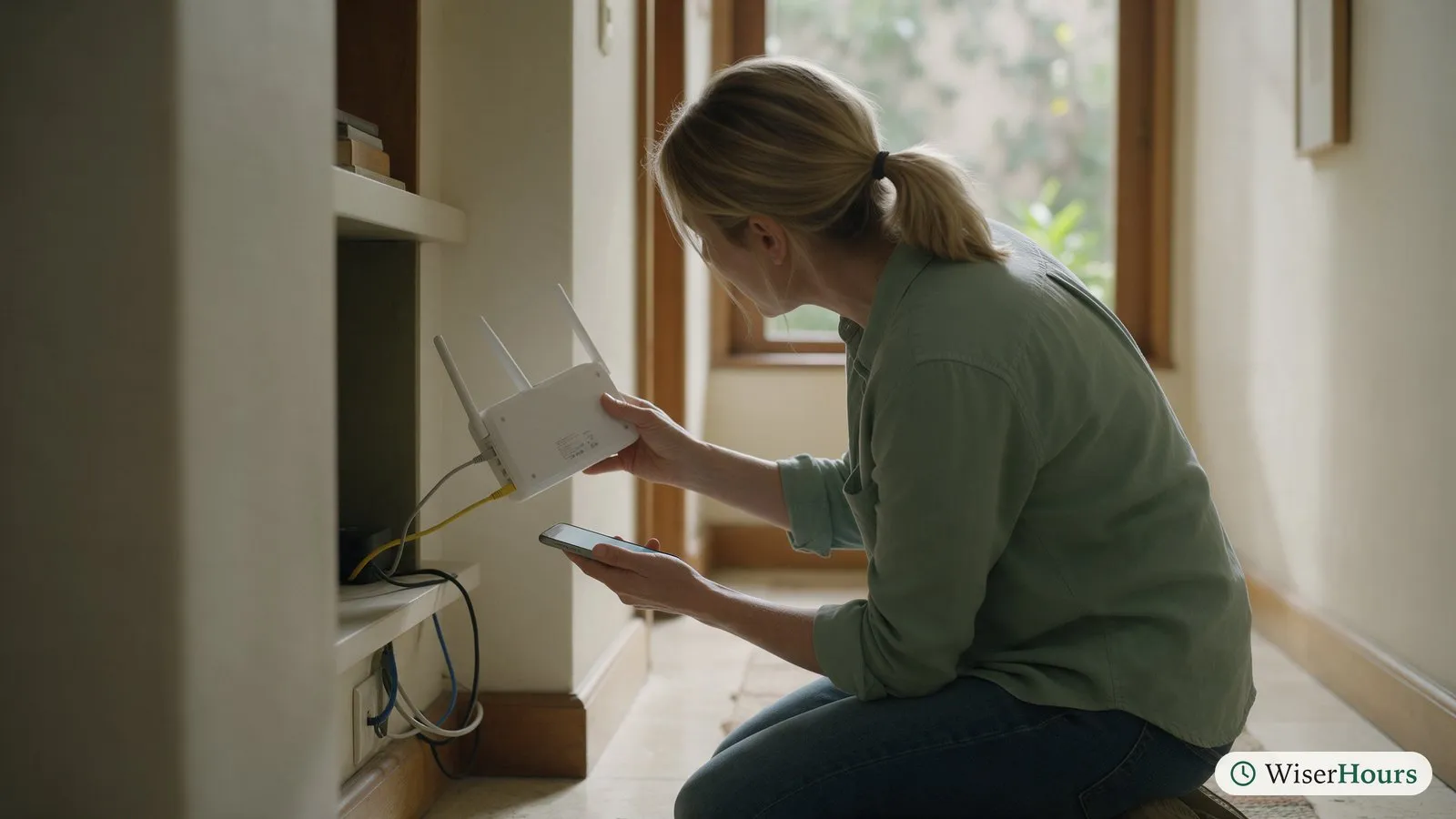
Store the new admin password in a password manager, then log out and back in to check it works.
2. Set the Wi-Fi security to WPA3, or WPA2 with AES
Wi-Fi security settings decide how the signal between your devices and the router is scrambled, and the choice is easy: pick the newest option all your devices support. The ACSC suggests WPA3 first, then a WPA3 “transition mode” if older devices can’t connect, and WPA2 (sometimes shown as WPA2-Personal or WPA2-PSK) if neither is offered.1 The FTC calls WEP and the original WPA outdated and not secure, and if they are the only options even after a software update, it suggests considering a new router.4
Where the menu asks for an encryption type under WPA2, choose AES rather than TKIP. AES is the method at the heart of WPA2; TKIP belongs to the older WPA and is not allowed in WPA3.5
3. Give the Wi-Fi a new name and a long password
The Wi-Fi name and password are what a stranger in the street would need to join your network, so both deserve a change from the factory settings. The ACSC notes that a default network name can reveal the router’s make and model to an attacker, and that a weak Wi-Fi password can be trivial to break. It suggests a new name with no personal details and a long, unique password, such as a passphrase of several random words.1
Length matters more here than you might expect. With WPA2, someone within range can record the moment a device connects and then try guesses on their own computer as fast as it can run, so a short or common password falls quickly; WPA3 was designed to make each guess require contact with the router, though researchers later found design flaws that weaken this.5 Say the Wi-Fi password is the family name plus a house number: easy to type, and exactly the kind of guess a cracking tool tries early. Four unrelated words beat it and are still easy to type.
If your router broadcasts separate 2.4 GHz and 5 GHz networks, change the name and password on each one, then reconnect your devices. A password manager that generates long passwords can create and store the new one.
4. Update the firmware, then switch on automatic updates
Firmware updates are how router makers fix security flaws, and a router only gets them if it checks for them or you install them. In the settings, look for a page called firmware, update or administration, note the current version, and run the check. The ACSC describes this route and a manual one, stresses downloading files only from the maker’s official website, and suggests subscribing to the maker’s update alerts if the router can’t update itself.1
The better long-term fix is to let the router update itself. Some models do: NETGEAR, for example, says automatic updates on the models it lists run overnight, in a three-hour window in the router’s time zone.6
5. Turn off WPS, remote management and features you don’t use
Features that make a router easier to use can also make it easier to break into, so switch off the ones you don’t need. The FTC names three to turn off: remote management, Wi-Fi Protected Setup (WPS) and Universal Plug and Play (UPnP).4
Remote management lets you change settings over the internet, which also means other people on the internet can try. The ACSC names it among the most common routes by which routers are compromised, and applies the same logic to port forwarding and file-sharing services: if you don’t need them, disable them.1
WPS is a shortcut for joining the network with a button or an eight-digit PIN instead of the password. In 2011 a researcher showed that the PIN is checked in two halves, which cuts the guessing needed to at most about 11,000 tries; on routers without a lockout, that is little protection.7 TP-Link, one of the makers, says the push-button method is lower risk for occasional use and suggests turning WPS off when you aren’t using it.8 The simplest choice is to leave it off and type the password.
6. Check which devices are connected
A list of connected devices shows who is using your network. The ACSC suggests looking at it in the router’s settings and, if you see a device you don’t recognize, changing the Wi-Fi name and password so that everything has to reconnect with the new details. Expect some cryptic names, especially for smart speakers; the agency suggests renaming the devices you know so the next check is faster.1
7. Replace a router that no longer gets updates
A router that its maker has stopped updating will collect known flaws that never get fixed, and no setting can make up for that. The ACSC says makers support a router for a limited time, usually three to five years depending on brand and model, and that one with no update in more than a year is likely at its end of life. Search the maker’s website for your model number to find its support status, and when you replace the router, choose one that updates automatically.1
The UK’s National Cyber Security Centre (NCSC) offers a useful way to think about it for smart devices: treat the support end date as a “use by” date.9 Some countries now push makers to publish that date. Since April 2024, UK law has required makers of connectable consumer products sold there to state a minimum period of security updates, with an end date, and to avoid easily guessed default passwords.10 Elsewhere, the rules may differ or not exist yet; your government’s cyber-security or consumer-protection body will say which apply to you.
Your router checkup
Download PDF
If your router came from your internet provider
A router from your internet provider can be secured with the same steps, but some decisions sit with the provider. Who sends firmware updates, which settings you can change, and whether you may use your own router vary by provider and by country. Picture a box your provider posted four years ago: its menu may have no firmware page because updates come from the provider’s side, or those updates may have quietly stopped.
The FTC suggests asking your provider whether it sends out automatic updates.4 The answer is often on the provider’s help pages. The ACSC suggests consulting your provider for advice on compatible replacements if yours has reached its end of life.1
Four questions cover most of what you need to know, wherever you live: Does the router update automatically? How long will it keep getting security fixes? Will you replace it free when support ends? And can I use my own router instead? Keep the answers with your account number, so the next six-monthly check starts from facts.
Which router settings rest on firm evidence?
The router steps rest on agreement between national cyber-security agencies more than on measurements of what happens in homes. We found no study that compared households that followed them with households that did not, which is why each row below carries its evidence label.
| Step | What the best evidence found | Evidence |
|---|---|---|
| Change default admin login | Default credentials may be published online and are usually printed on the router | Expert guidance, Australia1 |
| WPA3 or WPA2 with AES | AES is far stronger than the older TKIP; weak WPA2 passwords can be guessed offline | Expert guidance and protocol history5 |
| Update or replace | Many router models sold in Europe had gone a year without a security fix, in 2020 | Limited: one institute’s firmware analysis2 |
| Turn off WPS | The PIN is checked in two halves, which makes it far easier to guess | A flaw documented in 2011; protocol history7 |
| Check connected devices | Advised by Australia’s ACSC as part of a six-monthly check | Gap: expert guidance only1 |
A weak label here means nobody has measured the benefit, not that the step is useless. Checking connected devices has the thinnest backing in the table and costs the least, so do it anyway.
The bottom line
The admin password is the setting to change first, because it guards every other one. After it come WPA3 or WPA2 with AES, current firmware and switching off the shortcuts you don’t use. After that, the job is a six-monthly check and one question to keep asking: is this router still getting security fixes, and if not, when will it be replaced?
Frequently asked questions
Does restarting my router make it more secure?
A restart can clear some threats but is no substitute for updates. Australia's ACSC includes a reboot in its router health check, saying that turning the router off at the wall for a few seconds ends running processes and removes anything malicious held in temporary memory. A restart does not fix the flaw that let it in, so pair restarts with firmware updates.
Should I turn off UPnP on my router?
Turn it off if nothing in your home needs it. Universal Plug and Play lets devices on your network find and talk to each other and the internet on their own. The US FTC suggests turning it off, and Australia's ACSC notes that malware has abused it, but also that some smart devices and online games rely on it, so test those devices afterwards or set up their connections by hand.
Can a firmware update break my router?
It can happen. Australia's ACSC warns that a failed update can leave a router unusable, so follow the maker's instructions, download files only from the maker's official website, and don't unplug the router, pull its cables or press its reset button while the update runs. If your router updates automatically, the ACSC says you can skip the manual steps.
Should I switch off my router when I go on holiday?
It is a simple precaution if nothing at home depends on it. Australia's ACSC suggests switching the router off when you travel, so nobody can use it while you are away, but to think first about devices that need the connection, such as security cameras.
Sources
- Secure your Wi-Fi and router. Australian Signals Directorate's Australian Cyber Security Centre (first published 3 May 2020, last updated 29 October 2024; accessed 28 September 2026)
- Home Router Security Report 2020. Weidenbach, P. & vom Dorp, J. (2020). Fraunhofer Institute for Communication, Information Processing and Ergonomics FKIE, Germany
- Home Network Security. US Cybersecurity and Infrastructure Security Agency (released 1 February 2021; marked as archived content; accessed 28 September 2026)
- How To Secure Your Home Wi-Fi Network. US Federal Trade Commission, Consumer Advice (December 2022; accessed 28 September 2026)
- Wi-Fi Protected Access. Wikipedia (accessed 28 September 2026)
- When do automatic firmware updates happen for my NETGEAR router? NETGEAR Support, article 000059139 (last updated 7 July 2025; accessed 28 September 2026)
- Wi-Fi Protected Setup. Wikipedia (accessed 28 September 2026)
- The Complete Guide to WPS: What It Does and When to Turn It Off. TP-Link, company blog (accessed 28 September 2026)
- Smart devices: using them safely in your home. UK National Cyber Security Centre (published 15 February 2019, reviewed 23 February 2024; accessed 28 September 2026)
- The UK Product Security and Telecommunications Infrastructure (Product Security) regime. UK Department for Science, Innovation and Technology, policy paper (published 29 April 2023, last updated 2 May 2024; accessed 28 September 2026)
How we researched this
This checkup draws on home-router advice from Australia's ACSC, the US FTC, an archived CISA page, the UK's NCSC and UK product-security regime, a 2020 firmware study by Germany's Fraunhofer FKIE, router makers' help and blog pages and Wikipedia for protocol history, all read in September 2026. Main limitation: nobody appears to have measured how much each step lowers the chance that a home network is attacked.
Keep reading
How to Spot a Phishing Email in Seconds
How to spot a phishing email with 6 quick checks, from the real sender address to lookalike links, and where to report scam emails in your country.
Smishing and Scam Texts: The Messages to Delete
Many scam text messages follow 7 familiar scripts, from parcel fees to 'Hi Mum'. How to spot, block and report them, and what to do if you replied.
Children's Online Safety: An Age-by-Age Guide for Parents
Online safety for kids at 4 stages (under 5, 6 to 9, 10 to 12, teens), drawn from WHO, AAP, UNICEF and eSafety guidance, with warning signs and help.
Identity Theft: The First Steps Anywhere in the World
6 first steps after identity theft, from official guides in 5 countries: call your bank, report it, lock your credit file and keep a record.