Email Filters and Rules: How to Make Your Inbox Sort Itself
How Gmail filters and Outlook rules work, why a few routing rules beat deep folder trees, and 5 steps to set them up and test them safely.

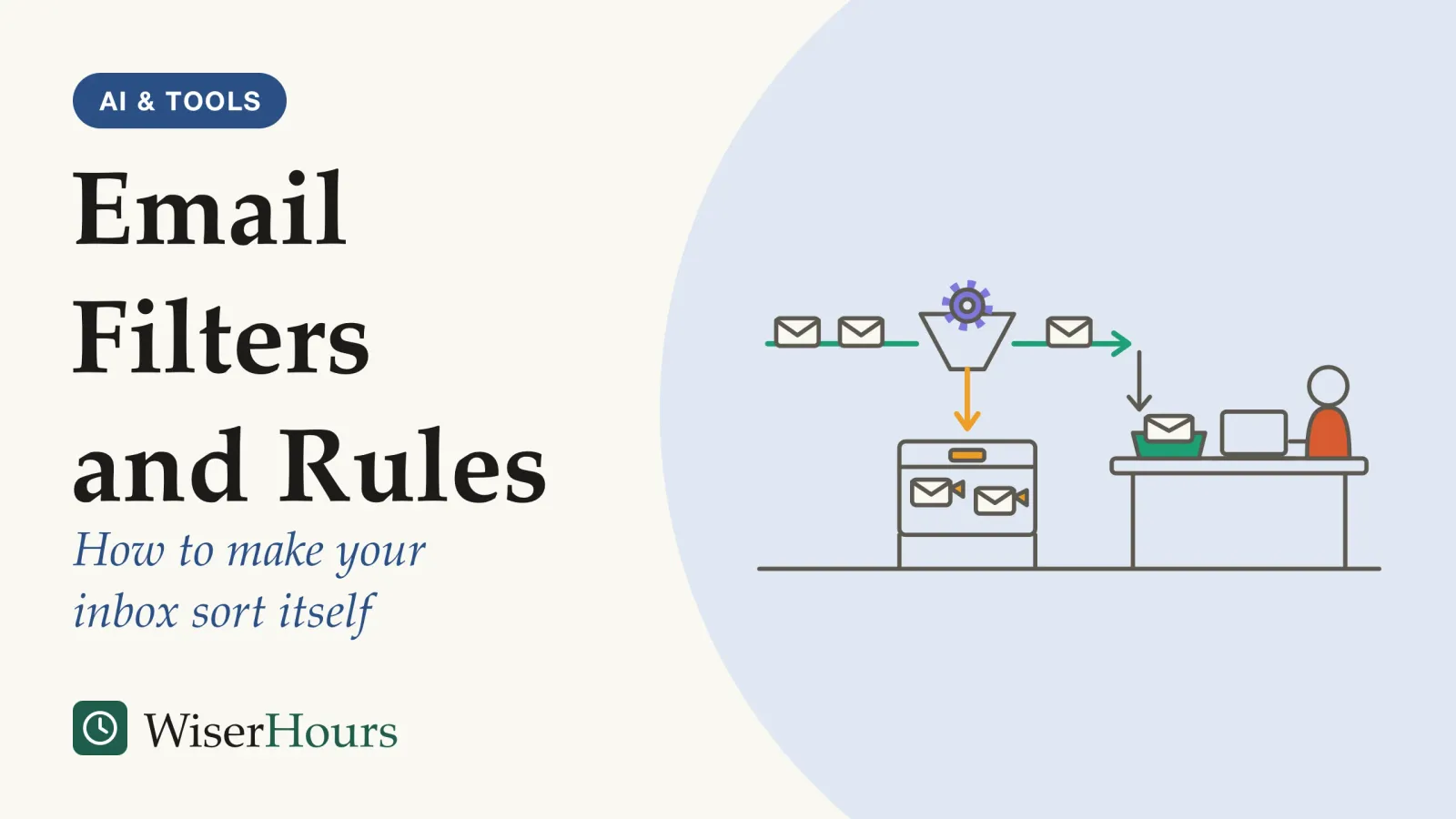
Filing every email into the right folder feels like the responsible way to run an inbox, but it does little to help you find anything later. In a 2011 IBM Research study that logged several hundred people’s email, heavy folder users were no more likely to find an old message than people who filed less, and they were a little slower.1
Email filters, which Outlook calls rules, put that effort to better use. Each one is a small instruction your mail service applies to every new message, so mail that never needs you today is labeled or moved aside before you see it. A handful of filters that route mail is a better bet than an elaborate folder tree, and setting them up takes five steps:
- Switch on the sorting your mail service already has
- Note a week of mail that interrupts you but needs nothing
- Write a few filters that route, not file
- Test each filter on old mail before you trust it
- Find with search, and prune your filters each quarter
How email filters work in Gmail and Outlook
An email filter pairs a condition that describes a message, such as the sender or a word in the subject, with an action taken whenever a new message matches. Google’s Gmail help describes filters that label, archive, delete, star or forward incoming mail, built from a search you have already run.2 Microsoft’s help describes Outlook inbox rules that need a name, a condition and an action, with optional exceptions, and that can move, delete or change the importance of messages.3
It is the when-this-then-that pattern of workflow automation for everyday chores, applied to mail. What sets mail apart is timing: a filter acts the moment a message lands, so it changes what you see, not only where things are stored.
Picture an ordinary week of mail: a daily sales digest, shipping notices from online shops, a weekly all-staff bulletin and messages from people. Give each kind of automated mail one filter that applies a label and archives it, and the inbox that remains holds mostly people who expect a reply.
The services differ in details that decide whether a filter behaves as expected; the table compares both help pages as read on 24 September 2026.
| What differs | Gmail filters, on the web | Inbox rules, in new Outlook for Windows and on the web |
|---|---|---|
| Where to build one | Tick a message, then More, then Filter messages like these; or Show search options in the search box, then Create filter | Right-click a message, then Rules, then Create rule; or Settings, then Mail, then Rules, then Add new rule23 |
| Order of rules | Not described on the help page | Rules run in list order; on the web, Stop processing more rules is on by default, so only the first matching rule applies3 |
| Mail already received | A forwarding filter affects only new messages | Rules run on new mail by default; new Outlook for Windows can run a rule on existing messages23 |
Order matters most in Outlook. Put a narrow rule, such as flagging your manager’s messages, above a broad one, such as moving everything from your company’s domain into a folder; otherwise the broad rule can catch the message first and stop the narrow one.3
Which mail to route: anything that never needs you today
The best candidates for a filter arrive often, come from a predictable sender or address, and never need a same-day reply: newsletters, receipts and order updates, automated notifications, and mailing lists you only skim. Mail from people waiting on you stays in the inbox. That test is our own rule of thumb, and no study has tried it.
The sender part matters because a filter acts only on what it recognizes: automated mail tends to come from one address, while a colleague’s urgent question looks like any other message.
Both services already do a first pass. Google’s help says Gmail’s Default inbox sorts mail automatically into Primary, Social, Promotions, Updates and Forums, that you cannot create your own categories, and that moving a misfiled message to the right tab teaches Gmail your preferences.4 Microsoft’s Focused Inbox splits mail into Focused and Other, and Always move to Other sends all future mail from a sender to the Other tab.5
- Checks in order: each filter or rule asks one question, such as who sent the message; in Outlook the first match can stop the rest
- Label and archive: newsletters, receipts and automated alerts get a label and leave the inbox, without being deleted
- The inbox keeps the rest: mail that matches no filter, mostly from people who expect an answer, is what you see
- Search to find: routed mail stays one search away, which in the IBM study was quicker than opening folders
So let the built-in sorting carry the bulk and write filters only for what it gets wrong. In the example week, the shop notices may land in Updates on their own. The weekly bulletin may not, so it earns a filter: from the bulletin’s address, apply the label Read Friday and archive it. A client whose mail keeps falling into the wrong tab earns a filter too, one that marks it important instead of moving it away.
Route, don't delete
A filter that deletes mail can remove something you needed before you ever see it. Label and archive instead, so a message caught by mistake is still one search away. The caution is our own; both services allow a filter to delete.
Five steps to an inbox that sorts itself
Use the sorting you already have, then add a few filters of your own and check them before relying on them.
1. Switch on the sorting your mail service already has
In Gmail on a computer, open Settings, choose Default under Inbox type in Quick settings, then Customize to pick the tabs you want. Google notes that with new-mail notifications on, you are notified only about messages in Primary, so the tabs cut alerts as well as clutter.4 In Outlook, turn on Focused Inbox and use Always move to Other for senders that keep landing in Focused.5
2. Note a week of mail that interrupts you but needs nothing
For one week, jot down each message that pulled your attention but asked nothing of you that day, grouped by sender. The groups that repeat are your filters.
3. Write a few filters that route, not file
Build each filter from a message by a sender on your list, using the routes in the table above. Choose actions that route rather than file: apply a label and archive the message. For the sales digest, that could be a filter on the digest’s sender address that applies the label Reports and keeps it out of the inbox. Keep one label per kind of mail rather than a folder per sender; the IBM study in the next section shows why.
Begin with three to five filters, our suggestion: few enough that you remember what each does when a message goes missing.
4. Test each filter on old mail before you trust it
In Gmail, run the filter’s criteria as a search first and look at what comes back before you click Create filter, as Google’s help suggests.2 In new Outlook for Windows, run the new rule on existing messages and see where they land.3 For the first month, open each routed label or folder once a week and look for anything that should have reached you.
5. Find with search, and prune your filters each quarter
When you need an old message, search for the sender or a word you remember before opening folders. Every few months, open Gmail’s Settings, then See all settings, then Filters and Blocked Addresses, where you can edit, delete or export filters.2 In Outlook, the same review happens in the rules list under Settings, Mail, Rules.3 Delete filters for newsletters you no longer read; in our view, unsubscribing beats filtering.
Your first week of filters
Search finds old email faster than folders do
Filing email into many folders takes effort that does not pay off when you look for a message later, according to a 2011 IBM Research field study by Steve Whittaker and colleagues: search and conversation threads went with more successful finding, and a search was far quicker than opening a folder.1
The study
Limited evidence
Inside IBM's test mail client: 85,000 attempts to find old mail (2011)
The team built a web email client with folders, tags, search and conversation threads, and logged more than 85,000 attempts to refind messages. Opening a folder took about a minute on average, more than twice as long as a scroll, while a search took around 15 seconds. People who kept more of their mail in folders relied on those folders, yet had the same success rate as light filers (about 88 percent of attempts in both groups) and took marginally longer. People who searched more often were more likely to succeed.1
For your inbox, that means time spent building folders buys little when you return for a message. The study has clear limits: one company, a mail client the researchers built, and about two months of use, which the authors note may be too short to change long-held habits.1
Interviews in the same study show why people file anyway: mainly to manage tasks, keeping the inbox short enough to serve as a to-do list. People who kept more messages each day were also more likely to file.1 Clearing the inbox is exactly the job a filter does without your help.
Need a supplier’s invoice from last spring? Typing the supplier’s name finds it wherever a filter put it; a folder tree first makes you remember where you filed it.
A 2014 interview study of 19 US Gmail users, co-written by two Google employees, found bills, newsletters and club mail jumbled together in personal inboxes, and noted that mail people sign up for, such as store receipts, is harder for spam detection to catch.6 That signed-up mail is the work for your own filters. The IBM study also turns up in the case for searching rather than sorting a notes collection.
Further reading
Attention Span: A Groundbreaking Way to Restore Balance, Happiness and Productivity
Gloria Mark, whose email and stress study this article cites, on how inboxes and screens break up attention and how to take it back.

As an Amazon Associate WiserHours earns from qualifying purchases.
Filters save attention only when routed mail stays quiet
A filter protects your attention only if the mail it routes stops alerting you, because email arrives often enough to interrupt all day. Microsoft’s 2025 Work Trend Index special report, drawn from anonymized Microsoft 365 usage data, found that the average worker receives 117 emails a day, most of them skimmed in under a minute.7
These are Microsoft’s own product data, without peer review, and they leave out accounts in the European Union and in education. Spread over an eight-hour day, by our arithmetic, that is roughly one message every four minutes.
A 2016 study led by Gloria Mark at UC Irvine, with Microsoft Research colleagues, logged the email use of 40 information workers at one large company for about 12 workdays while they wore heart-rate monitors. In hours with more time on email, measured stress ran higher; the data are correlational, so stress could drive email time as easily as the reverse.8
The logic of routing is simple: a message that never reaches the inbox cannot pull you away, and what an interruption really costs goes beyond the seconds it takes. Judge a filter by how often it spares you a look.
Looking less often is the other half. In a 2015 randomized experiment at the University of British Columbia, Kostadin Kushlev and Elizabeth Dunn had adults spend one week limited to three email checks a day with alerts switched off, and another week checking as often as they could with alerts on; people reported less daily stress in the limited week.9 The authors describe the study as exploratory: with many statistical tests run, the stress difference may be a chance result.
The evidence is not unanimous. In the 2016 logging study, people who naturally grouped their email into a few sessions rated themselves more productive on heavy email days, yet the researchers saw no sign that grouping lowered measured stress.8 A 2023 systematic reviewsystematic review: A review that fixes its question and its rules for including studies in advance, then searches out every study that fits and weighs them together. Some systematic reviews pool the results into a meta-analysis; others describe what the studies found without combining the numbers.Full entry in the glossary covering 62 empirical papers about work email, led by Emma Russell of the University of Sussex, found that regularly triaging email went with both better performance and better well-being, and recommended switching off alerts and checking at natural break points; the authors note a lack of longitudinal and causal designs among the studies.10
In practice, turn off notifications for every label or folder your filters feed, keep alerts only for the inbox or Gmail’s Primary tab, and open email at times you choose, as in the routine for checking messages at fixed times.
How strong is the case for filters?
The research on email habits comes mostly from single companies, small samples and designs that show links rather than causes, and none of the studies we found measures filters directly. So treat the five steps as sensible practice, and your weekly look at routed mail as the test that counts.
| What it is | What the best evidence found | Evidence |
|---|---|---|
| Filing into folders versus searching | Heavy folder users had the same refinding success as light filers and were slightly slower; frequent searchers succeeded more often | Observational, limited: one company, about two months1 |
| Time spent on email | Hours with more email time went with higher measured stress | Observational, limited: 40 workers at one company8 |
| Checking email at set times | Three checks a day lowered daily stress over a week; natural batching was not linked to lower stress | Contested: one randomized trial, limited, against one logging study98 |
| Regular triage with alerts off | Linked to both better performance and well-being in a review of 62 papers | Systematic review; few causal designs, limited10 |
| Filters themselves | No study found that measures time or stress saved by filters | Gap: no evidence either way |
The bottom line
Email filters earn their keep by keeping mail that never needs you out of sight, not by filing it more neatly. Turn on the sorting your mail service already has, add three to five filters that label and archive your most frequent automated mail, and find old messages with search. Check what the filters routed each week for the first month, and switch off alerts for everything they move.
Frequently asked questions
Will a new filter sort the emails already in my inbox?
Not always. Google's Gmail help says a filter that forwards mail affects only new messages. Microsoft's help says an Outlook rule runs on incoming mail by default; new Outlook for Windows lets you run a rule on existing messages, but the Outlook.com beta cannot, as of September 2026. Check the help page for your version before relying on it.
Can I use Outlook rules to sort a Gmail account?
Not in new Outlook for Windows. Microsoft's help page says, as of September 2026, that new Outlook does not support rules for third-party accounts such as Gmail, Yahoo and iCloud, and that those rules should be set up with the email provider. For a Gmail address, build the filter in Gmail itself, which Google's help describes doing on a computer.
Should I use Gmail's inbox tabs or my own filters?
Both, in that order. Google's help says Gmail's Default inbox sorts mail into fixed categories such as Promotions and Updates, that you cannot create your own categories, and that dragging a misfiled message to the right tab teaches Gmail your preferences. Add your own filters only for what the tabs still get wrong, such as one sender you always want starred.
Is it safe to let a filter delete email?
It works, but a misfire leaves little to review. Gmail filters and Outlook rules can both delete messages, according to Google's and Microsoft's help pages. Our advice is to label and archive instead: a routed message stays searchable if the filter catches something it should not, and you can switch to deleting once the filter has gone a few weeks without a mistake.
Sources
- Am I wasting my time organizing email? A study of email refinding. Whittaker, S., Matthews, T., Cerruti, J., Badenes, H. & Tang, J. (2011). Proceedings of CHI 2011, 3449-3458
- Create rules to filter your emails. Google (2026). Gmail Help, accessed 24 September 2026
- Manage email messages by using rules in Outlook. Microsoft (2026). Microsoft Support, accessed 24 September 2026
- Organize your emails into categories. Google (2026). Gmail Help, accessed 24 September 2026
- Focused Inbox for Outlook. Microsoft (2026). Microsoft Support, accessed 24 September 2026
- Overload is overloaded: email in the age of Gmail. Grevet, C., Choi, D., Kumar, D. & Gilbert, E. (2014). Proceedings of CHI 2014, 793-802
- Breaking down the infinite workday. Microsoft WorkLab (2025). Work Trend Index special report, 17 June 2025; Microsoft 365 telemetry
- Email Duration, Batching and Self-interruption: Patterns of Email Use on Productivity and Stress. Mark, G., Iqbal, S. T., Czerwinski, M., Johns, P., Sano, A. & Lutchyn, Y. (2016). Proceedings of CHI 2016, 1717-1728
- Checking email less frequently reduces stress. Kushlev, K. & Dunn, E. W. (2015). Computers in Human Behavior, 43, 220-228
- Getting on top of work-email: A systematic review of 25 years of research to understand effective work-email activity. Russell, E., Jackson, T. W., Fullman, M. & Chamakiotis, P. (2023 online; 2024 in print). Journal of Occupational and Organizational Psychology, 97(1), 74-103
How we researched this
We read Google's and Microsoft's help pages on filters, rules, inbox categories and Focused Inbox in September 2026, and searched Crossref, OpenAlex and the ACM Digital Library for studies of email refinding, email time and stress, including a 2023 systematic review. Our sources were published between 2011 and 2025. Their chief limitation: none of the studies we found tests filters themselves; the evidence is on folders, search and email habits, mostly from single companies.
Keep reading

What Are APIs and Webhooks? A Plain-English Guide for Non-Developers
An API lets your tool ask an app for data; a webhook has the app tell you. One form entry, 2 routes to a spreadsheet, and how to guard your keys.
Spreadsheet Automation for Beginners: Formulas, Macros, and Scripts
Formulas, macros and scripts explained, with 5 steps to automate a spreadsheet safely, and why close audits find errors in most working sheets.
Robotic Process Automation Explained: What RPA Is and Where It Fits
What robotic process automation is, how attended and unattended bots differ, where RPA fits, and where the 30-50% failure figure comes from.
Zapier vs. Make vs. n8n: How to Choose an Automation Platform
One 3-step workflow run 500 times a month uses 1,000 Zapier tasks, 1,500 Make credits or 500 n8n runs. Prices, hosting and failures compared.