Protect and recover · Lesson 8 of 11
Keep Your Devices Up to Date and Spot Fake Virus Warnings
Turn on automatic updates, check the virus protection you already have, close fake virus warnings and set up phone finding before you need it.
 Video coming soon
This lesson closes the third door attackers use: software that was never updated. Many updates fix weak spots that criminals already know how to use, so letting them install is one of the easiest ways to stay safe. You will also learn to spot a fake virus warning, and to set up phone finding while nothing is wrong.
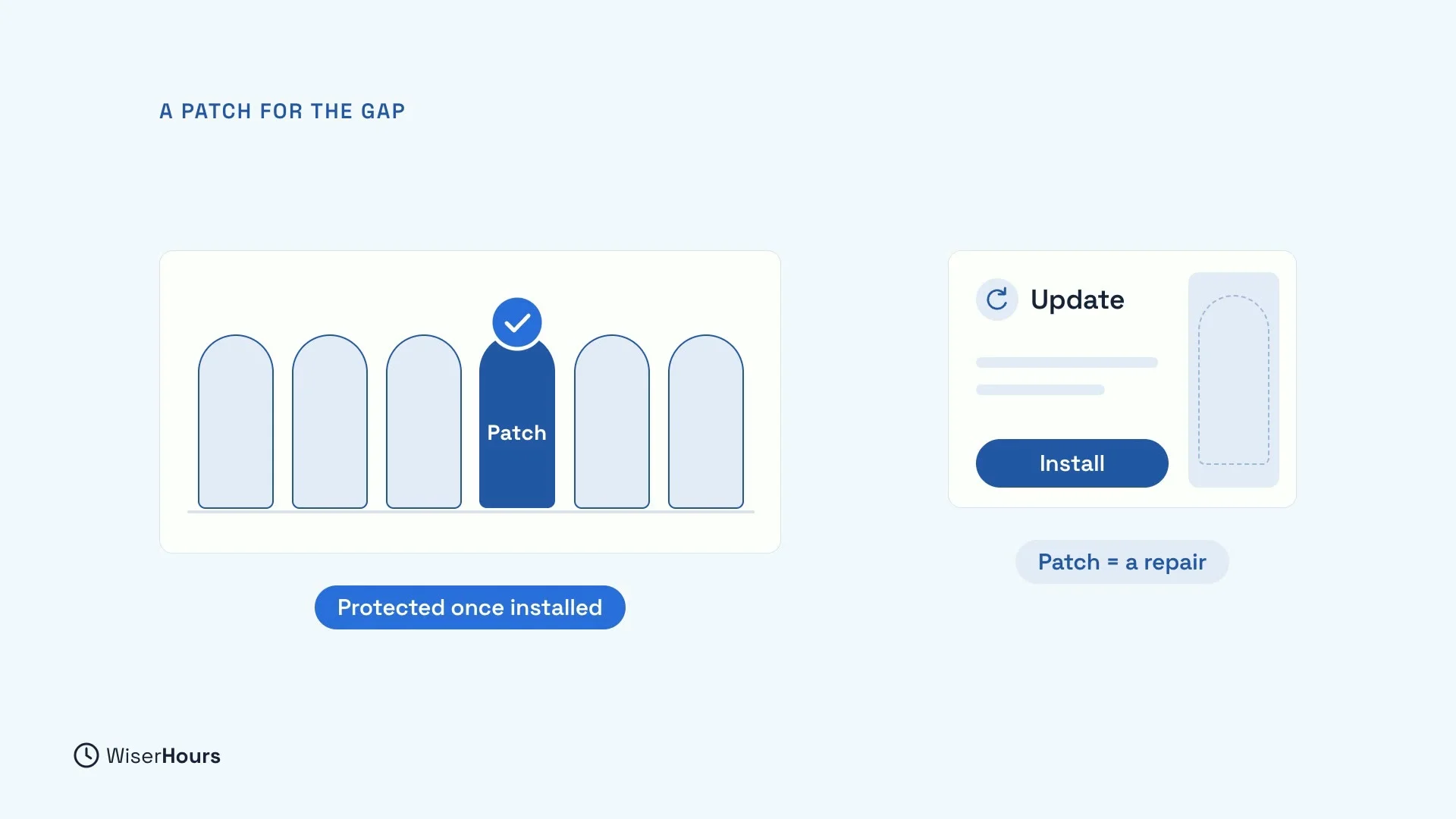
An update is a patch for a gap
A weak spot in your software is like a gap in a fence. An update often carries a patch, which is a repair for that gap. But a patch only protects you once it is installed. A phone that keeps postponing its updates keeps open a door its maker has already offered to close.
 (opens the full-size picture)
Turn on automatic updates
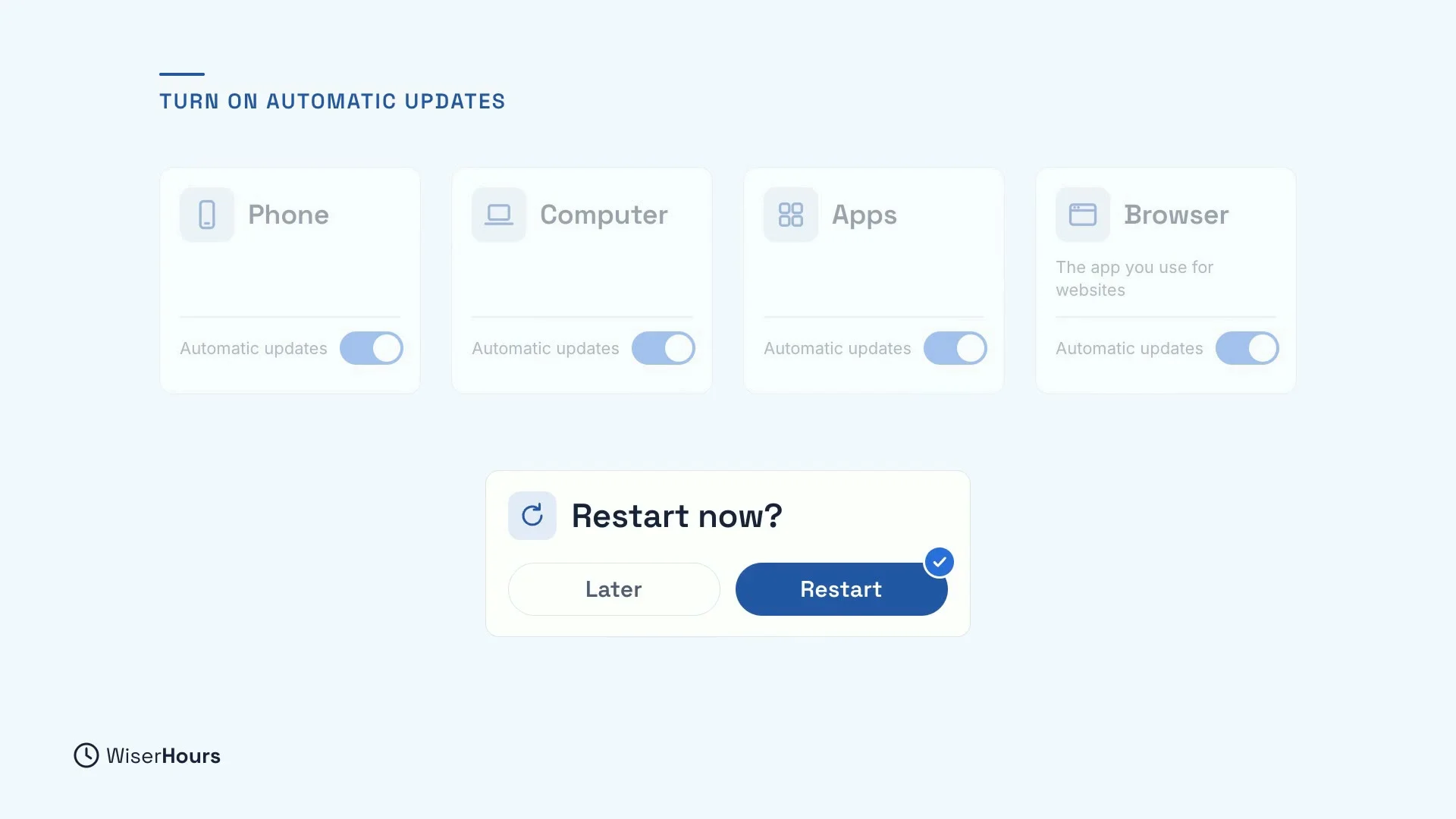
So turn on automatic updates on your phone, your computer, your apps and your browser, the app you use for websites. Then you don’t have to remember. And when your device asks to restart, say yes, rather than putting it off. The “Later” button is where this habit usually breaks.
 (opens the full-size picture)
Older devices stop getting fixes
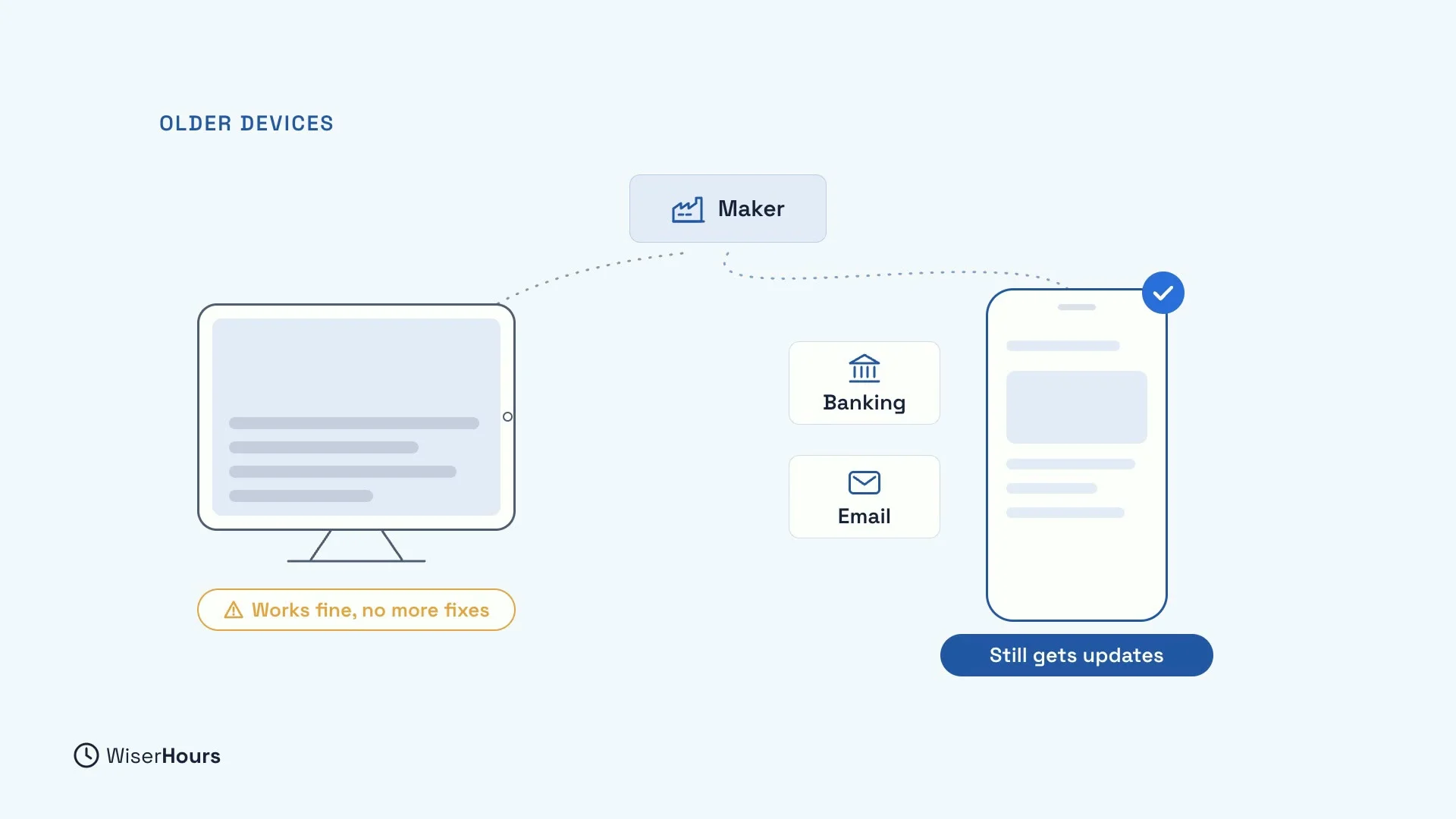
Makers eventually stop sending updates to older devices. An old tablet may still work perfectly while missing every fix, and a device that no longer gets security updates is less safe. Check once whether each of your devices still gets updates. If one doesn’t, consider moving your banking and email to a device that does.
 (opens the full-size picture)
The protection you already have
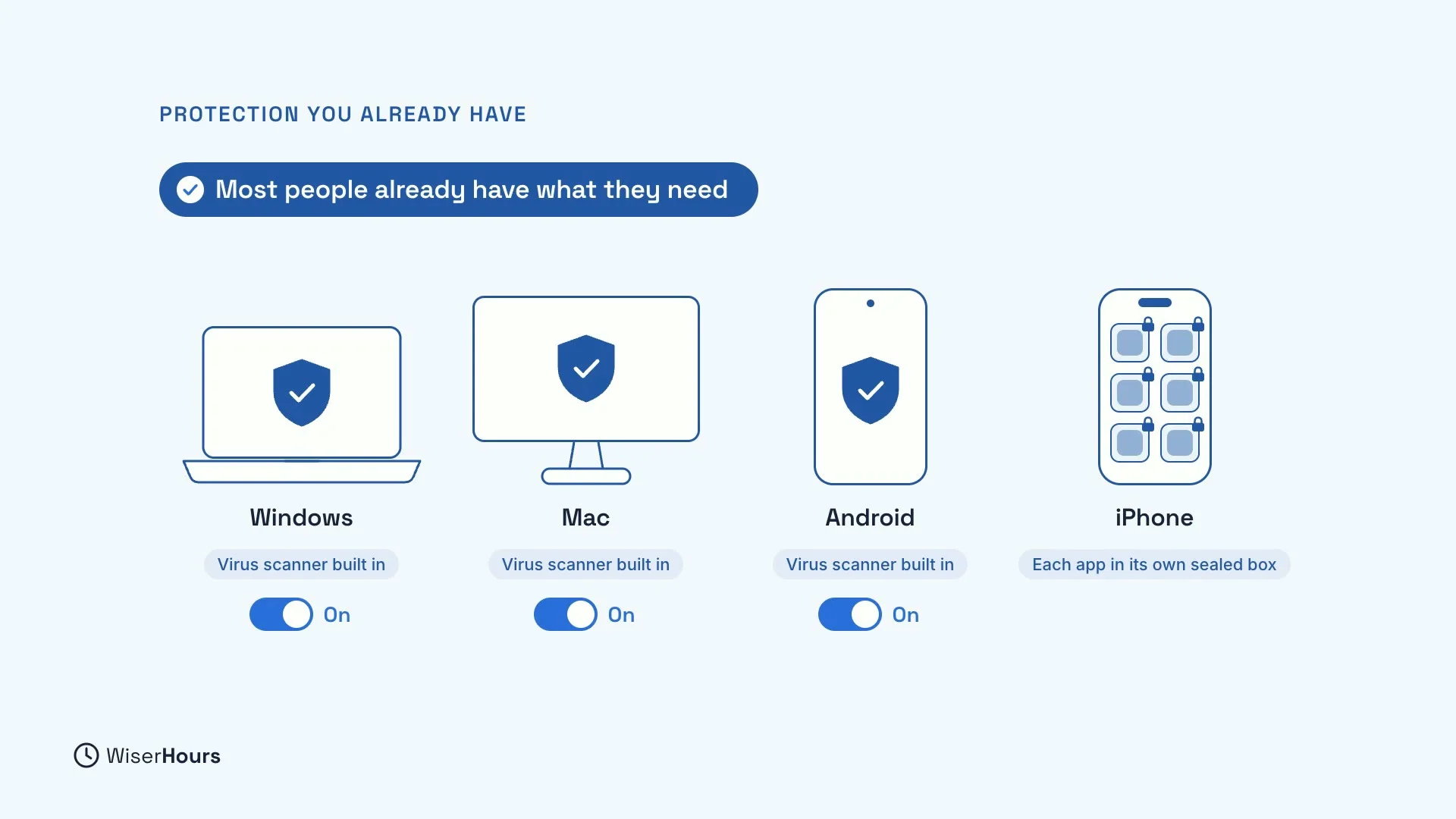
Most people already have the virus protection they need, built in. Windows, Mac and Android computers and phones include a virus scanner, so just check it is switched on. iPhones work differently: they keep each app in its own sealed box, so one app can’t reach into the others. A paid security suite is mostly about extras, so you rarely need it for better protection.
 (opens the full-size picture)
A fake virus warning
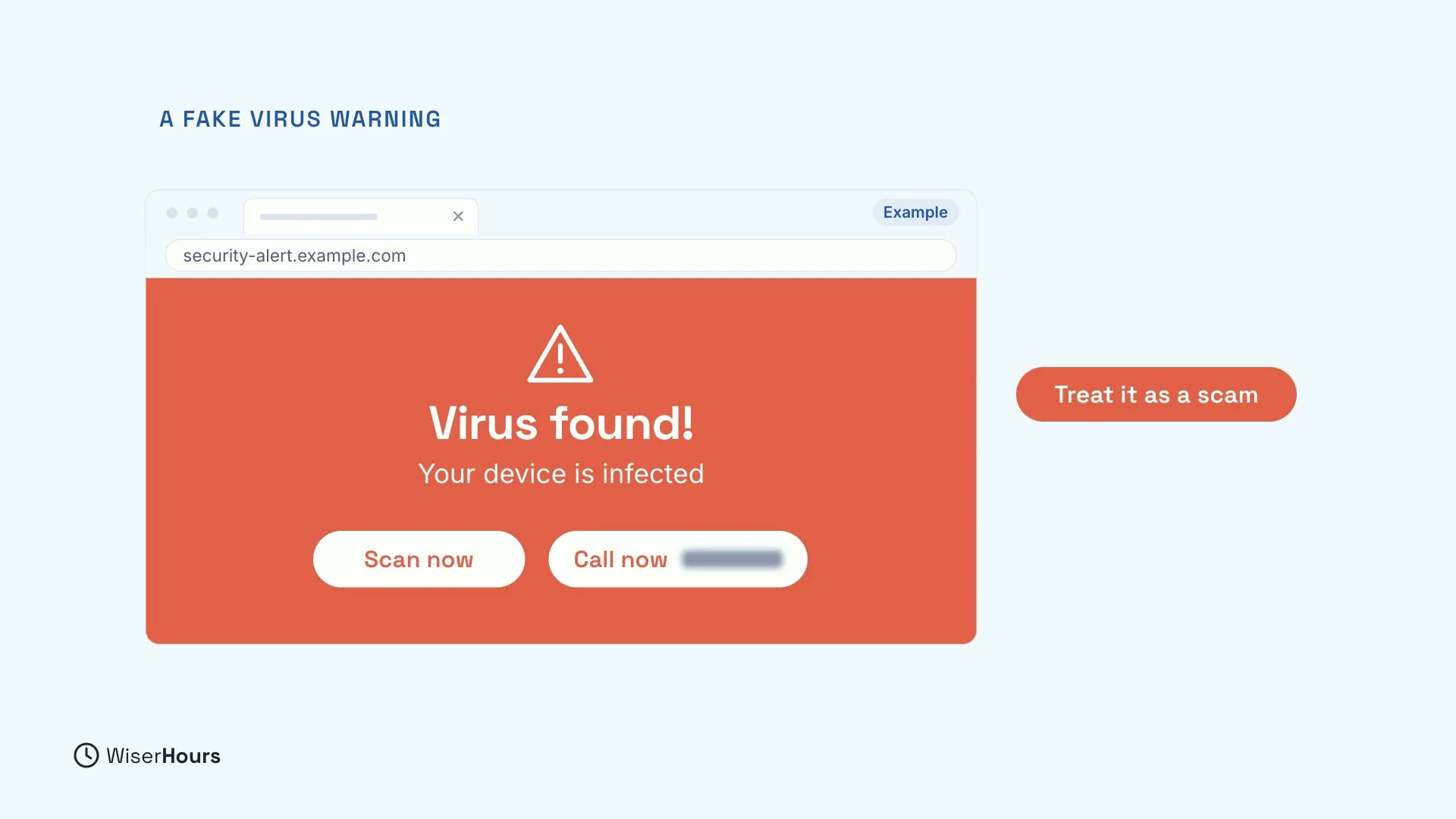
Sometimes a web page fills your screen and says your device is infected. It flashes a warning and urges you to scan now, or call a number, before you stop to think. This is often called scareware, and it is there to sell you something or to get you on the phone. Treat it as a scam.
 (opens the full-size picture)
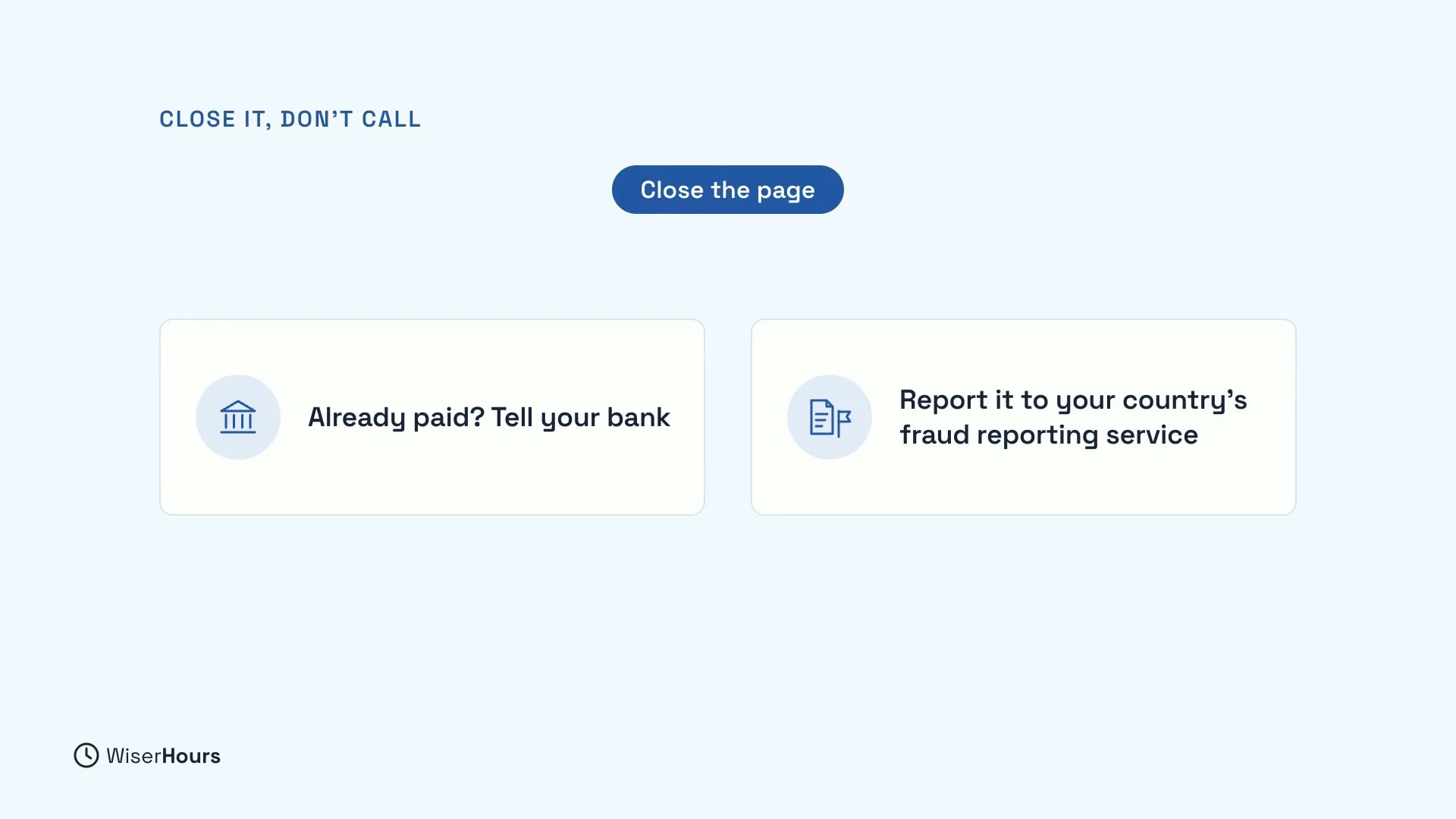
Don’t call the number, and don’t tap any of its buttons. Close the page, or the whole browser if the page won’t go away. If you want to be sure, open your device’s own security app from your menu and run a scan there. If you already paid, tell your bank and report it to your country’s fraud reporting service.
 (opens the full-size picture)
Where apps come from
Some harmful programs dress up as useful apps. Install apps only from your device’s official app store, or the maker’s own website. Be careful with download links in messages and ads: the top search result for a free tool, for example a free PDF editor, may be a paid ad for a lookalike site. Typing the maker’s web address yourself is safer.
 (opens the full-size picture)
Turn on phone finding
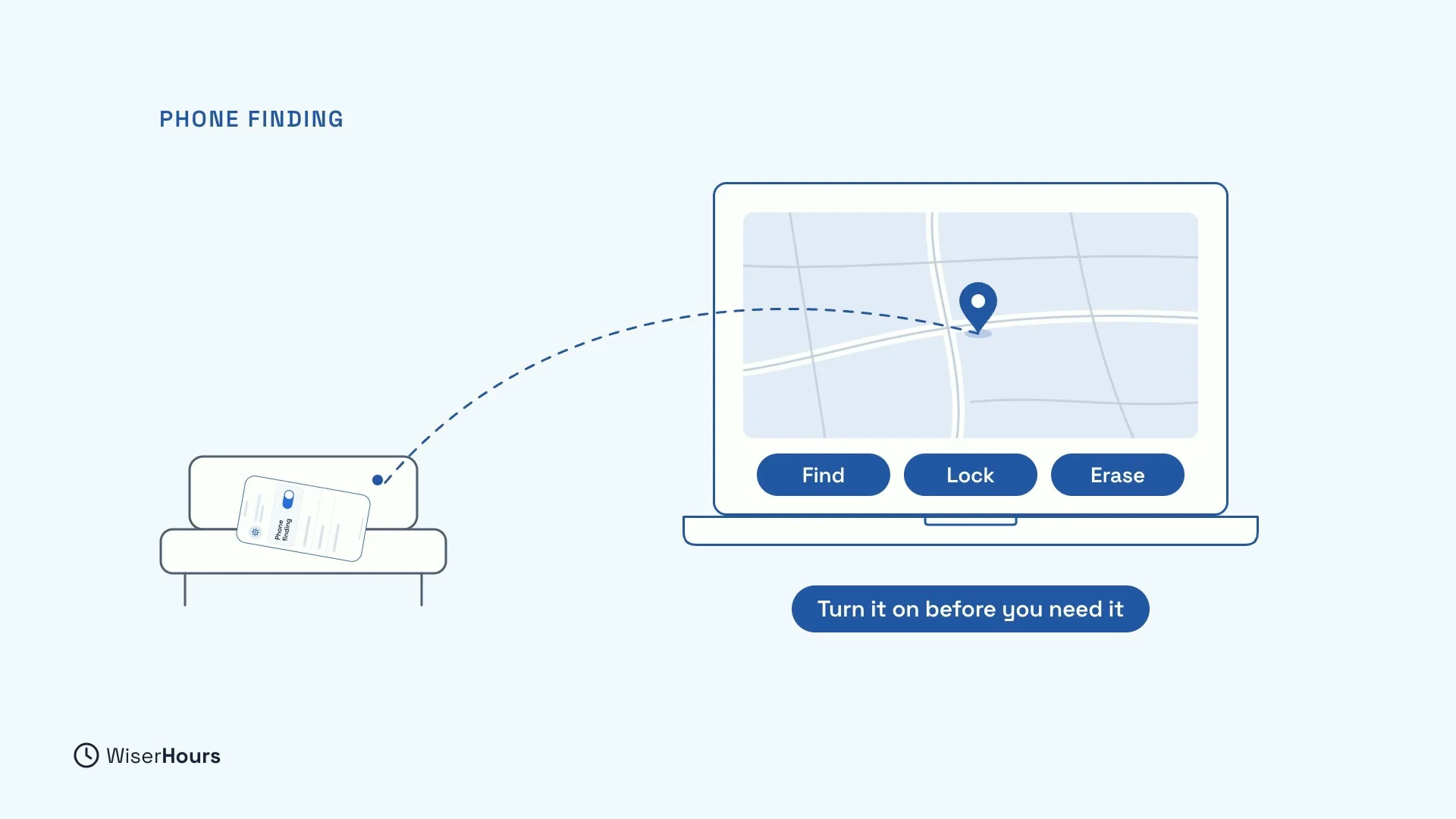
Last, turn on phone finding. It lets you find, lock or erase a lost phone from another device, such as a computer. But it has to be on before you need it: if it was off when the phone went missing, you may not be able to lock or erase it later.
 (opens the full-size picture)
YOUR TURN
Read more
- Digital Safety for Beginners: The Habits That Protect You Most: updates alongside the other everyday habits, including phone finding.
- Do You Still Need Antivirus Software?: what each device already has built in, how to check it is on, and how to handle a fake virus warning.
Read the full lesson script
In this lesson, you will close the third door attackers use, software that was never updated. It matters because many updates fix weak spots that criminals already know about.
A weak spot is like a gap in a fence. An update often carries a patch, a repair for that gap. But a patch only protects you once it is installed.
So turn on automatic updates on your phone, your computer, your apps, and your browser, the app you use for websites. And when your device asks to restart, say yes.
Makers eventually stop sending updates to older devices. An old tablet may still work perfectly while missing every fix. If yours gets no more updates, consider moving your banking and email to one that does.
Most people already have the virus protection they need, built in. Windows, Mac and Android include a virus scanner, so just check it is switched on. iPhones keep each app in its own sealed box instead.
Sometimes a web page fills your screen and says your device is infected. It urges you to scan now, or call a number. Treat it as a scam.
Don't call, and don't tap its buttons. Close the page, or the whole browser if it won't go away. If you already paid, tell your bank and your country's fraud reporting service.
Some harmful programs dress up as useful apps. Install apps only from your device's official app store, or the maker's own website. Be careful with download links in messages and ads.
Last, turn on phone finding. It lets you find, lock or erase a lost phone from another device. But it has to be on before you need it.
So, let updates install themselves, and treat any page that says your device is infected as a scam. Before the next lesson, check your phone and your computer, and make sure automatic updates are on. Next, you will make your Wi-Fi safer, at home and away.
MAKE IT A SMALL WIN
Finished this lesson?
Mark it complete to save your progress on this device.