Protect and recover · Lesson 9 of 11
Safer Wi-Fi: Secure Your Router and Know What a VPN Does
Change your router's two passwords, pick the right Wi-Fi security, keep the router updated, and learn what a VPN can and can't do away from home.
 Video coming soon
Your router is the box that connects every device in your home to the internet. Yet it may be the one computer in the house that nobody ever updates. In this lesson you give it a short checkup, and you learn what a VPN can and can’t do for you when you use Wi-Fi away from home.
Your router has two passwords
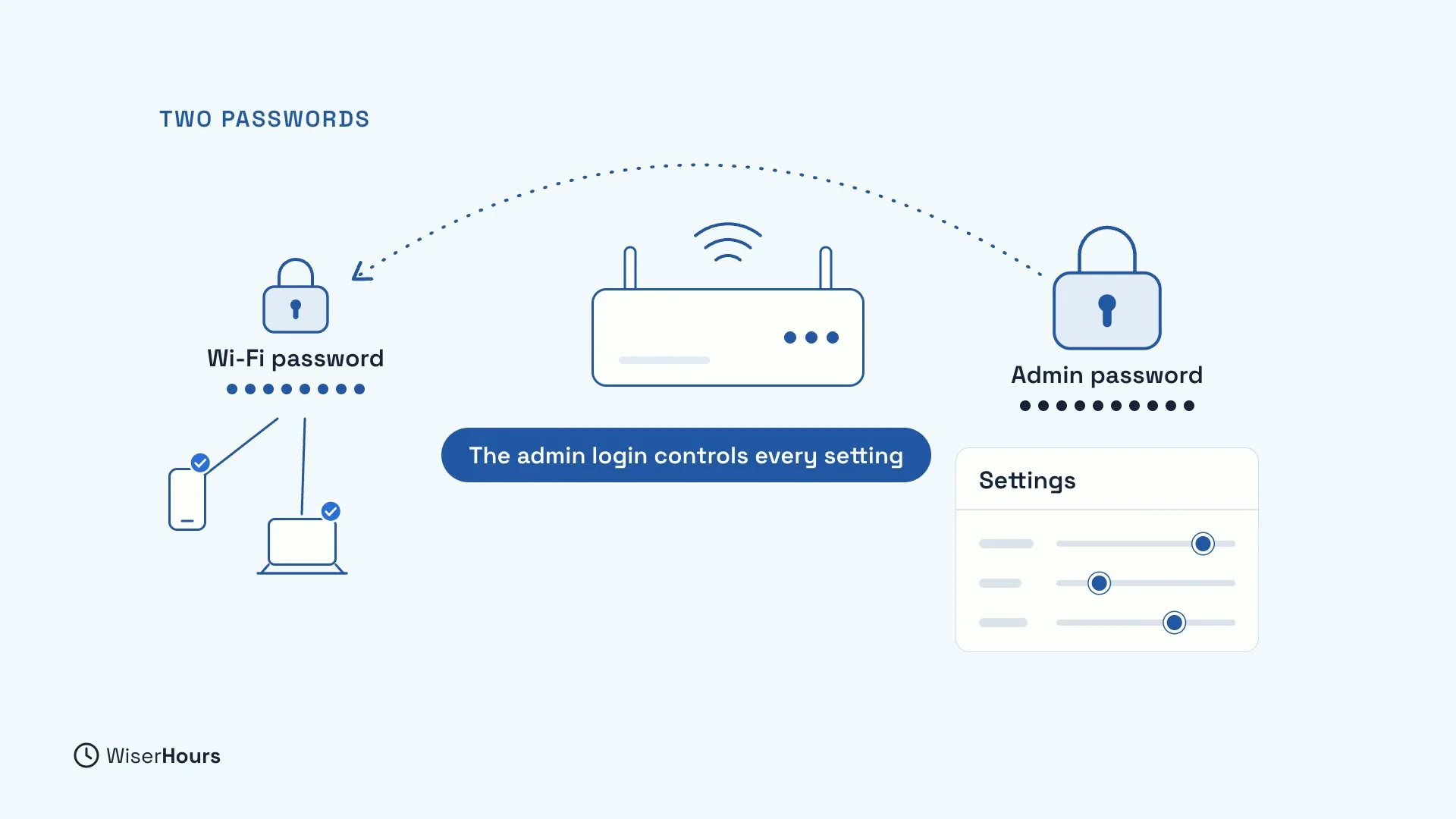
Most people know the Wi-Fi password: it lets your phone, laptop and other devices join your network. But your router has a second one, the admin password, which opens the router’s settings page. That is the one that matters most. Whoever has it can change everything else, even the Wi-Fi password, and undo your other precautions.
 (opens the full-size picture)
Change both from the factory passwords
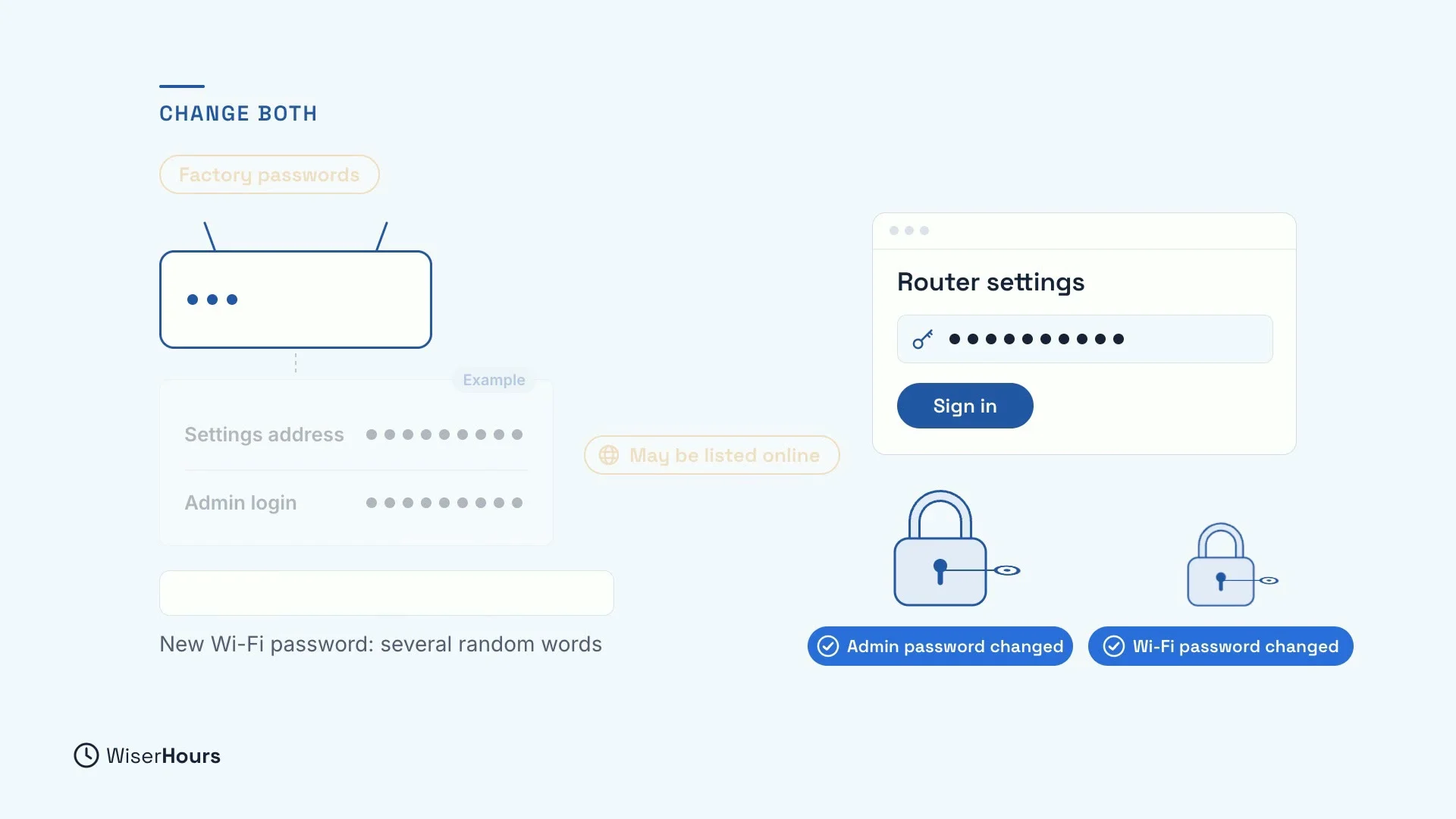
Both passwords start as factory passwords. The admin login is usually printed on a sticker on the router, where anyone who has stood in your hallway can read it, and default logins may also be listed online. So sign in to the settings page with the details on the sticker, and change both passwords. Make the new Wi-Fi password long, like several random words.
 (opens the full-size picture)
Store the new passwords
Save both new passwords in your password manager, so you never need the sticker again. A manager can also make up a long Wi-Fi password for you.
Choose newer Wi-Fi security
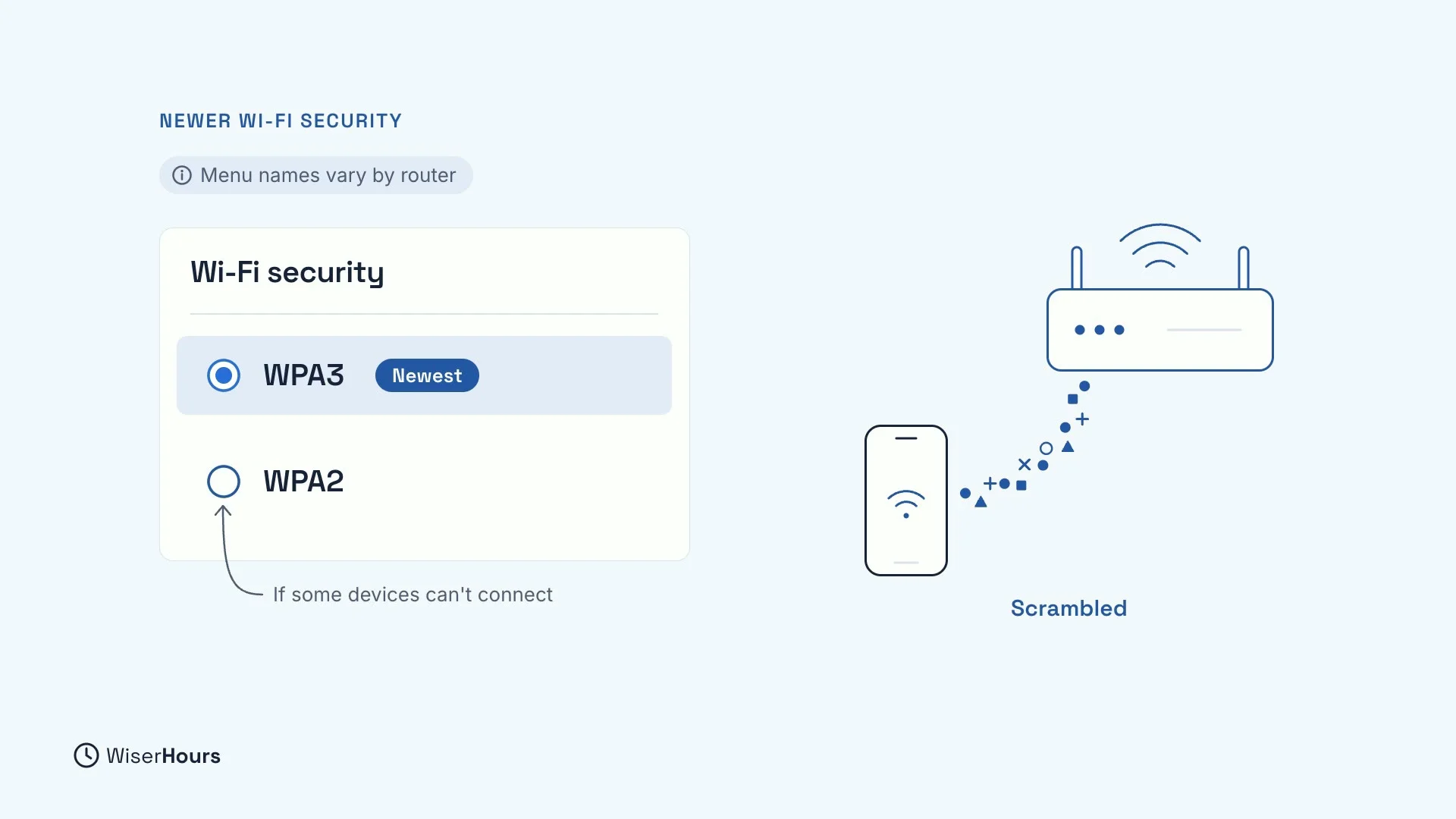
Menus differ by router, so you may need to look around a little, but look for the Wi-Fi security setting. It decides how the signal between your devices and the router is scrambled, so neighbors can’t read it. Choose the newest option, WPA3. If some of your devices can’t connect after the change, choose WPA2 instead.
 (opens the full-size picture)
Switch off extras you don’t use
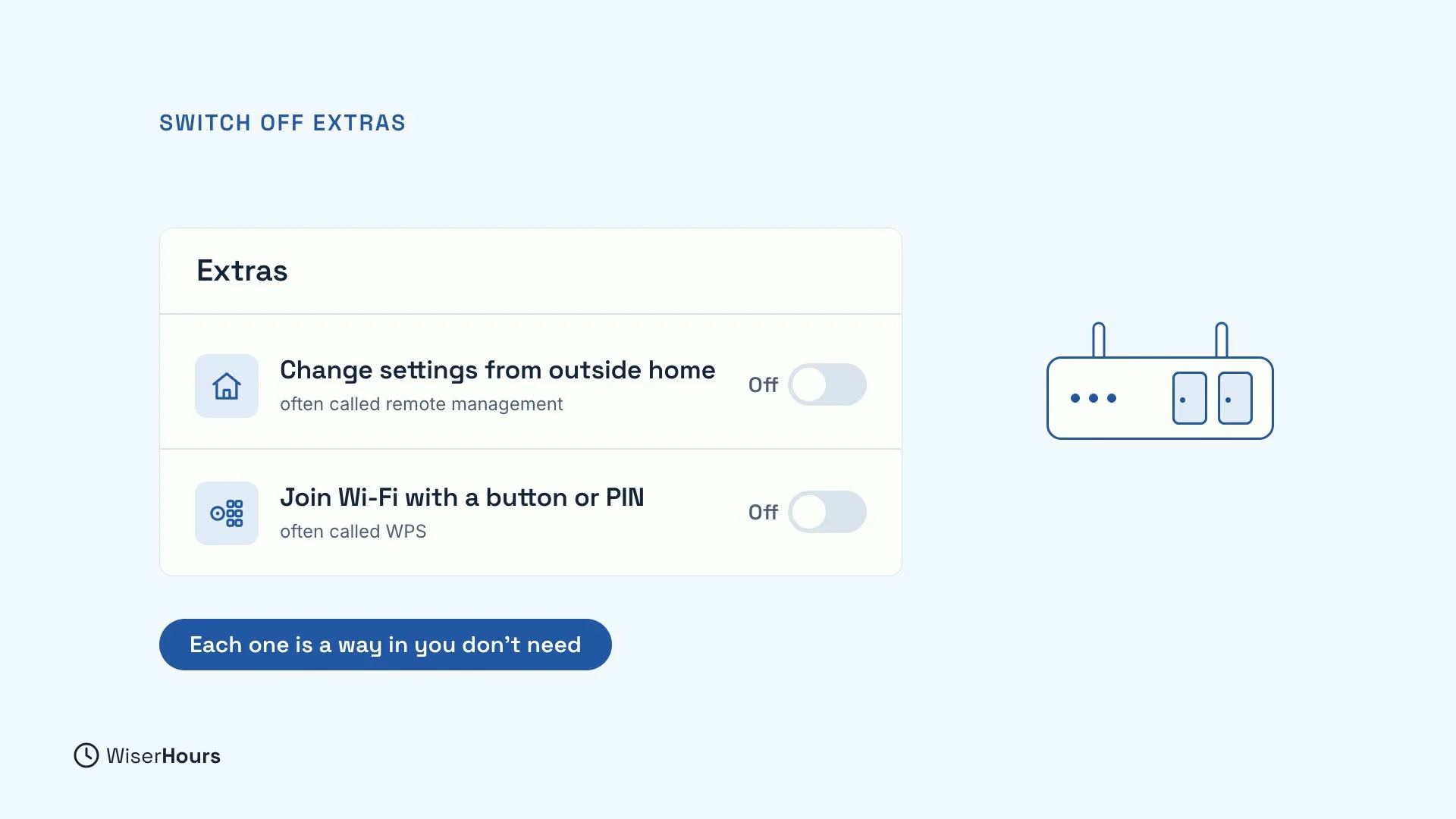
Routers come with extras that make them easier to use, and easier to break into. Switch off the ones you don’t use, like changing settings from outside your home (often called remote management), or joining the Wi-Fi with a button or a PIN (often called WPS). Each one is a way in you don’t need, and you can still join with the password.
 (opens the full-size picture)
Update the router, or replace it
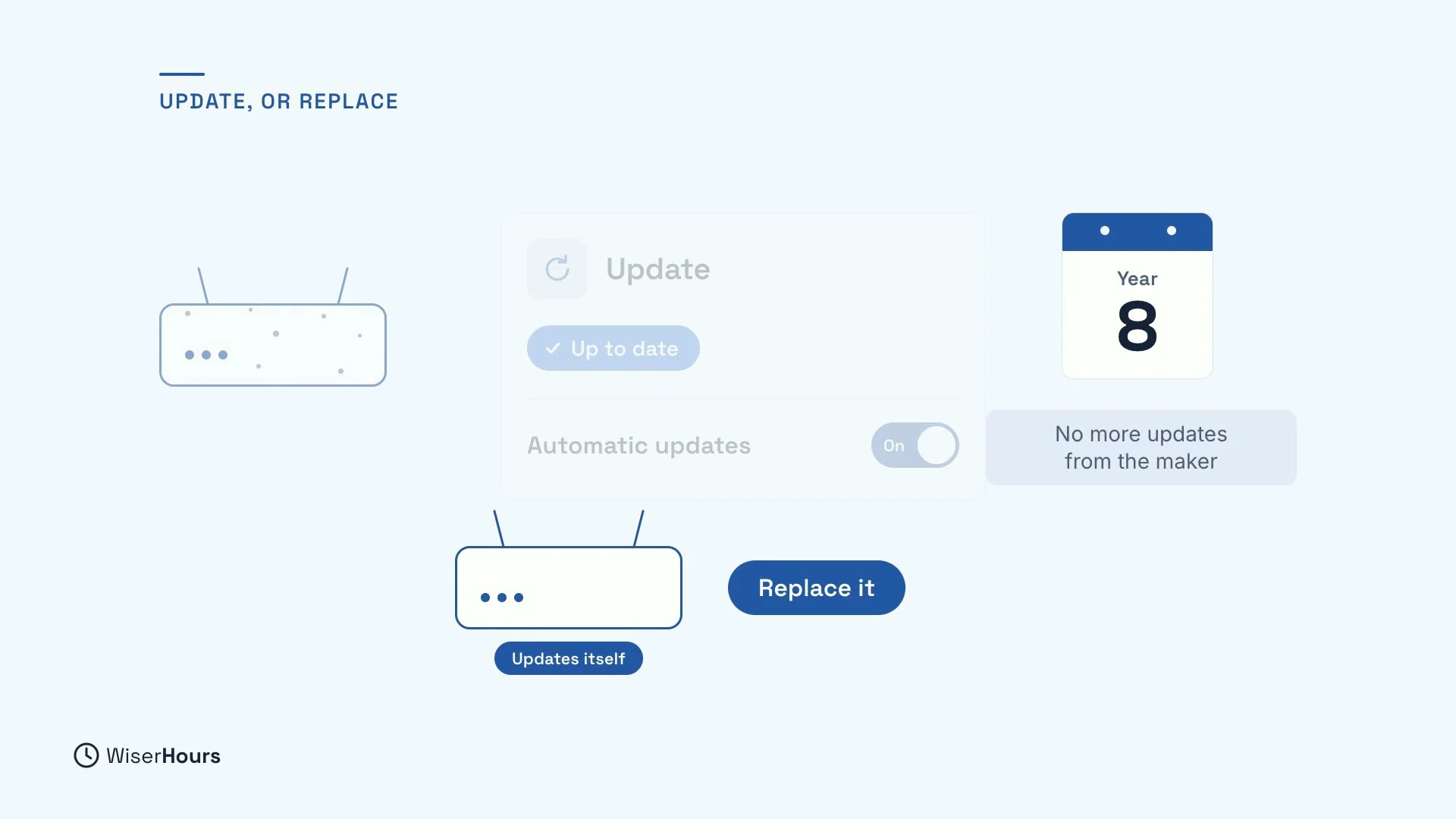
Your router’s own software needs updates too, to fix weak spots, just like your phone. Look for an update or firmware page in the settings, install the latest version, and turn on automatic updates if your router offers them. Makers only support a router for a limited time. When the maker stops sending updates, replace the router, and choose one that updates itself.
 (opens the full-size picture)
Away from home: what a VPN does
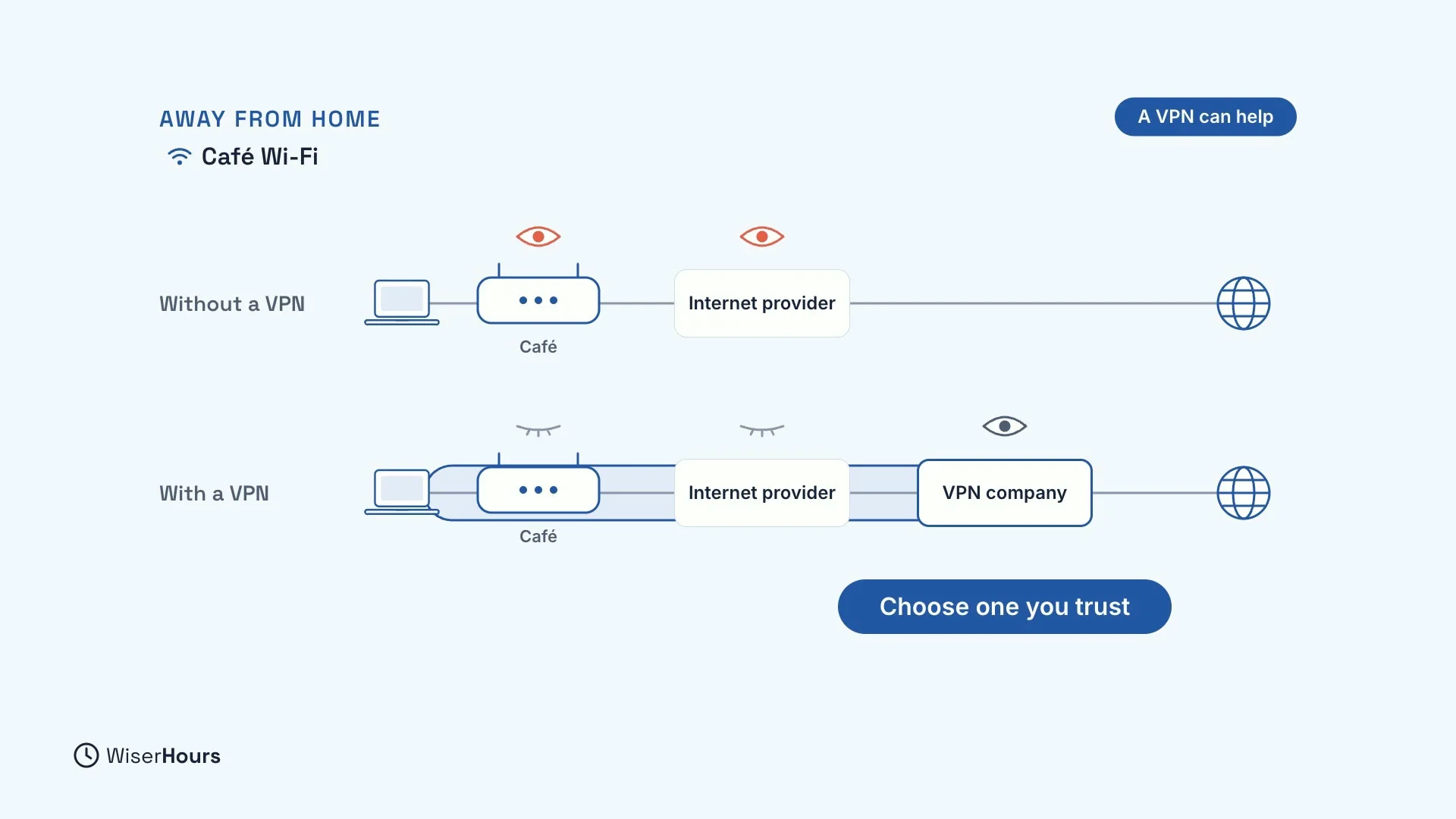
On café or hotel Wi-Fi, a VPN can help. VPN stands for virtual private network. It sends your browsing through a scrambled tunnel to the VPN company’s server, so the café and the internet provider can’t see into it. But the traffic has to come out somewhere: the VPN company now sees what the café no longer can. So choose one you trust.
 (opens the full-size picture)
What a VPN can’t do
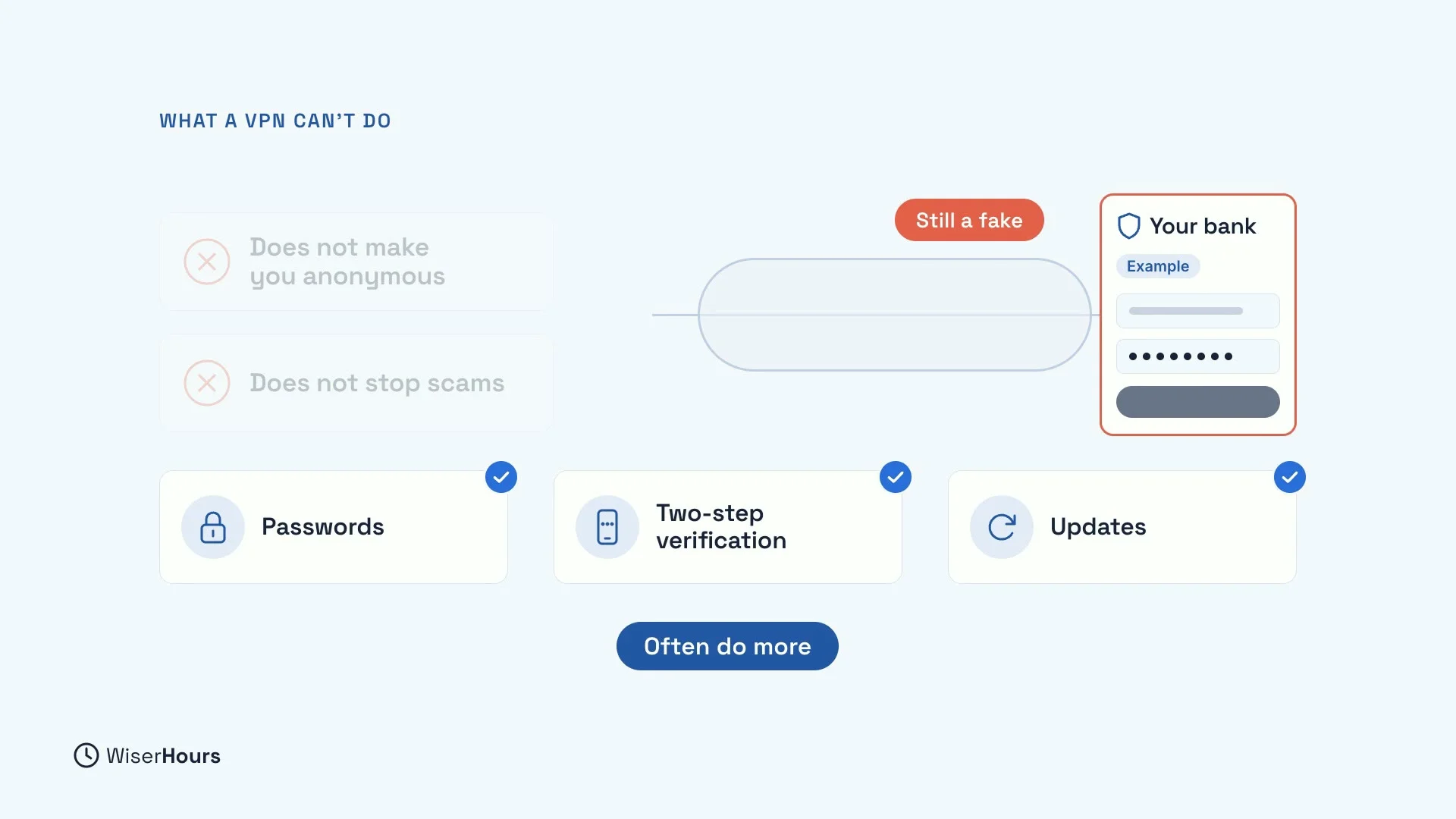
A VPN does not make you anonymous, and it does not stop scams. A fake bank page works just as well through the tunnel, and a harmful download installs itself either way. The habits from earlier in this course, your passwords, two-step verification and updates, often do more for your safety than a VPN.
 (opens the full-size picture)
YOUR TURN
Read more
- How to Secure Your Home Wi-Fi Router: the full router checkup in seven steps, including what to ask if your router came from your internet provider.
- Do You Need a VPN? When It Helps and When It Doesn’t: when a VPN is worth switching on, and how to choose a provider you can trust.
Read the full lesson script
In this lesson, you will make your Wi-Fi safer, at home and away. Your router connects every device in your home to the internet, yet it may be the one computer nobody updates.
Your router has two passwords. The Wi-Fi password lets your devices connect. The admin password opens the router's settings. Whoever has it can change everything else, even the Wi-Fi password.
Both start as factory passwords. The admin login is usually printed on a sticker on the router, and may be listed online. So sign in with it, and change both. Make the Wi-Fi password long, like several random words.
Menus differ by router, but look for the Wi-Fi security setting, which scrambles your signal. Choose the newest, WPA3. If some devices can't connect, choose WPA2.
Switch off extras you don't use, like changing settings from outside your home, or joining the Wi-Fi with a button or a PIN. Each one is a way in you don't need.
Your router's own software needs updates too, to fix weak spots. Install the latest, and turn on automatic updates if you can. When the maker stops sending updates, replace the router.
On café or hotel Wi-Fi, a VPN can help. It sends your browsing through a scrambled tunnel that the café and the internet provider can't see into. But the VPN company sees it instead, so choose one you trust.
A VPN does not make you anonymous, and it does not stop scams. A fake bank page works just as well through the tunnel. Your passwords, two-step verification and updates often do more.
So, change both router passwords, and keep your router updated. Away from home, a VPN can help, but it won't stop scams. Before the next lesson, find the sticker on your router, and check whether its admin password was ever changed. Next, you will back up what you can't replace.
MAKE IT A SMALL WIN
Finished this lesson?
Mark it complete to save your progress on this device.