Protect and recover · Lesson 10 of 11
Back Up Your Phone and Computer With the 3-2-1 Rule
Learn why sync is not a backup, keep three copies of what you can't replace with the 3-2-1 rule, and test that your backup really works.
 Video coming soon
Phones and computers can break, get lost or be stolen without warning, and your photos and papers can go with them. In this lesson you keep what you can’t replace in more than one place, using tools your devices already have. The best time to make your copies is now, while everything still works.
Sync is not a backup
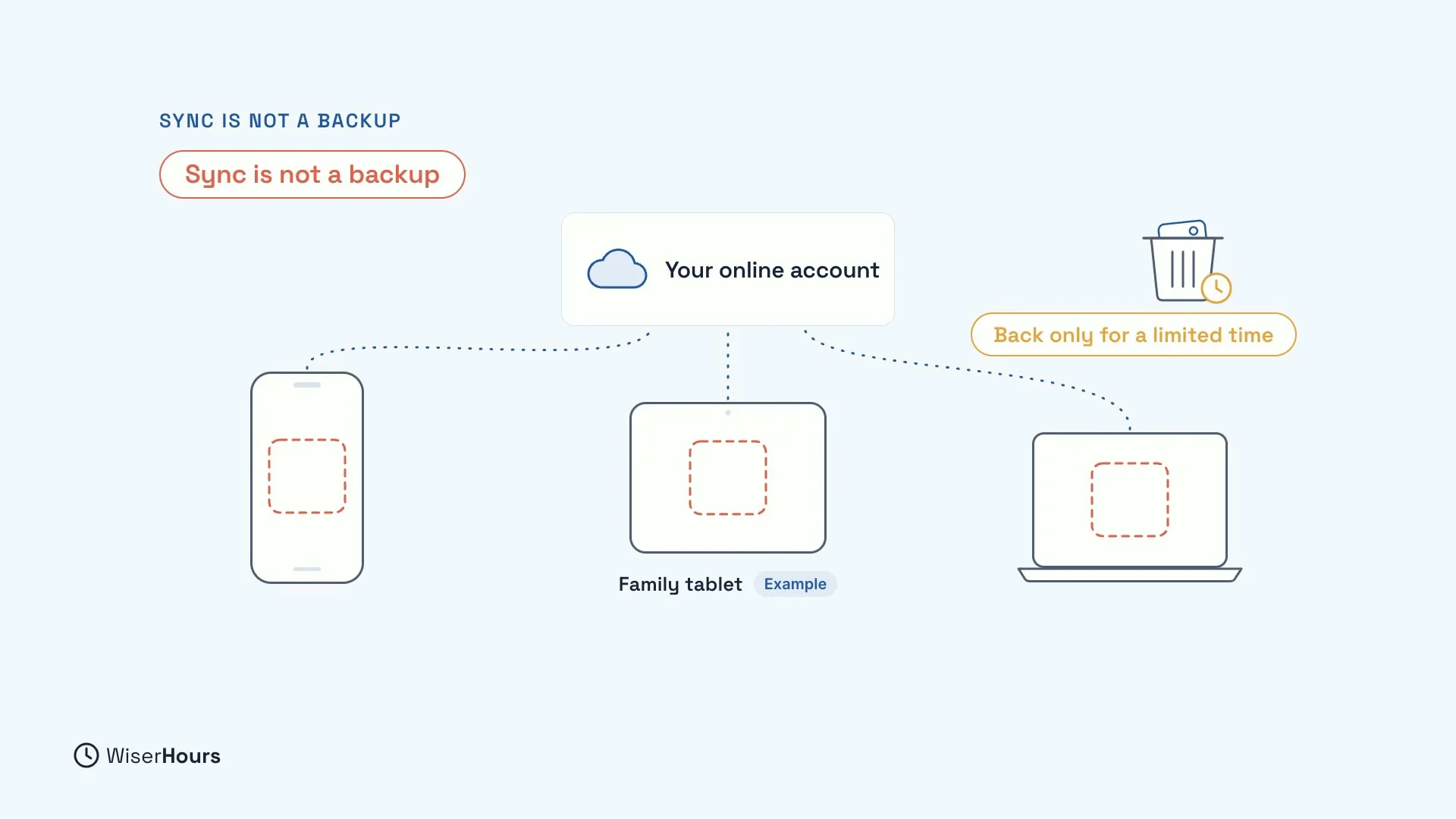
Many phones and computers sync: they keep the same files on all your devices through your online account. That is handy, but it is not a backup. Because sync keeps every device the same, a deletion spreads too. For example, if a child clears space on the family tablet by deleting an album of holiday photos, the album disappears from your phone and laptop as well. You can usually get deleted files back, but only for a limited time, and only if someone notices.
 (opens the full-size picture)
The 3-2-1 rule
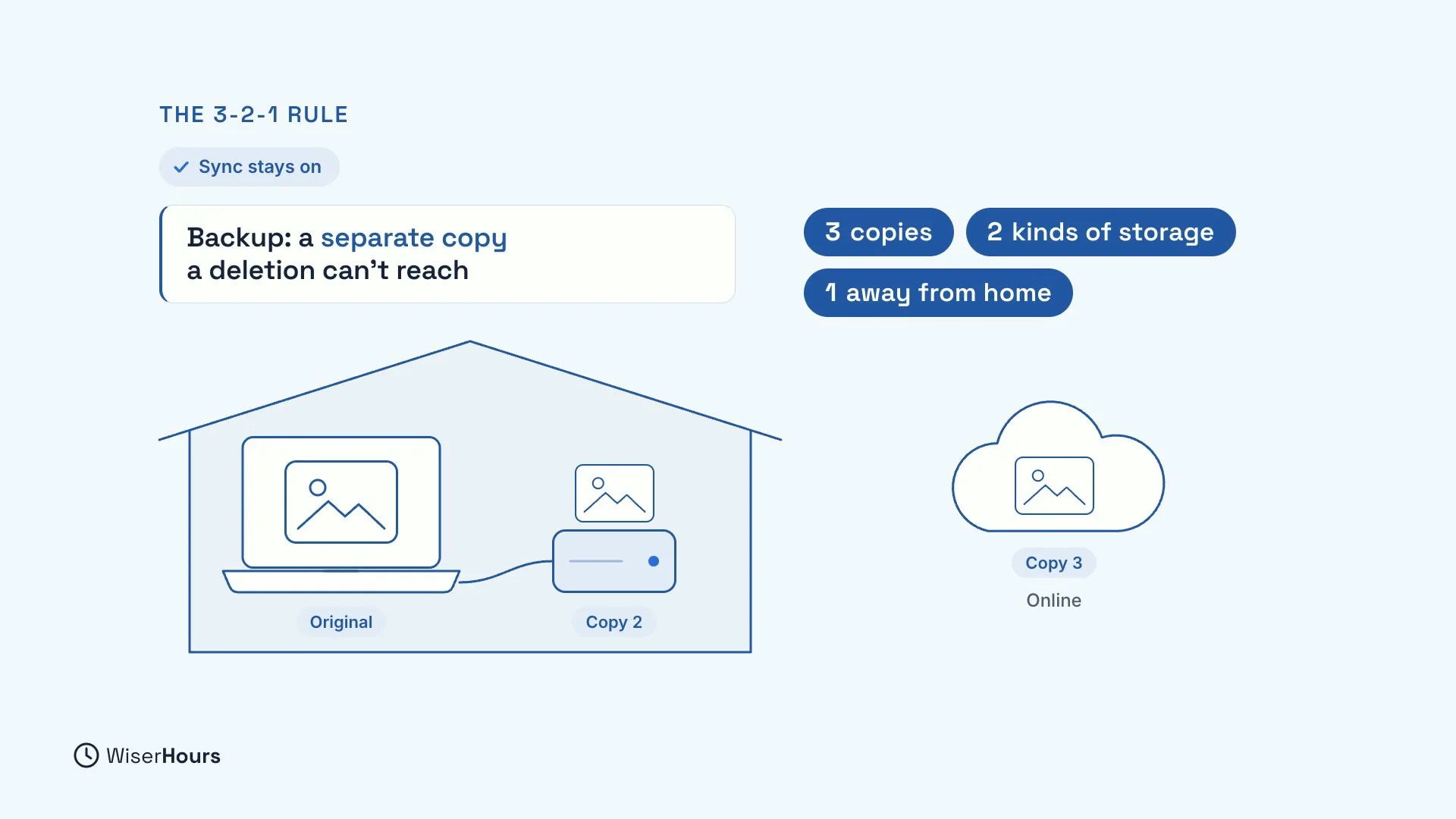
So keep sync on, but add a backup: a separate copy that a deletion can’t reach. A simple way to plan it is the 3-2-1 rule:
- 3 copies of anything important, counting the original.
- 2 kinds of storage, like your computer and a small drive you plug in.
- 1 copy away from home, for example online, in case of a fire or a burglary.
Each number guards against a different accident, so if one copy fails, you still have another.
 (opens the full-size picture)
Turn on your phone’s backup
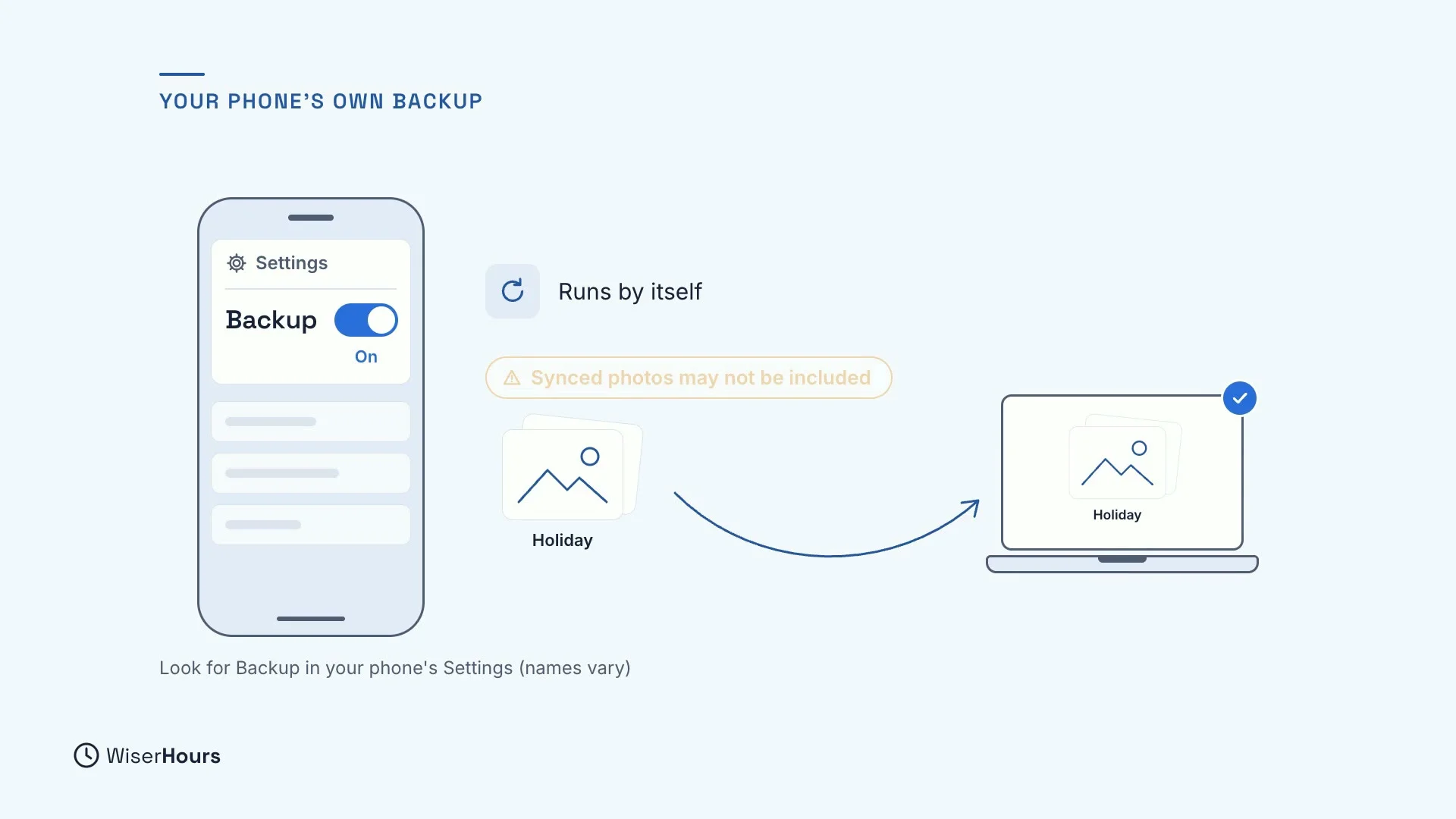
Start with your phone. Turn on its own backup, in its settings (look for Backup; the names vary by phone). It usually runs by itself, for example while the phone is charging. But photos that sync may not be included in that backup, so copy them to your computer too. Then they ride along in your computer’s backup.
 (opens the full-size picture)
Back up your computer
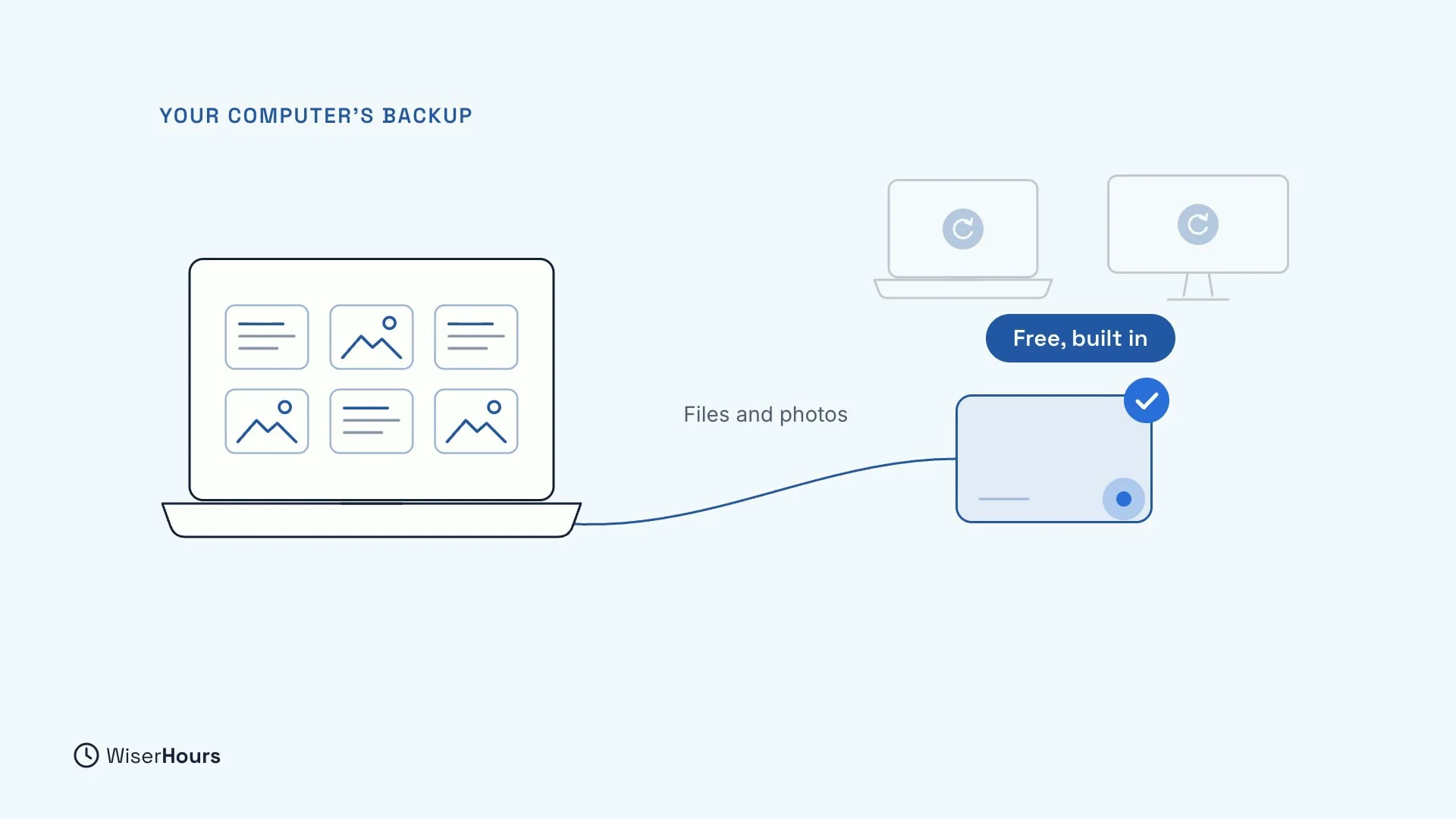
Then back up your computer. Mac and Windows computers both have a free tool built in. It copies your files, photos included, onto a small drive you plug in. These tools also keep older versions of your files, so a document you changed by mistake can still come back. Unplug the drive when the backup is done, so a problem on the computer can’t reach it.
 (opens the full-size picture)
Chats and sign-in codes
Some apps keep their data outside your phone’s backup. Chat apps can, and so can authenticator apps, which give you codes for signing in. If you lose your phone, those chats and codes could be gone with it. So open each one, find its own backup setting, and check that it is on.
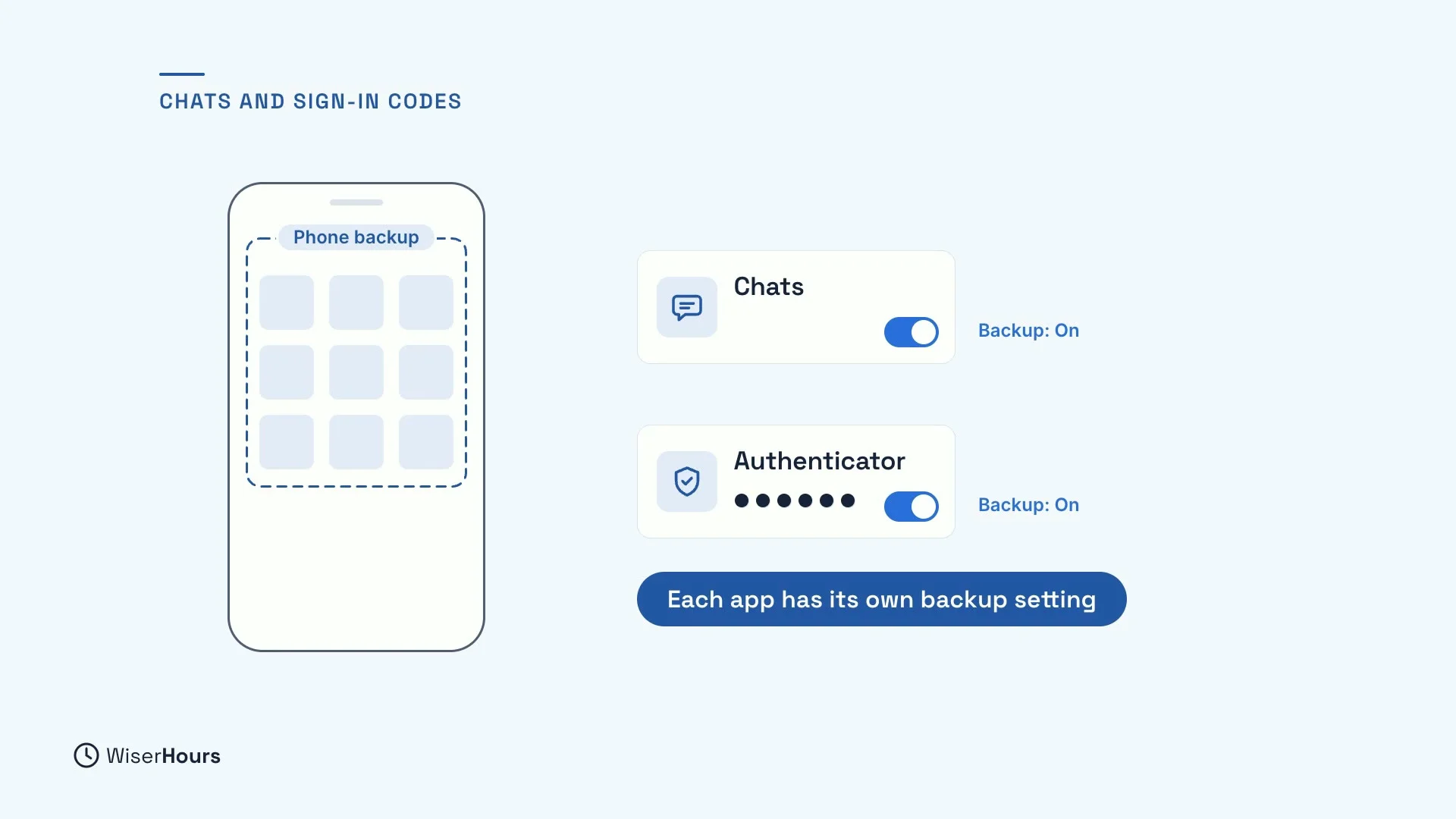 (opens the full-size picture)
Backup codes on paper
Some accounts also give you backup codes: spare codes for signing in if your phone is lost. Print them, and keep them with your important papers, like your passport. Paper can’t be deleted by accident.
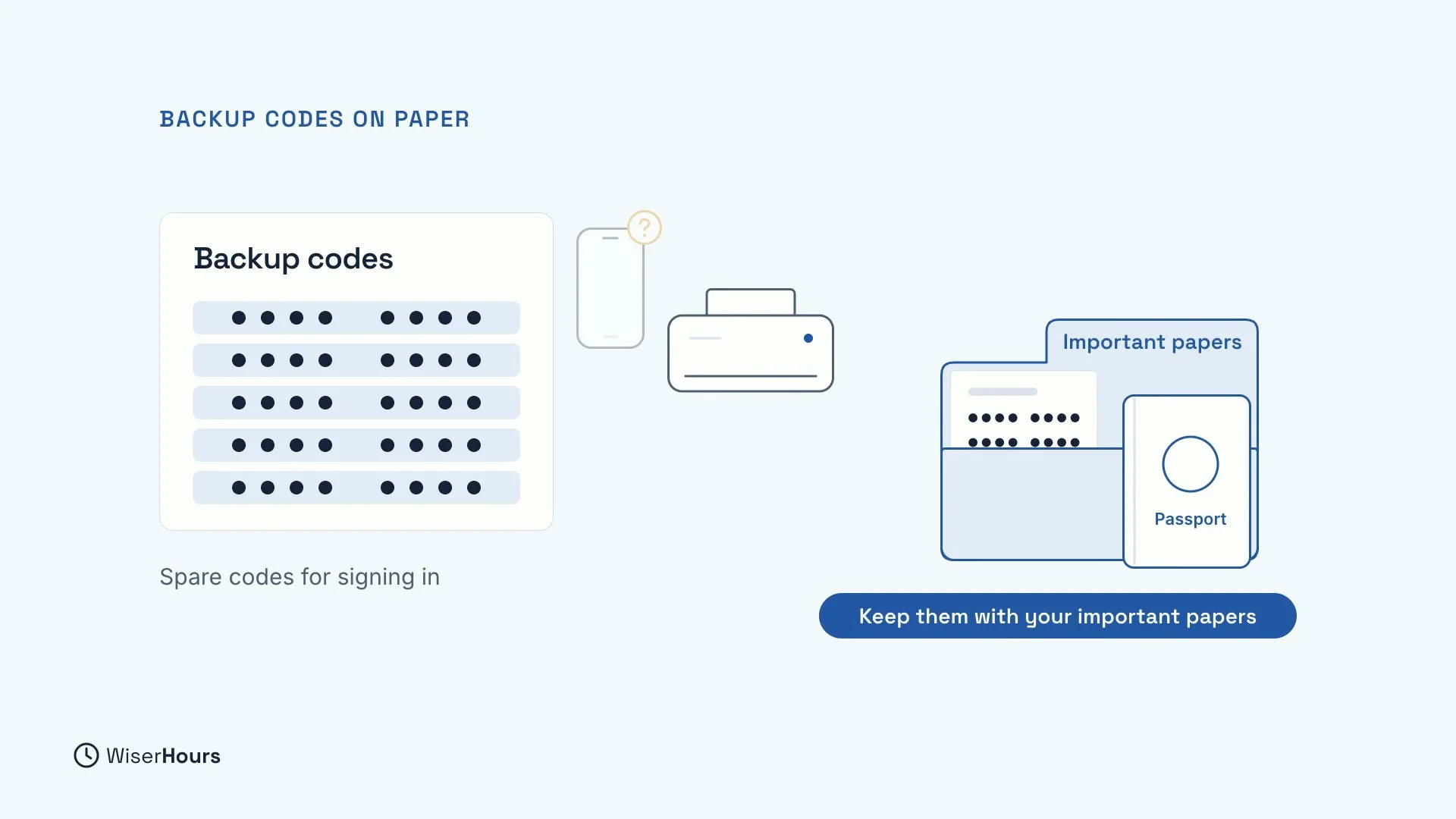 (opens the full-size picture)
The restore test
Last, a backup only counts once you have restored a file from it. Restoring means getting a file back. Try it with one file: restore it to a new folder, so nothing gets replaced, and open it. If it opens, your backup works. On your phone, check that the date of the last backup is recent.
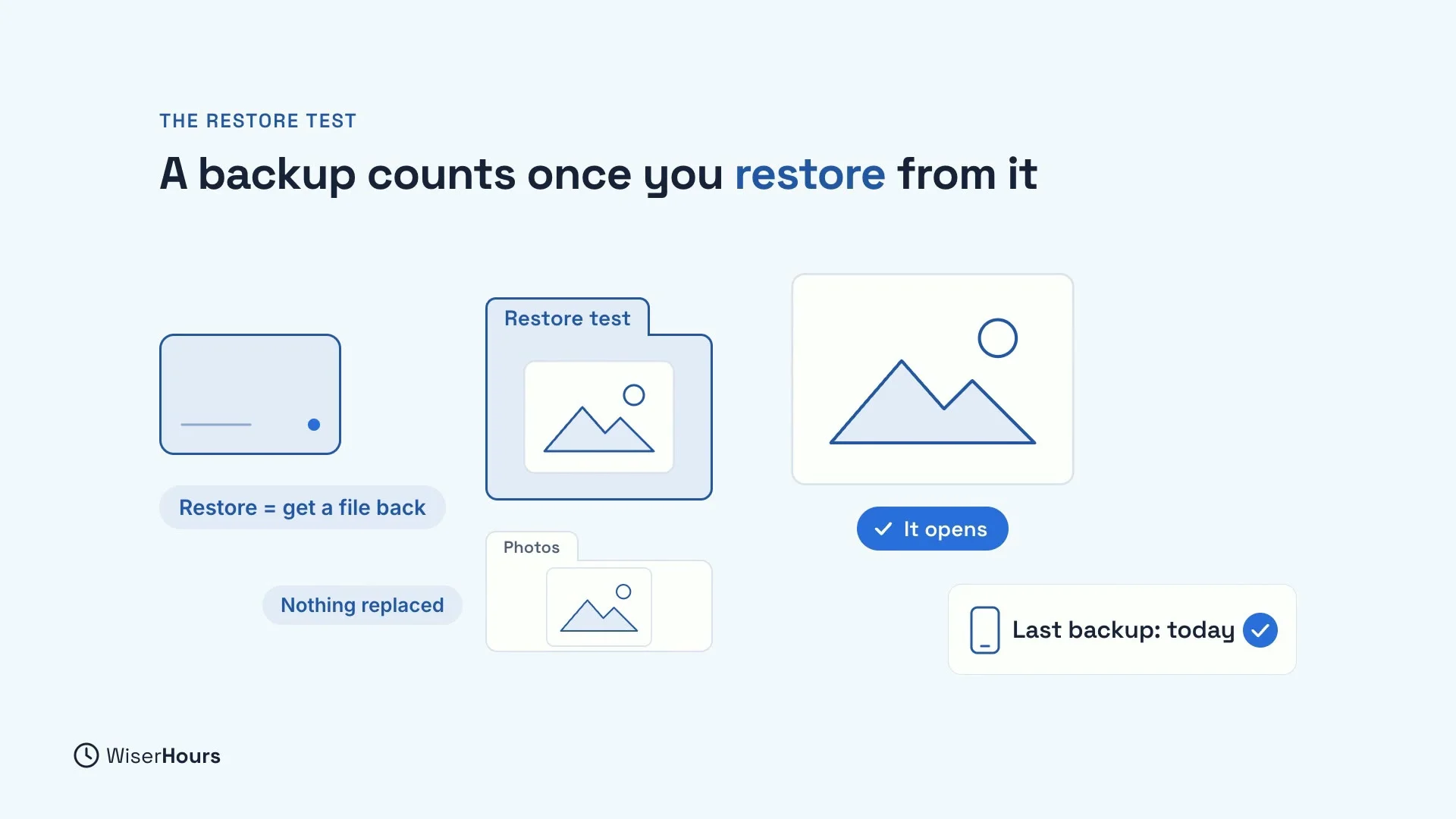 (opens the full-size picture)
YOUR TURN
Read more
- How to Back Up Your Phone and Computer So Nothing Is Lost: the step-by-step settings for phones and computers, chat and code backups, and how to test a restore.
Read the full lesson script
In this lesson, you will keep what you can't replace in more than one place. Phones and computers can fail or get lost without warning. So make your copies while everything still works.
First, sync is not a backup. Sync keeps the same files on all your devices. So if a child deletes photos on the family tablet, the photos disappear from your phone too. You can get them back, but only for a limited time.
Keep sync on, but add a backup, a separate copy that a deletion can't reach. Use the three two one rule. Three copies, counting the original. On two kinds of storage, like your computer and a small drive you plug in. And one away from home, for example online.
Now, turn on your phone's own backup, in its settings. It usually runs by itself. But photos that sync may not be included, so copy them to your computer too.
Then back up your computer. Mac and Windows computers both have a free tool built in. It copies your files, photos included, onto that small drive.
Chat apps can keep their data outside your phone's backup. So can authenticator apps, which give you codes for signing in. Open each one, and find its own backup setting.
Some accounts also give you backup codes, spare codes for signing in if your phone is lost. Print them, and keep them with your important papers, like your passport.
Last, a backup only counts once you have restored a file from it. Restoring means getting a file back. Restore one file to a new folder, so nothing gets replaced, and open it. On your phone, check that the last backup is recent.
So, sync is not a backup. Keep three copies, on two kinds of storage, with one away from home. Today, restore one file from your backup. Next, in the final lesson, you will learn what to do if something goes wrong.
MAKE IT A SMALL WIN
Finished this lesson?
Mark it complete to save your progress on this device.