Add a second lock · Lesson 4 of 11
Two-Step Verification: Add a Second Lock to Your Accounts
Turn on two-step verification, starting with your email, pick the strongest kind on offer, and know what to do with a prompt you did not start.
 Video coming soon
In this lesson, you will add a second lock to your accounts, called two-step verification. With it, a stolen password alone is no longer enough to get in. It takes a few minutes per account, and it is one of the most useful things you can do to protect yourself online.
A second proof after your password
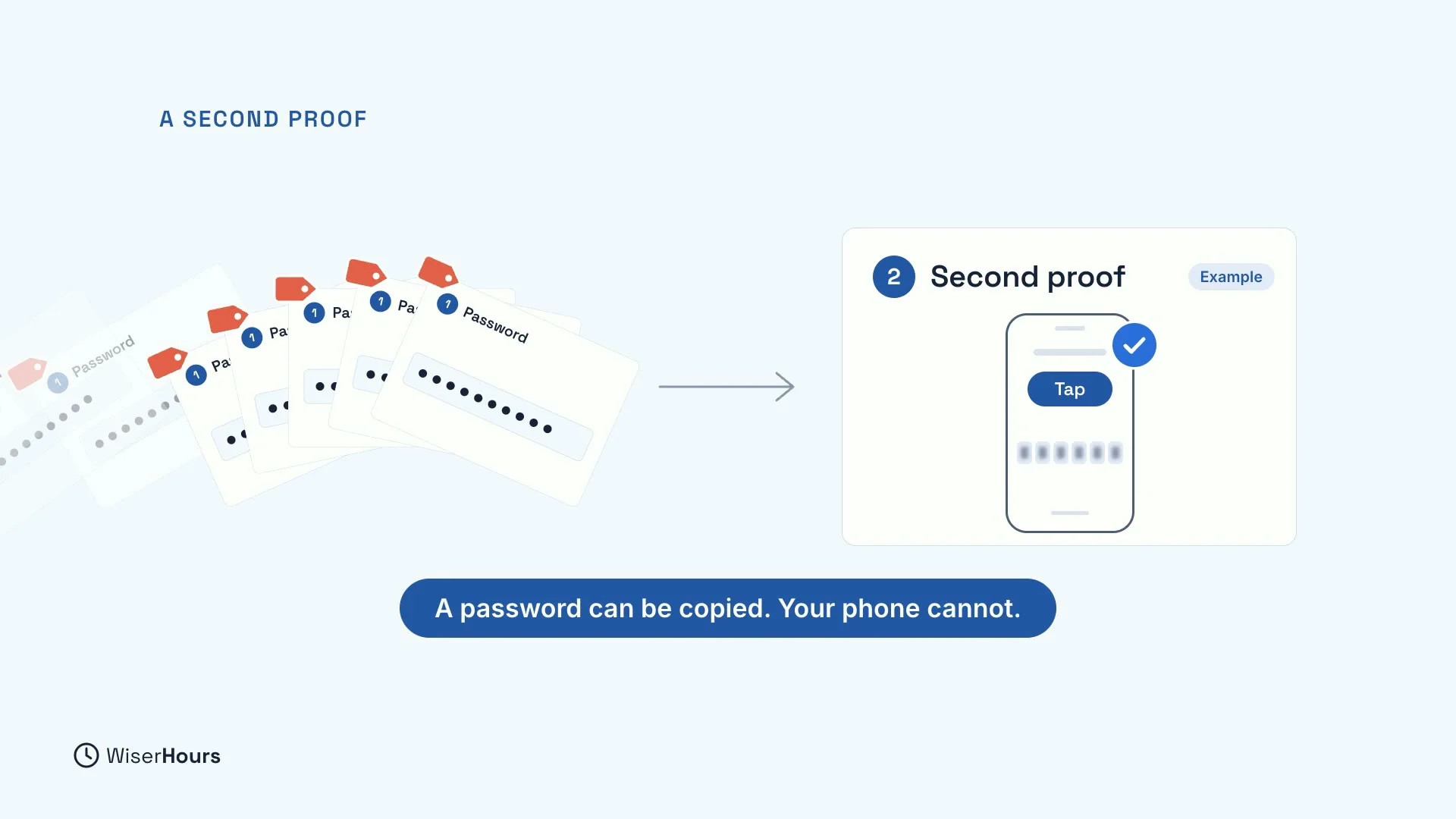
Two-step verification asks for a second proof after your password, like a tap or a code on your phone. You may also see it called two-factor authentication or multi-factor authentication. They mean the same idea.
Here is why it works. A stolen password can be copied and sold again and again. Your phone cannot. So someone who has only your password reaches the second step and gets no further.
 (opens the full-size picture)
Start with your email
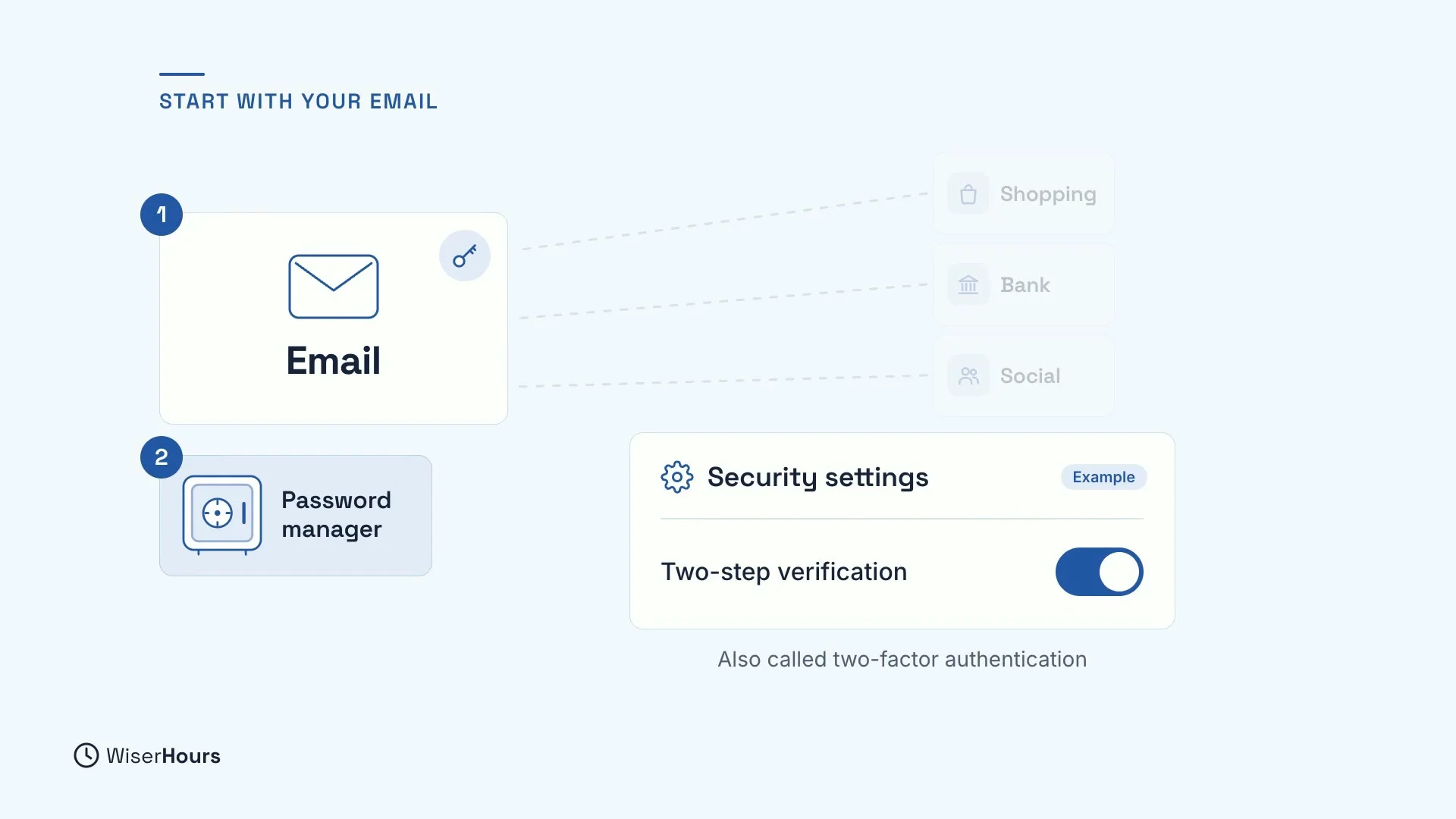
Start with your email, because most of your other accounts send their password reset links there. Then add it to your password manager, which holds the keys to everything else.
To find it, look in the account’s security settings. It is sometimes called by another name, such as two-factor authentication.
 (opens the full-size picture)
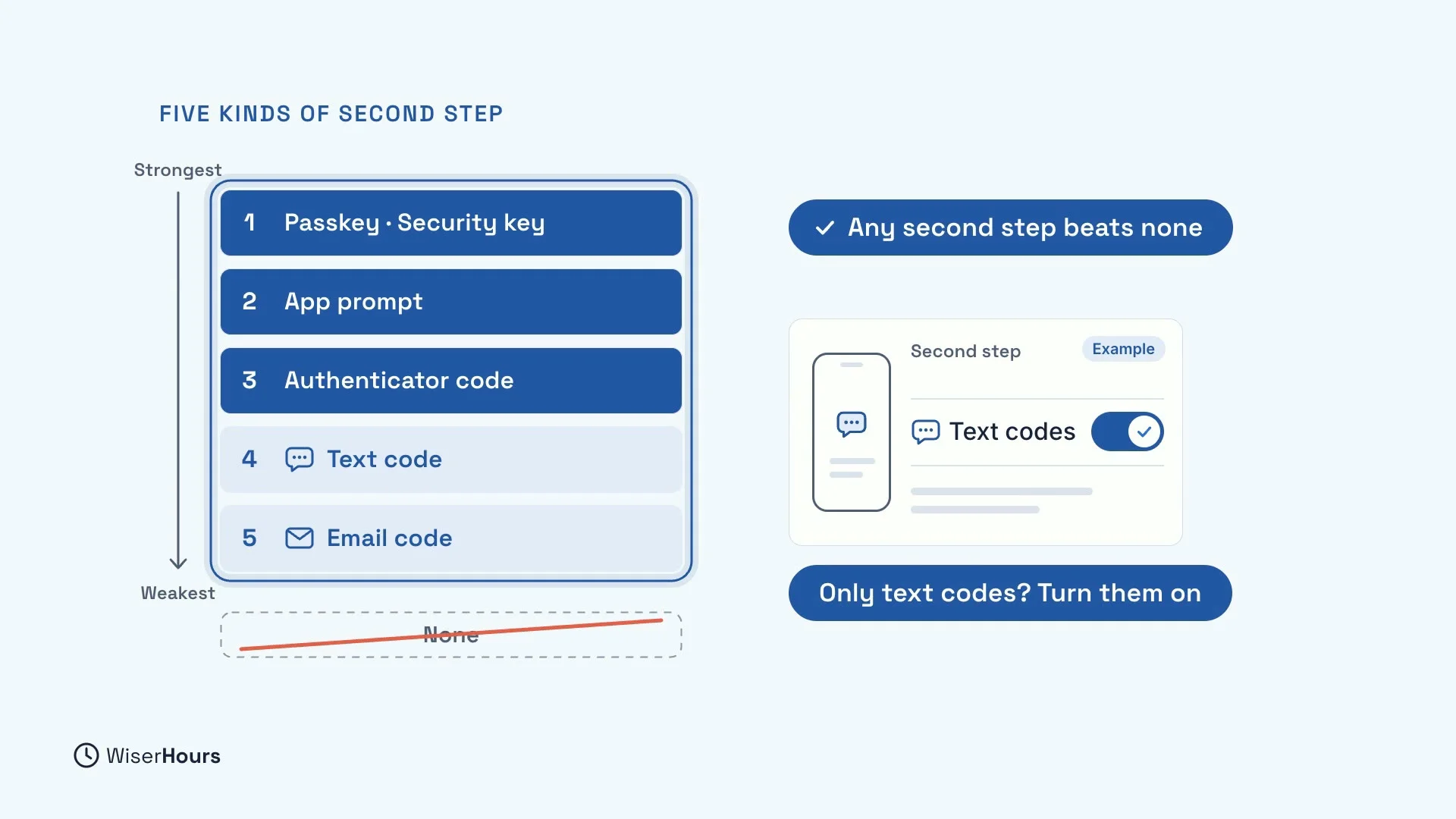
Five kinds of second step, strongest first
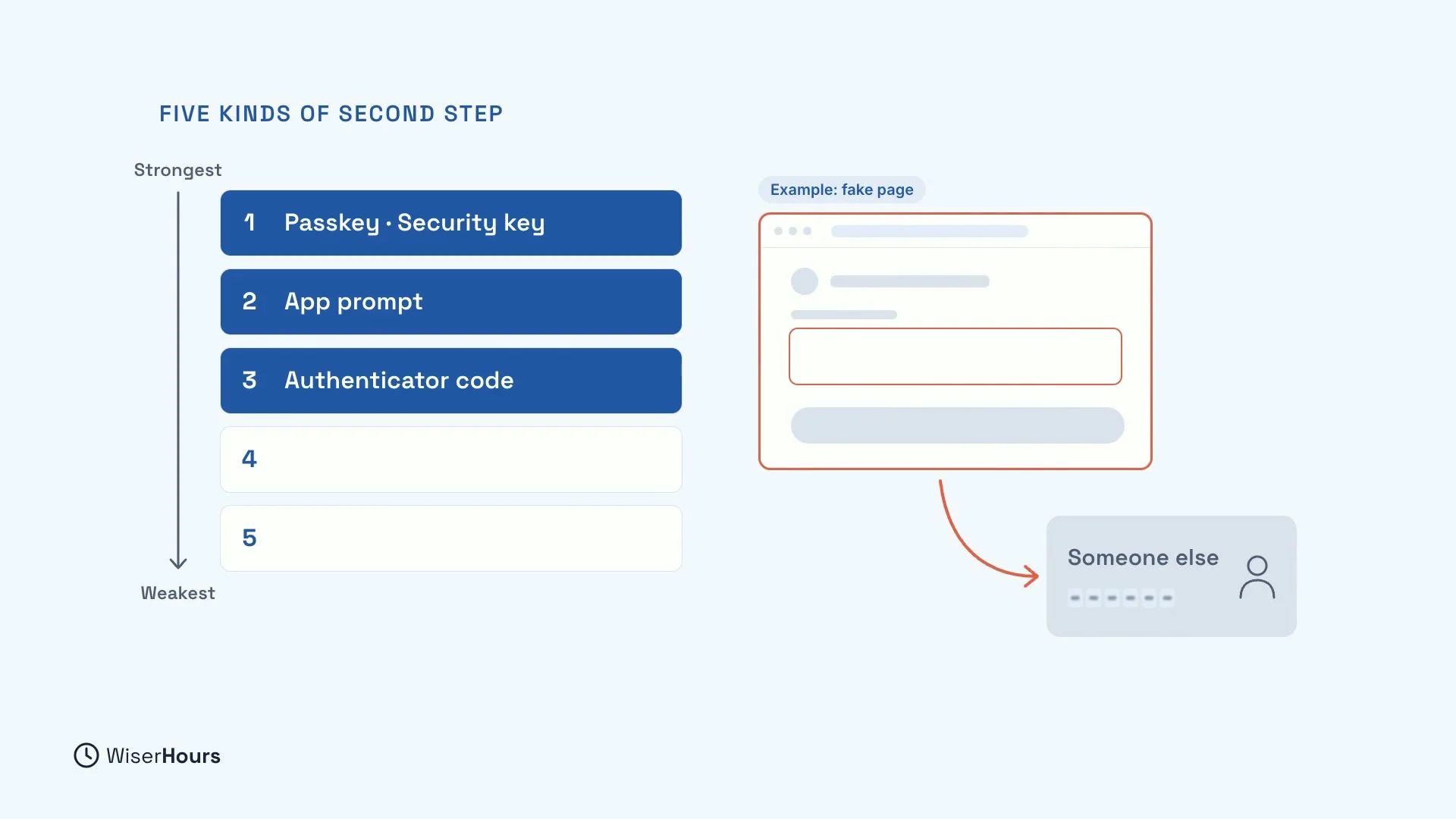
Not every second step is equally strong. Here are the five common kinds, from strongest to weakest:
- Passkeys and security keys. With a passkey, your phone checks your face, fingerprint or PIN. A security key is a small key for your keyring that you plug in or tap.
- App prompts. Your phone shows a message, and you tap to approve the sign-in.
- Authenticator codes. An authenticator app on your phone shows a short code that you type in.
- Text message codes. A code is sent to your phone number.
- Email codes. A code is sent to your inbox.
What makes the top ones stronger? A fake sign-in page can ask for a code and pass it on to the real site while you watch. Passkeys and security keys don’t work on a fake site, so there is nothing to pass on.
 (opens the full-size picture)
Still, any second step is better than none. If an account offers only text codes, turn them on today. You can switch to something stronger when the account offers it.
 (opens the full-size picture)
Keep your backup codes
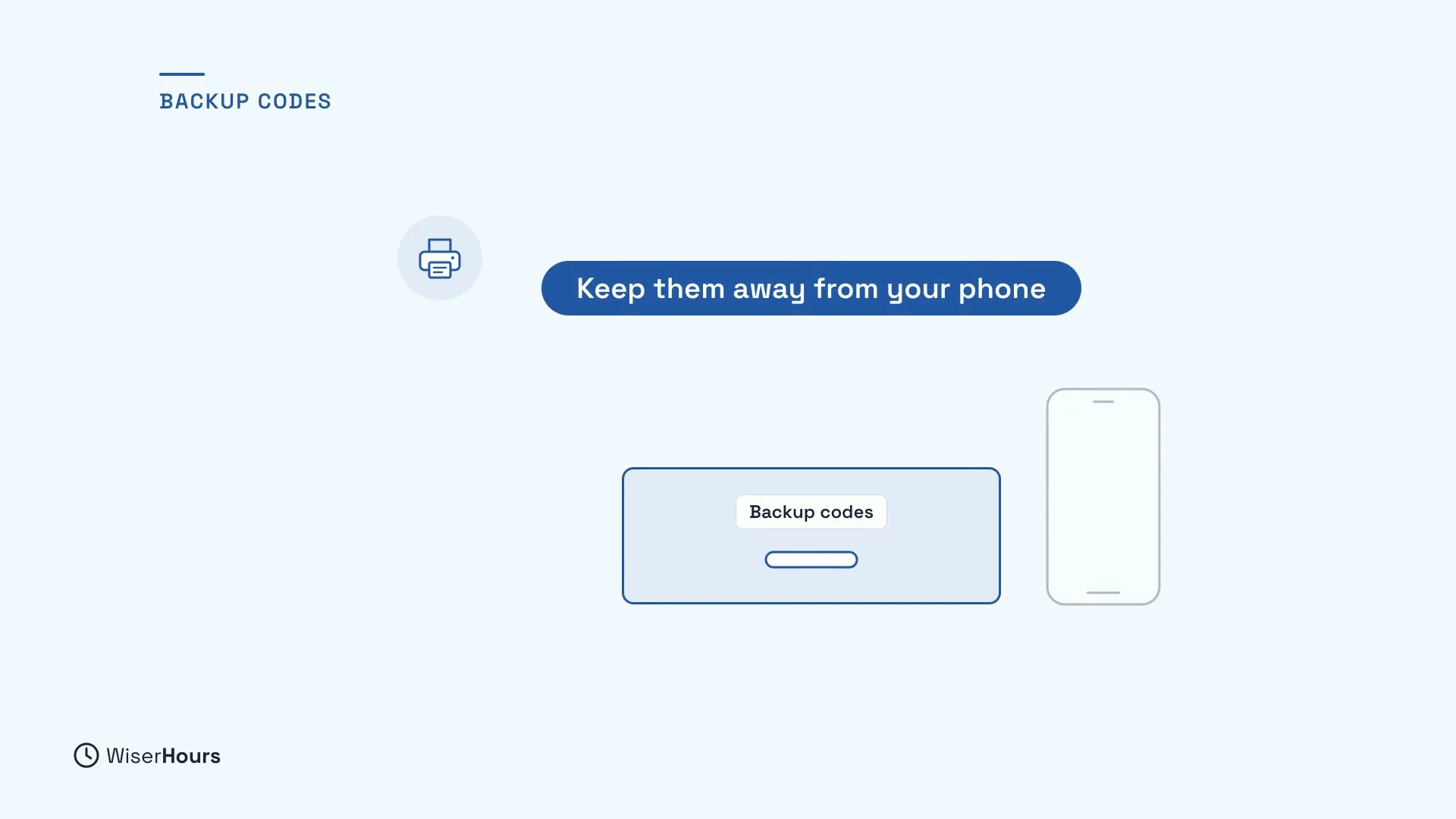
Your account may also give you backup codes when you turn on two-step verification. They let you sign in if your phone is lost, replaced or out of signal. Each code usually works once.
Print them, or store them somewhere safe, away from your phone. A set saved only on the phone disappears with it. And if anyone asks you for a backup code, that request is the warning sign.
 (opens the full-size picture)
A prompt you did not start
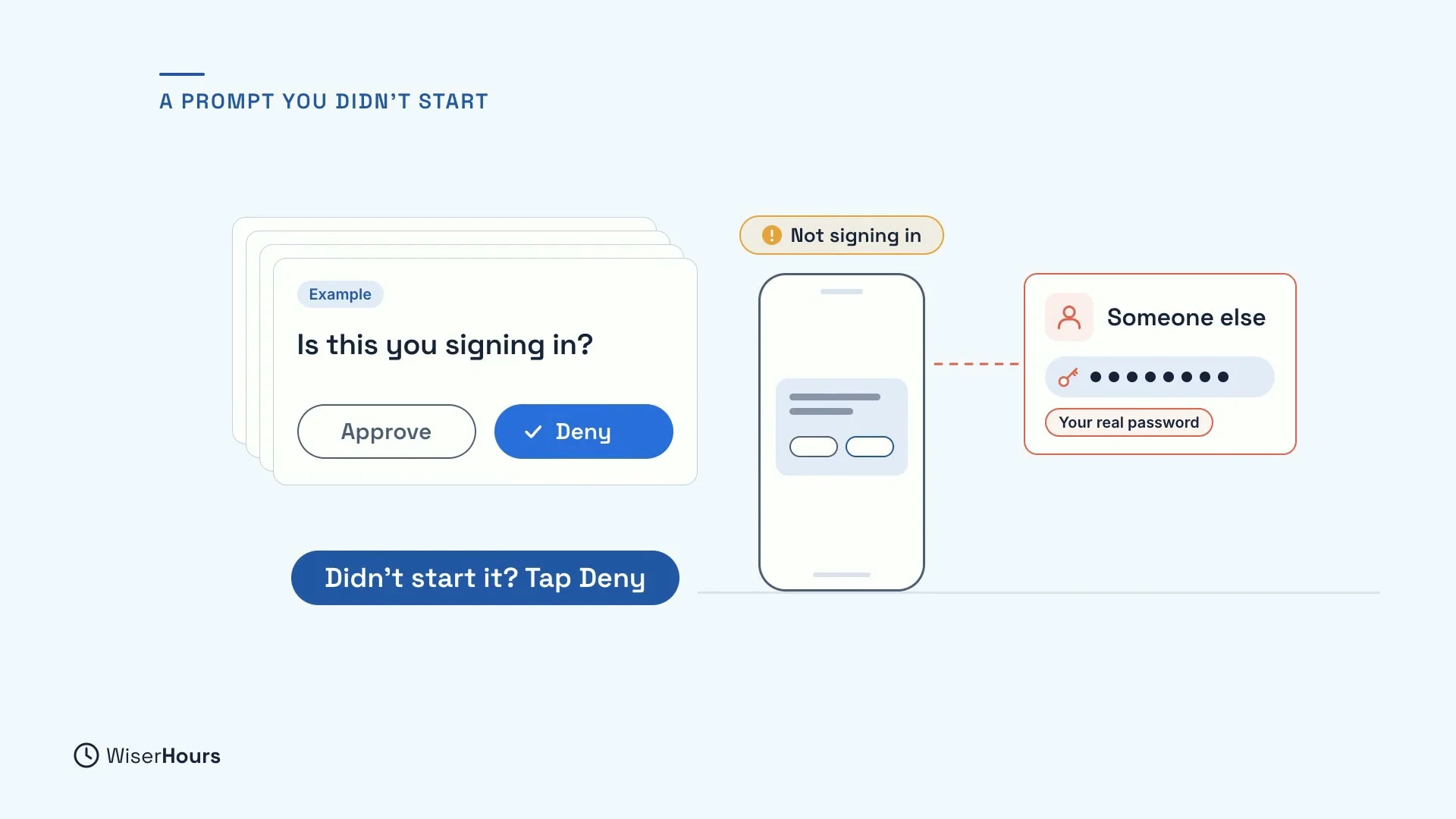
Imagine your phone asks you to approve a sign-in, but you are not signing in. That means someone is trying to get in, usually with your real password. They may send prompt after prompt, hoping you tap Approve by mistake or just to make it stop.
Tap Deny, however many times it asks.
 (opens the full-size picture)
A code you did not ask for
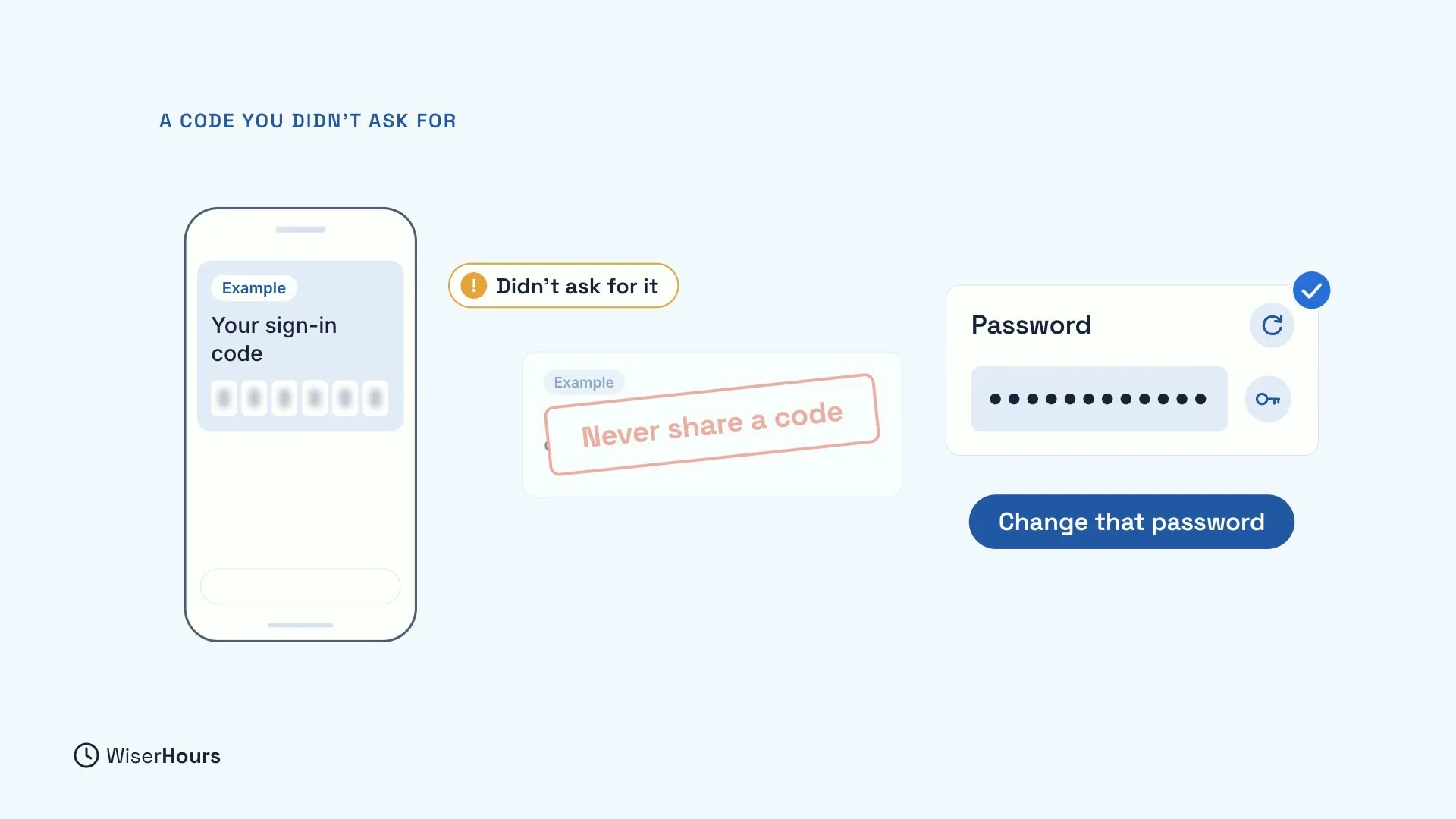
A sign-in code you did not ask for is the same warning. Never share a code with anyone, even someone who says they are from support. A real company does not need you to read it out.
Either way, prompt or code, change that account’s password. Your second lock did its job, but the first one is no longer secret.
 (opens the full-size picture)
YOUR TURN
Read more
- Two-Step Verification: Which Kind to Use and Why: the five kinds compared in detail, and how to set it up account by account.
- Digital Safety for Beginners: The Habits That Protect You Most: where a second sign-in step fits among the everyday safety habits.
Read the full lesson script
In this lesson, you will add a second lock to your accounts, called two-step verification. With it, a stolen password alone is no longer enough to get in.
After your password comes a second proof, like a tap or a code on your phone. A stolen password can be copied and sold endlessly. Your phone cannot.
Start with your email, because most of your other accounts send their password reset links there, and then your password manager. Look in the security settings, where it is sometimes called two-factor authentication.
Here are the five common kinds of second step, strongest first. At the top are passkeys, where your phone checks your face, fingerprint or PIN. And security keys, small keys for your keyring.
Next come app prompts, which you tap to approve. Then authenticator apps, which show a code to type in. But a fake sign-in page can ask for a code and pass it on.
Below those are text message codes, and last, email codes. Still, any second step is better than none. If an account offers only text codes, turn them on today.
Your account may also give you backup codes. They let you sign in if your phone is lost or replaced. Print them, or store them safely, away from your phone.
Imagine your phone asks you to approve a sign-in, but you are not signing in. Someone is trying to get in, usually with your real password. Tap Deny, however many times it asks.
A code you did not ask for is the same warning. Never share a code with anyone, even someone who says they are from support. Either way, change that account's password.
So, choose the strongest second step on offer, keep your backup codes, and deny any prompt you did not start. Today, turn on two-step verification for your email account. Next, you will meet passkeys, a way to sign in with no password to steal.
MAKE IT A SMALL WIN
Finished this lesson?
Mark it complete to save your progress on this device.