Build good habits · Lesson 15 of 16
ChatGPT Custom Instructions and Memory, Explained
Teach ChatGPT about you so you repeat yourself less: where to find Personalization, how to write custom instructions, and how memory works.
English captions available in the player. Prefer reading? Follow the written lesson below.
In this lesson, you teach ChatGPT about you, so you don’t have to repeat yourself. You will use two features that sit on the same page: custom instructions, which tell ChatGPT how to answer, and memory, which helps it remember you.
Open Personalization
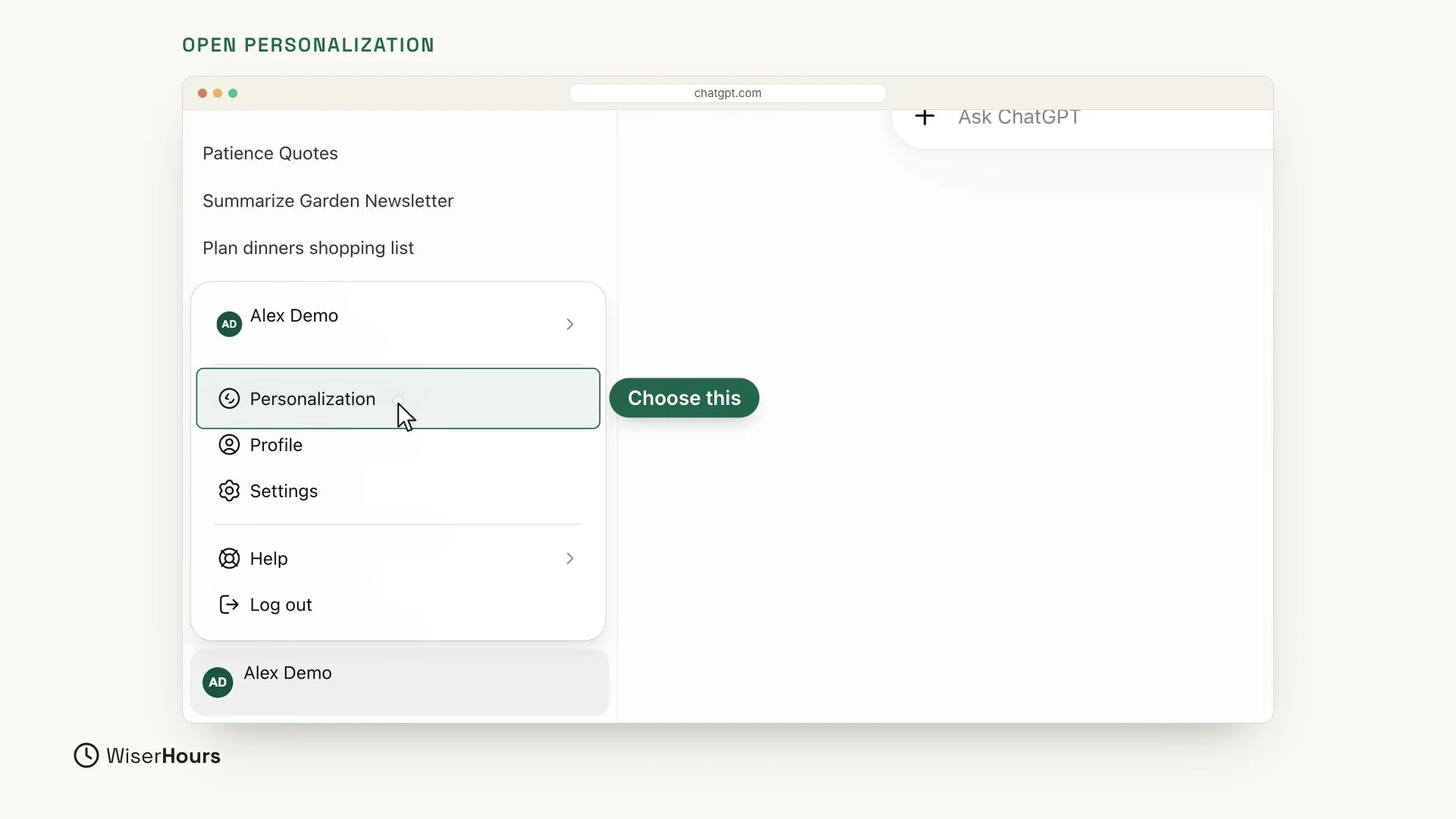
Click your name at the bottom left of the screen, at the bottom of the sidebar. A menu opens. Choose Personalization.
 (opens the full-size picture)
Find memory and custom instructions
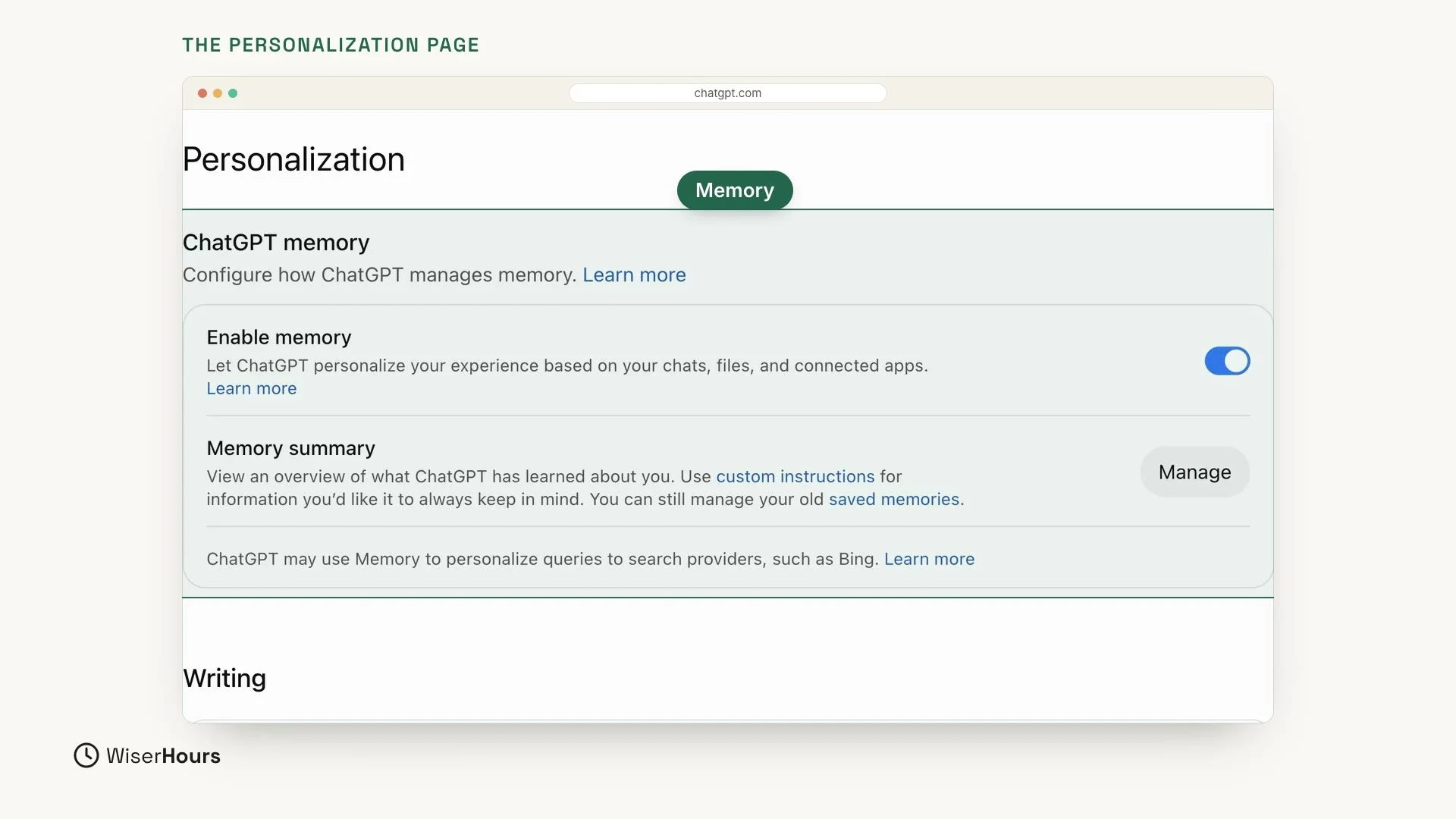
The Personalization page has two important parts. At the top is memory, under ChatGPT memory. When the Enable memory switch is on, ChatGPT can remember useful things from your chats.
 (opens the full-size picture)
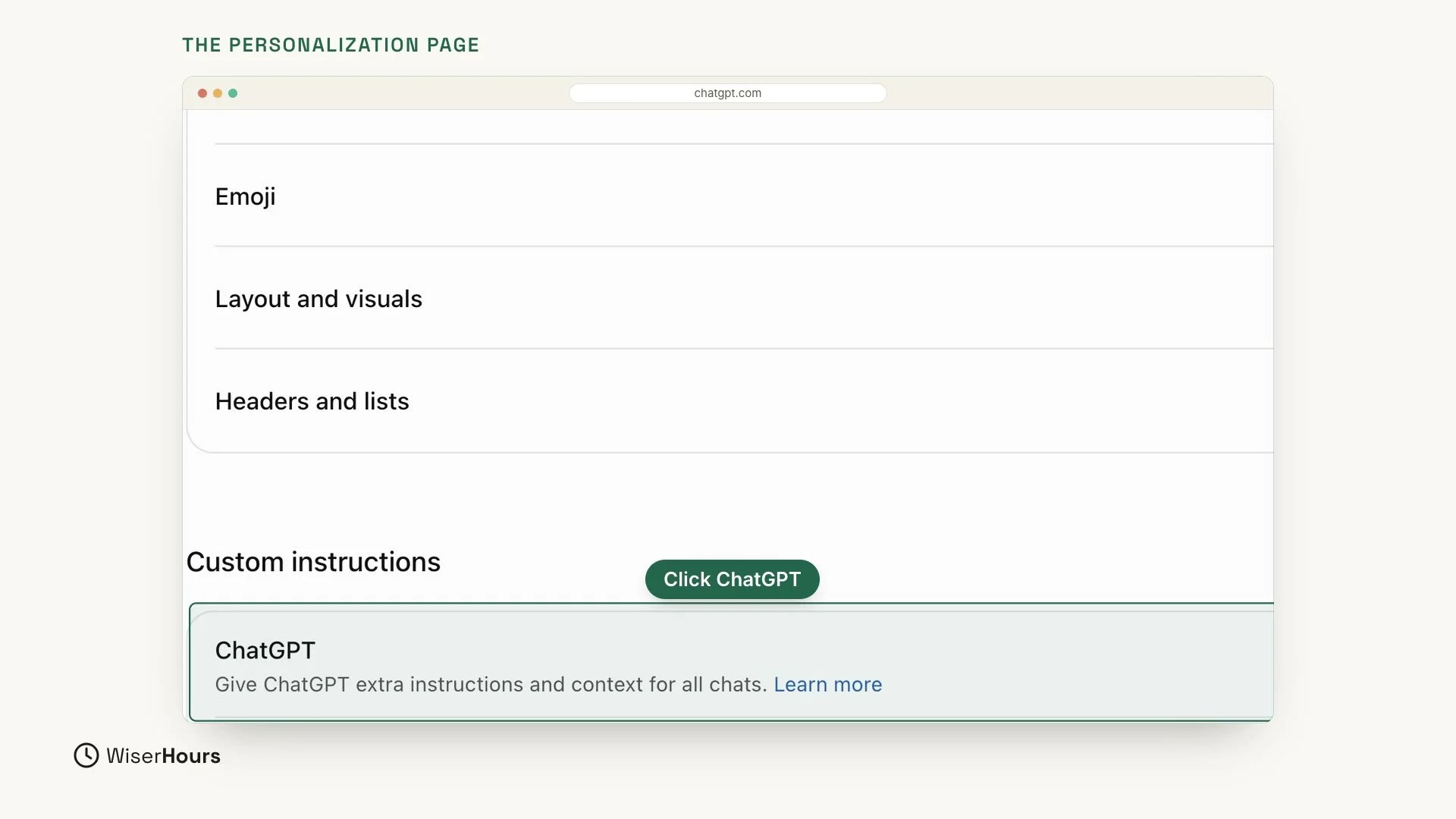
The Custom instructions are further down the same page. Scroll down past the other settings until you see that heading. Under it, click ChatGPT. This is where you tell ChatGPT how to answer.
 (opens the full-size picture)
Tell ChatGPT how to answer
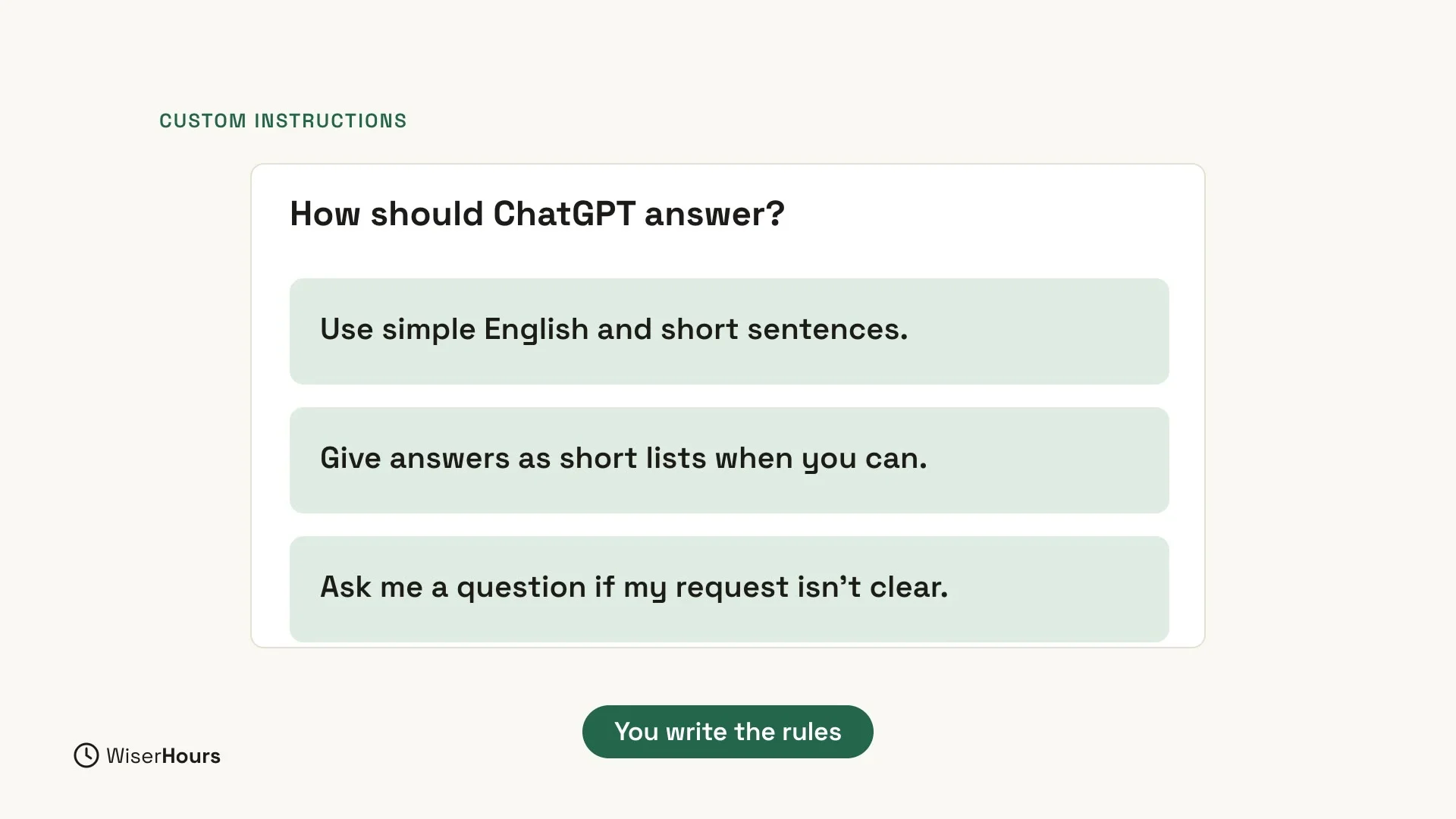
A page called ChatGPT custom instructions opens, with a big box at the top. In this box, you write how you would like ChatGPT to answer. For example, type this:
You can use this example as it is, or write your own rules in the same plain way.
 (opens the full-size picture)
Add a little about you, then save
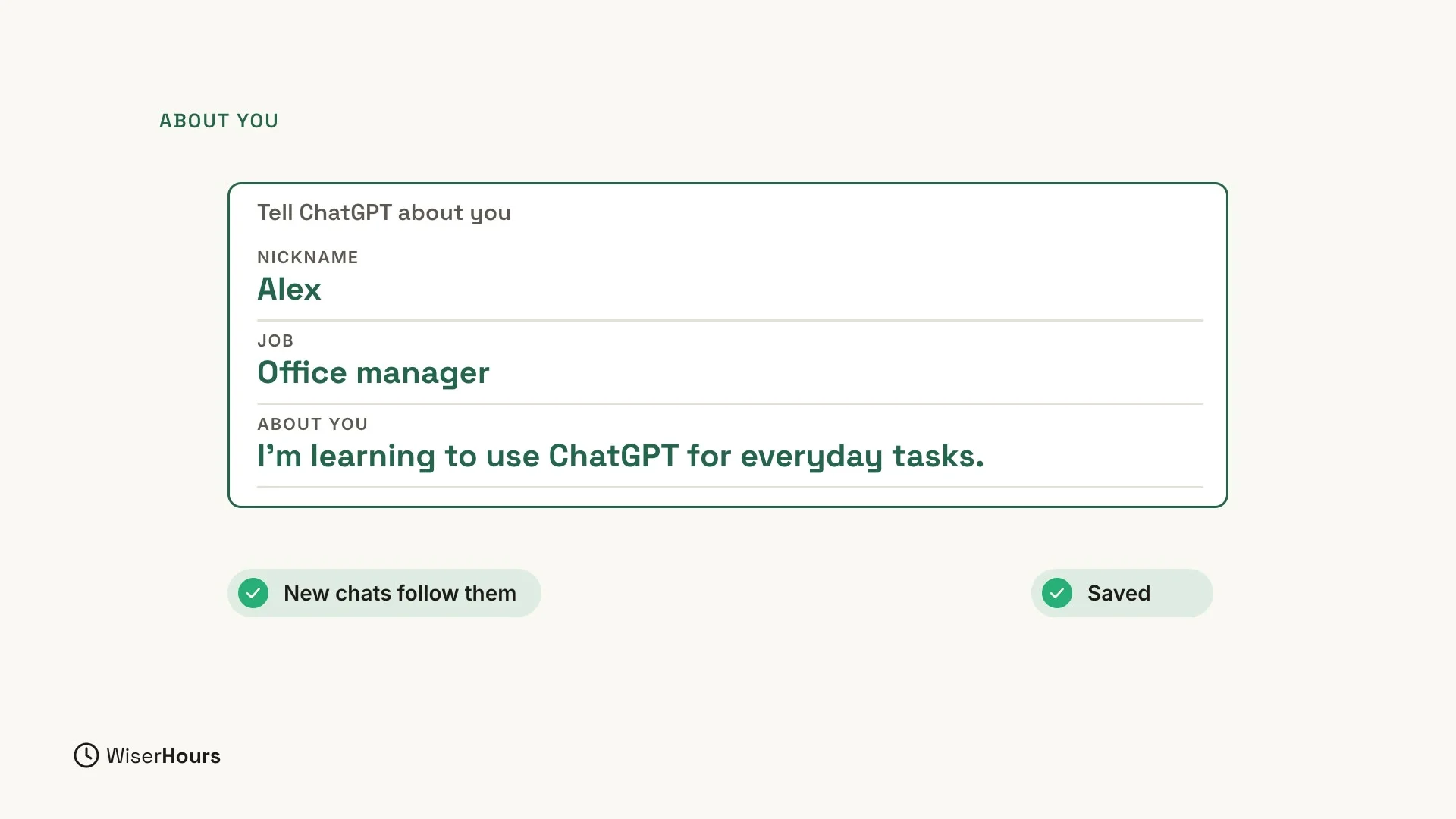
You can also add a nickname, your job and a little about you. They go in the fields below the big box: Nickname, Occupation and More about you. For example, type this into More about you:
Then click Save, at the top right of the page. From now on, new chats follow these instructions.
 (opens the full-size picture)
Ask ChatGPT to remember or forget
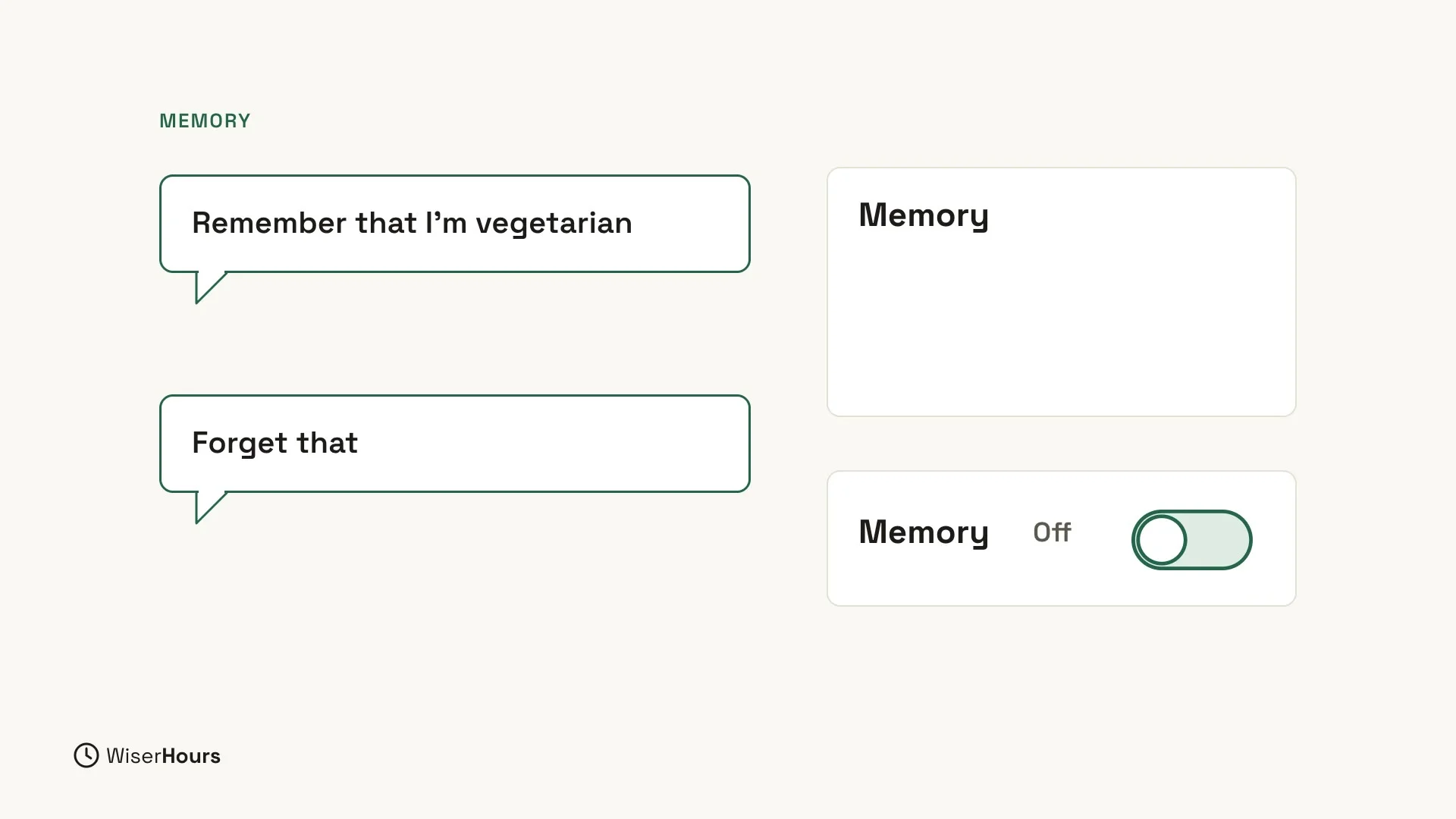
Memory works on its own, without you doing anything. You can also tell ChatGPT what to remember, in plain words. Type this in a chat:
And if you want it to forget something, just say so:
You can turn memory off any time, on the same Personalization page: switch off Enable memory.
 (opens the full-size picture)
What to share and what to keep private
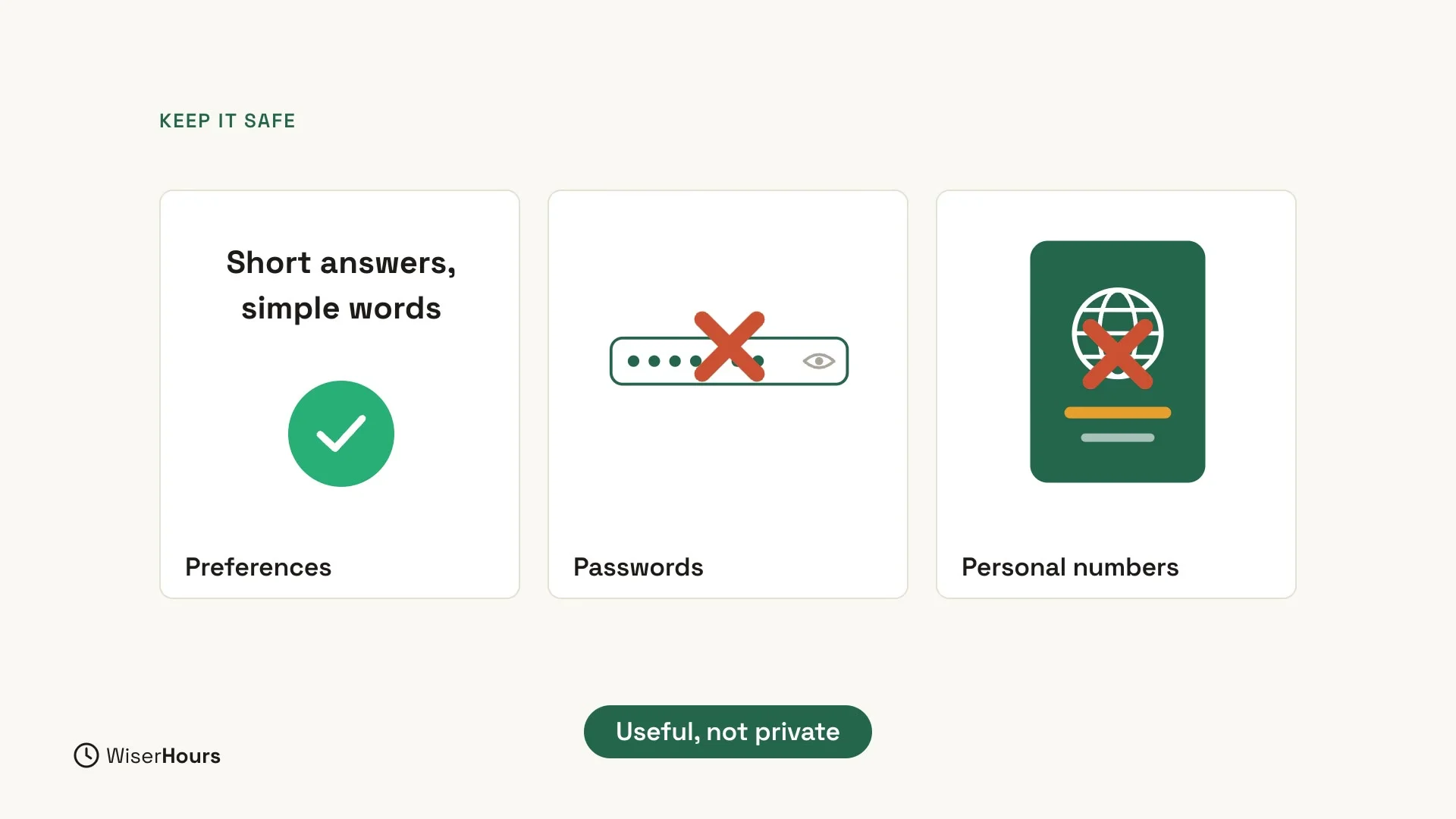
Whatever you tell ChatGPT about yourself, keep it useful, not private. Share your preferences, such as short answers and simple words. Never share your passwords or personal numbers, such as your passport number.
 (opens the full-size picture)
Never share passwords or personal numbers
Keep your passwords and personal numbers out of your custom instructions (including More about you) and out of anything you ask ChatGPT to remember.
YOUR TURN
In the final lesson, you will build your own prompt toolkit: 10 ChatGPT prompts to save and reuse.
Read the full video transcript
In this lesson, you'll teach ChatGPT about you, so you don't have to repeat yourself. We'll use two features: custom instructions, and memory.
Click your name at the bottom left, and choose Personalization.
This page has two important parts. At the top is memory. When it's on, ChatGPT can remember useful things from your chats. Further down are custom instructions. Click ChatGPT there to tell it how to answer.
In custom instructions, you write how you'd like it to answer. For example: use simple English and short sentences. Give answers as short lists when you can. Ask me a question if my request isn't clear.
You can also add a nickname, your job, and a little about you. For example: I'm learning to use ChatGPT for everyday tasks. Then save. From now on, new chats follow these instructions.
Memory works on its own. You can also say: remember that I'm vegetarian. And if you want it to forget something, just say: forget that. You can turn memory off any time on the same page.
Keep it useful, not private. Share your preferences, but never your passwords or personal numbers.
So remember: custom instructions tell ChatGPT how to answer, and memory helps it remember you. Before the next lesson, write one custom instruction that would help you. Next, in the final lesson, you'll build your own prompt toolkit.
MAKE IT A SMALL WIN
Finished this lesson?
Mark it complete to save your progress on this device.