Build good habits · Lesson 14 of 16
ChatGPT Privacy: What Not to Share
What to keep out of your chats, how to get help without private details, where to find Data controls, and when to use a temporary chat.
English captions available in the player. Prefer reading? Follow the written lesson below.
ChatGPT is handy for everyday tasks like writing a letter or asking a question, and those tasks can involve private details. In this lesson you learn what to keep out of your chats, how to still get a good answer without them, and where to find the privacy settings.
What never to share
Treat a chat like a message to a company, not a diary. In a diary you might write anything, because it is only for you. In a message to a company, you think before you share personal details. Do the same in ChatGPT.
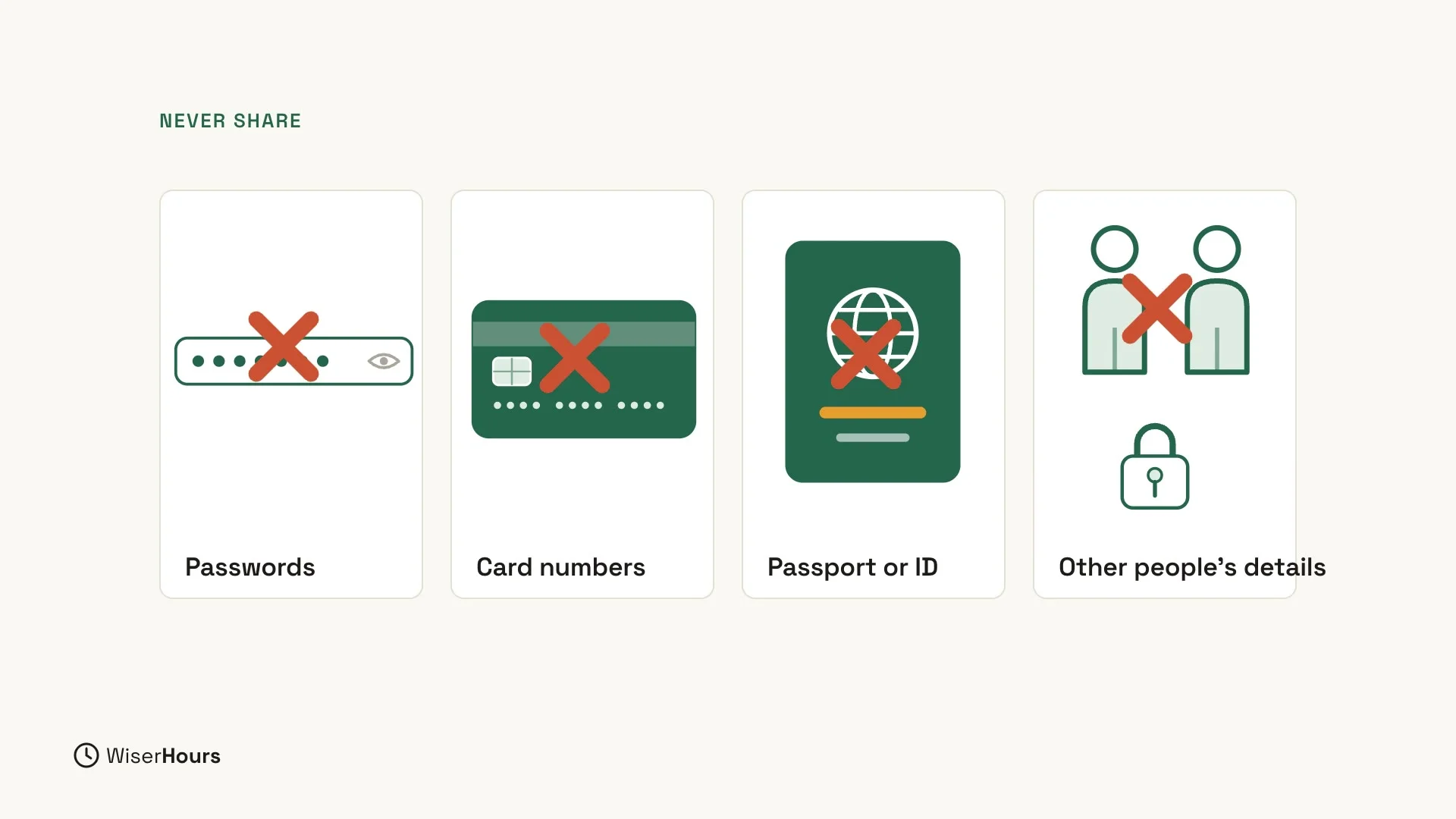
Some things never belong in a chat: passwords, bank or card numbers, your passport or ID number, and other people’s private details. The last one is easy to forget. A friend’s or a neighbor’s real name and address are private details too.
 (opens the full-size picture)
For everyday safety habits beyond ChatGPT, see Digital safety for beginners.
Leave out the private parts
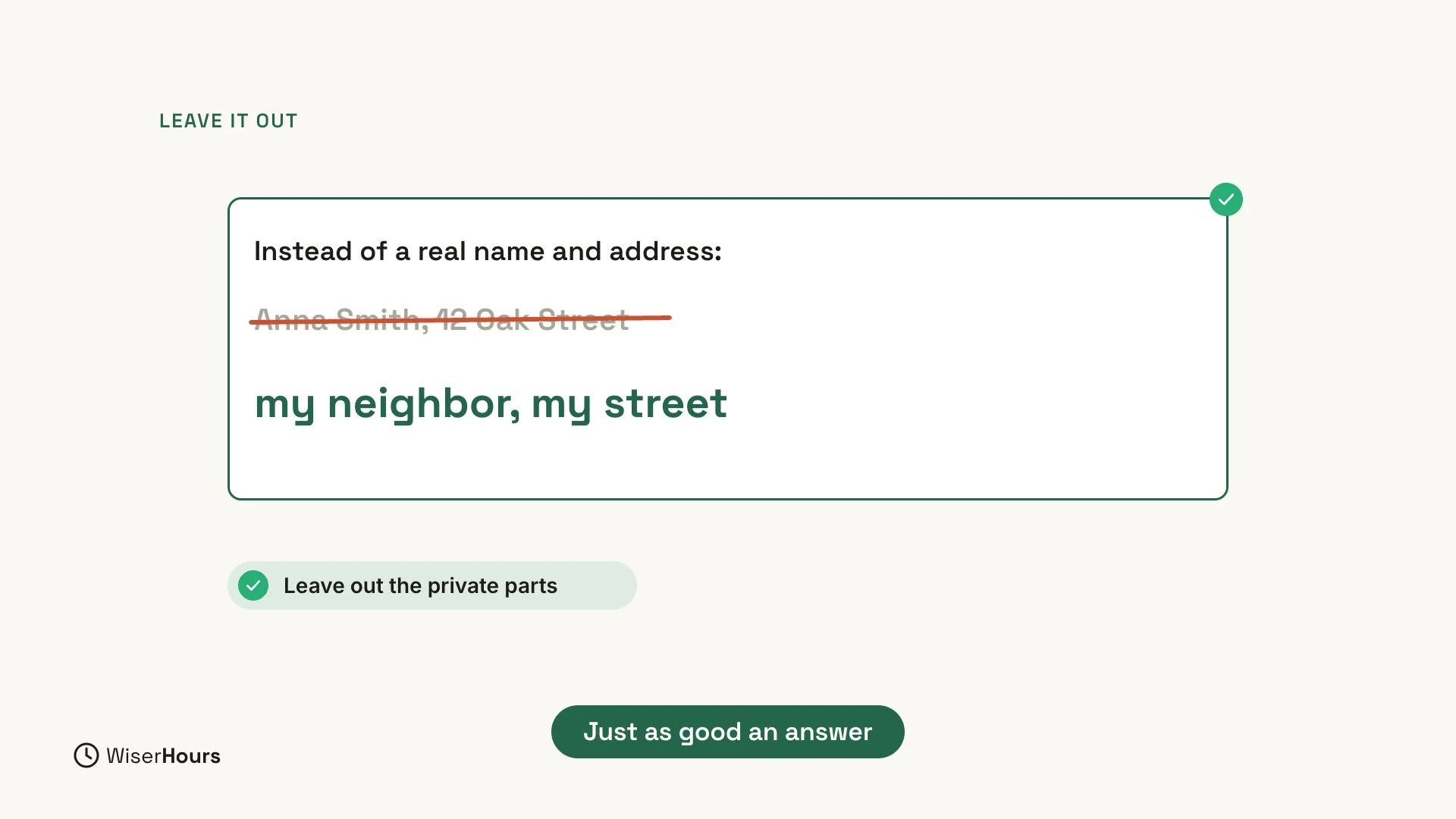
You can still get help. Just leave out the private parts. Instead of a real name and address, write general words like “my neighbor” or “my street”.
For example, instead of “Help me write to Anna Smith at 12 Oak Street…”, write “Help me write to my neighbor on my street…”. The answer will be just as good. When the draft is ready, you can add the real name yourself before you send it.
 (opens the full-size picture)
Find Data controls in Settings
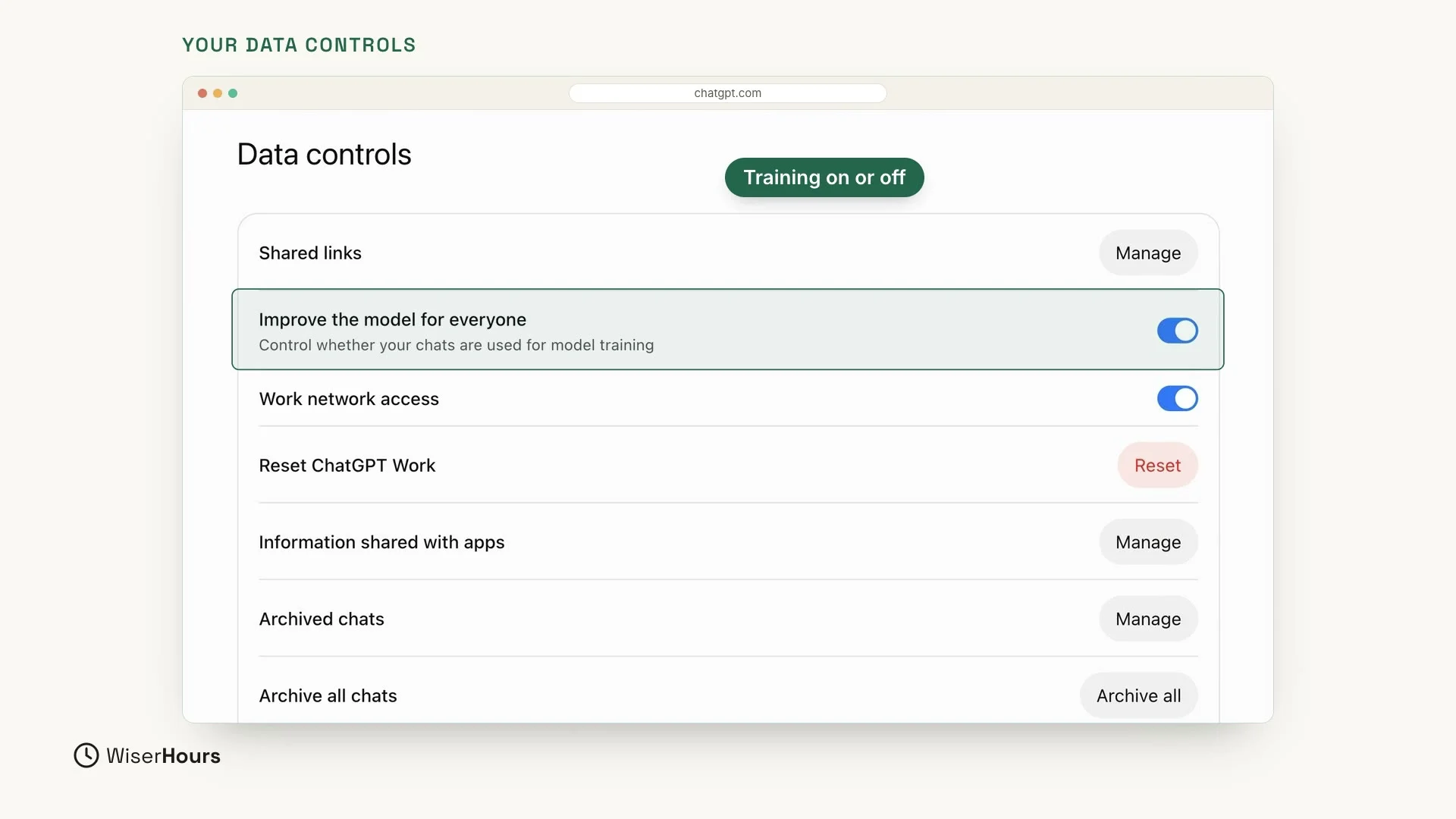
To find the privacy settings, click your name at the bottom left. A small menu opens: click Settings. Then, in the list on the left, click Data controls, near the bottom.
Here you can choose whether your chats are used to improve the model. Look for the row Improve the model for everyone, with a switch on the right. Its small note says “Control whether your chats are used for model training.” Which way you set it is up to you.
 (opens the full-size picture)
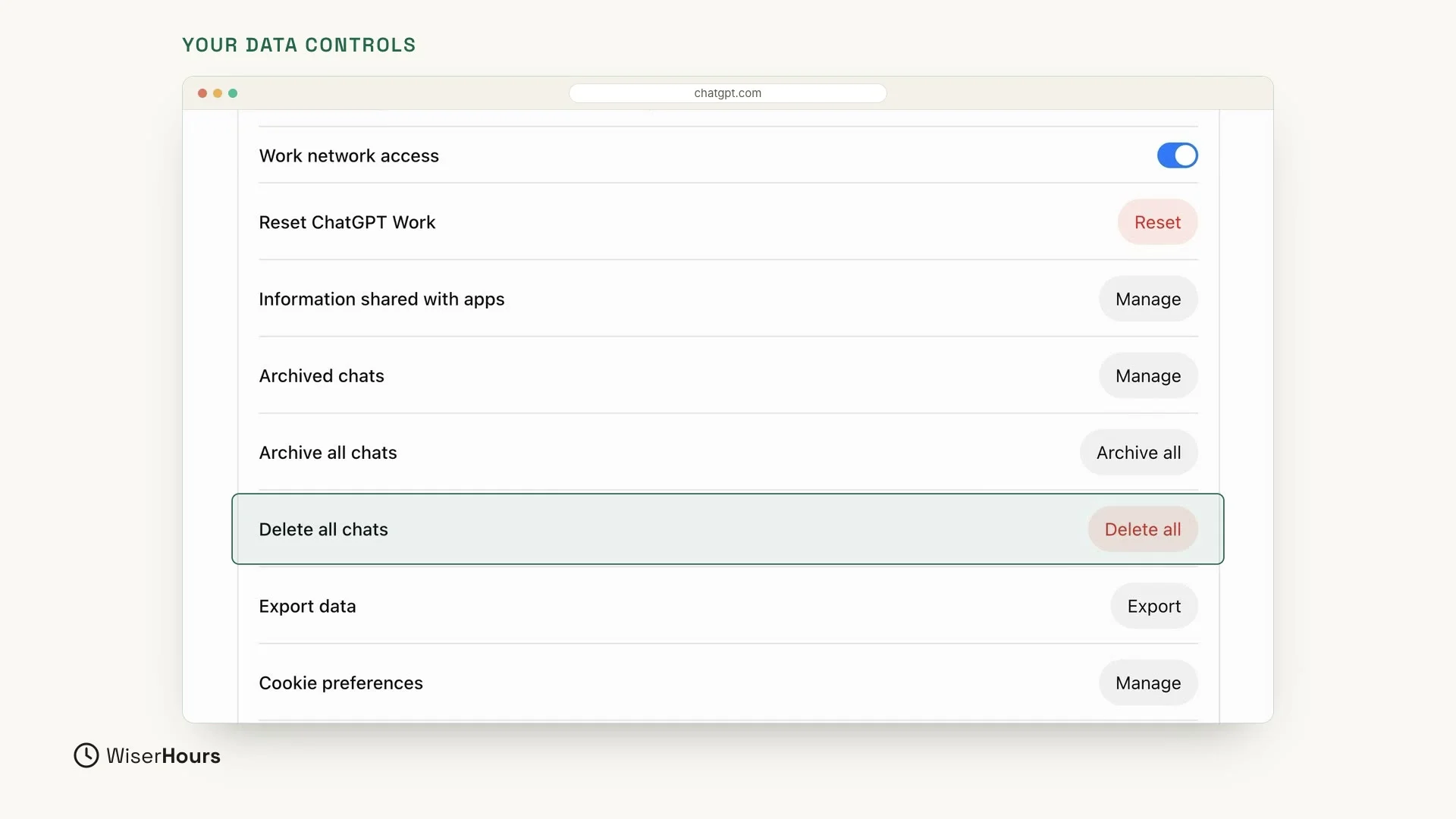
You can also archive or delete your chats. Further down the same page are Archive all chats, with an Archive all button, and Delete all chats, with a red Delete all button. As their names say, these two act on all your chats at once. To remove just one chat, use the three dots instead, shown at the end of this lesson.
 (opens the full-size picture)
Use a temporary chat for a private question
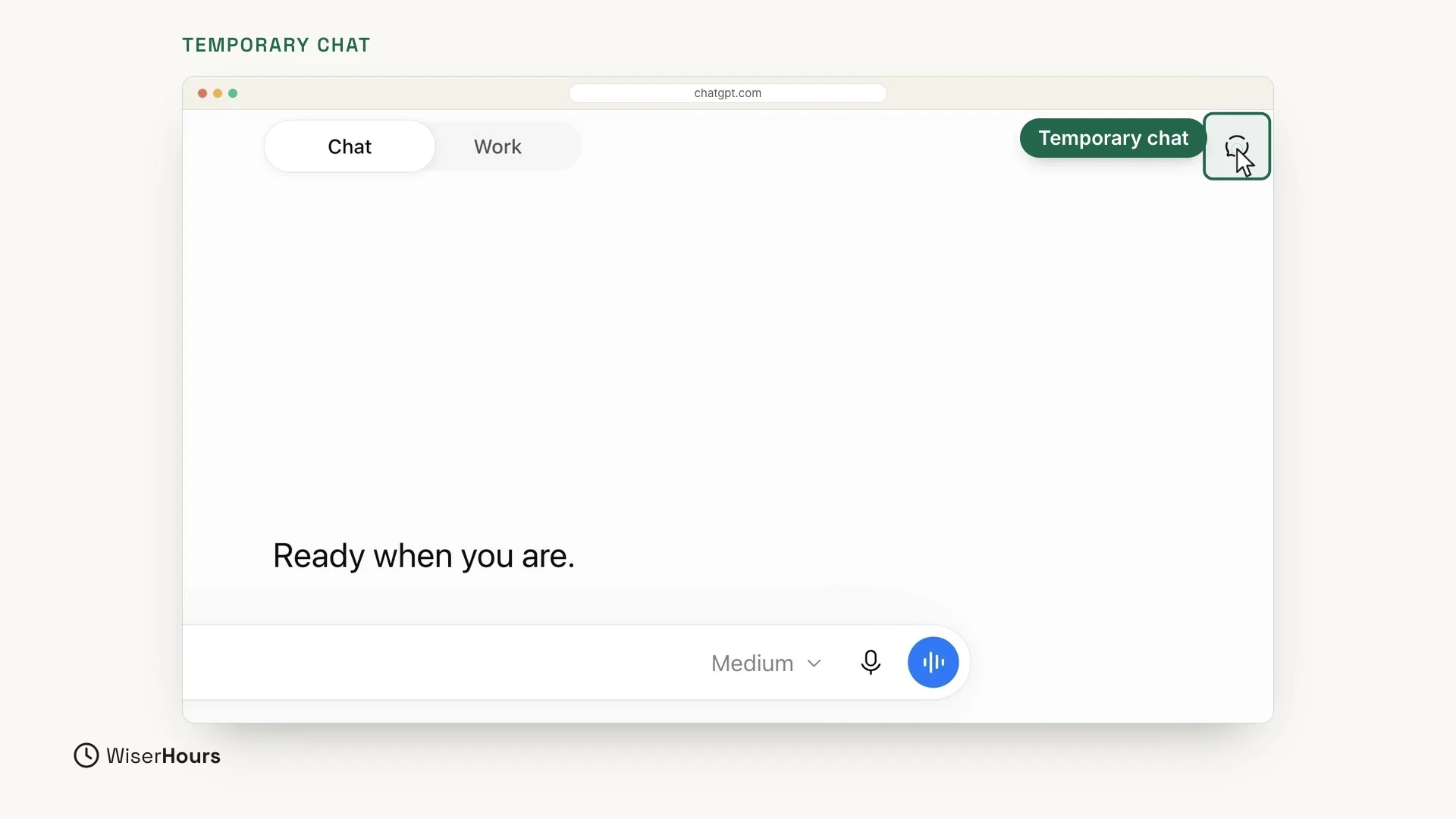
For a private question, use a temporary chat. Click New chat at the top left, then click the small button at the top right of the page. Once a temporary chat is on, pointing at that button shows the label Turn off temporary chat.
 (opens the full-size picture)
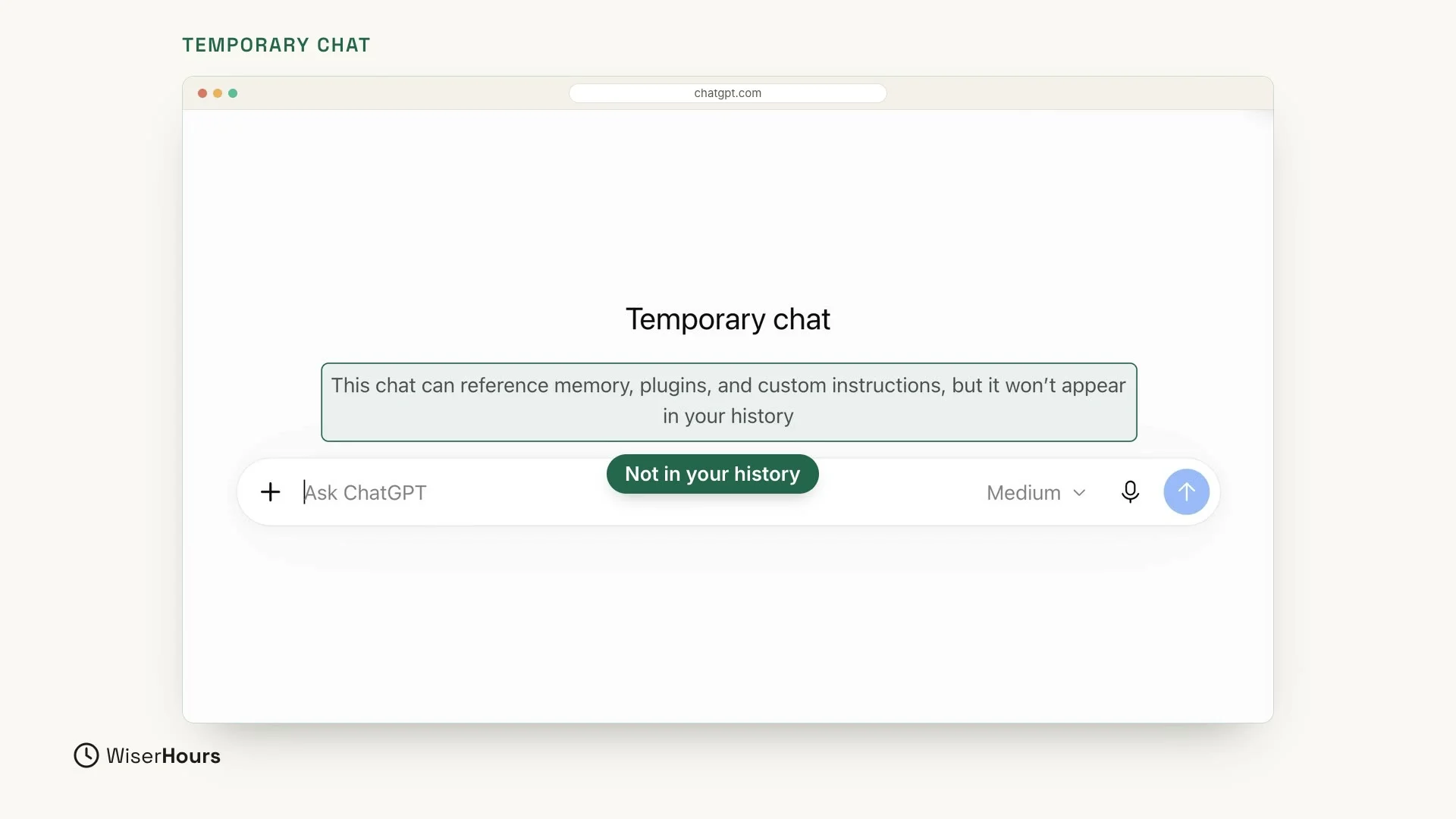
The page now shows Temporary chat above the message box, with a note under it that ends “it won’t appear in your history”. Then ask your question as usual.
 (opens the full-size picture)
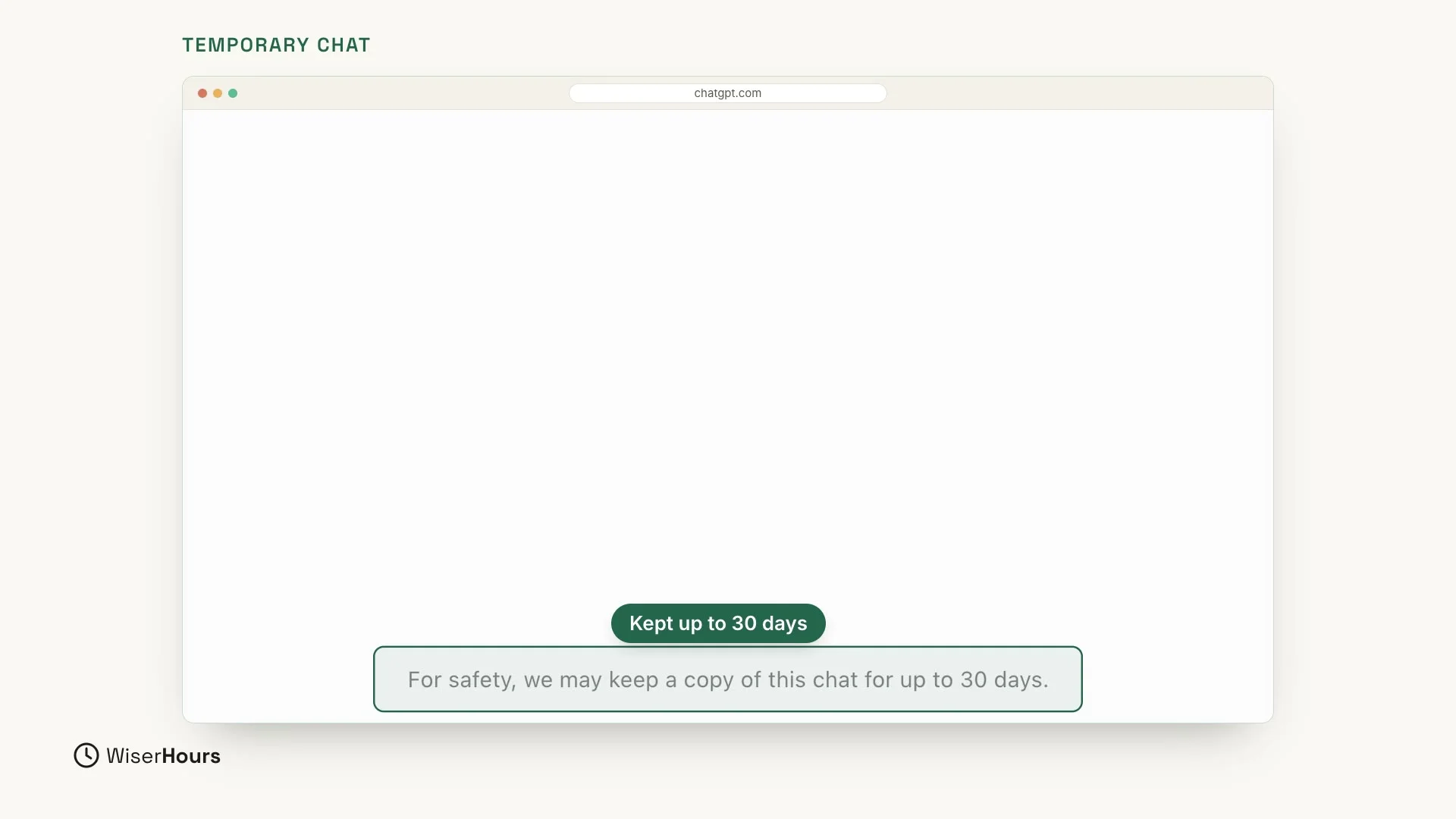
But for safety, a copy may be kept for up to 30 days. A small line at the bottom of the screen says so: “For safety, we may keep a copy of this chat for up to 30 days.”
 (opens the full-size picture)
The never-share list still applies
A temporary chat won’t appear in your history, but a copy may still be kept for up to 30 days. Keep passwords, bank or card numbers, ID numbers and other people’s private details out of it too.
Delete a single chat
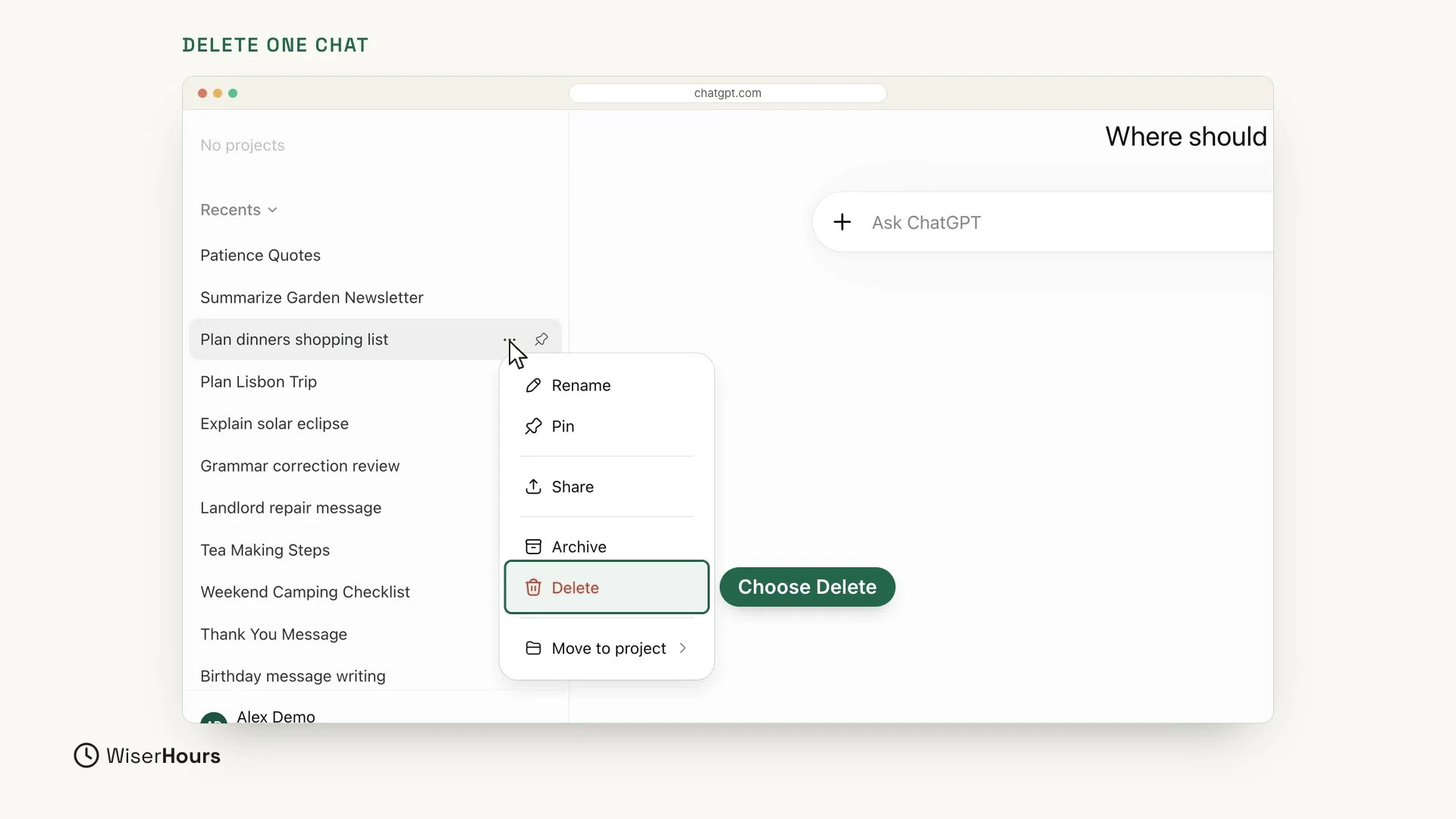
You can also delete any single chat. Point at it in the list on the left (move your mouse over it), and three dots appear on the right of its row, next to a small pin. Click the three dots, and choose Delete from the menu that opens.
 (opens the full-size picture)
YOUR TURN
In the next lesson, you will make ChatGPT yours, with custom instructions and memory: ChatGPT custom instructions and memory, explained.
Read the full video transcript
In this lesson, you'll learn what to keep out of your chats, and where to find the privacy settings.
Treat a chat like a message to a company, not a diary. Never share passwords, bank or card numbers, your passport or ID number, or other people's private details.
You can still get help. Just leave out the private parts. Instead of a real name and address, write: my neighbor, or my street. The answer will be just as good.
To find the settings, click your name at the bottom left, then Settings, then Data controls. Here you can choose whether your chats are used to improve the model. You can also archive or delete your chats.
For a private question, use a temporary chat. Click this button at the top right of a new chat. A temporary chat won't appear in your history. But for safety, a copy may be kept for up to thirty days.
You can also delete any single chat. Point at it in the list on the left, click the three dots, and choose Delete.
So remember: keep private details out, check your data controls, and use a temporary chat when you need one. Before the next lesson, open your data controls and look at your choices. Next, you'll make ChatGPT yours, with custom instructions and memory.
MAKE IT A SMALL WIN
Finished this lesson?
Mark it complete to save your progress on this device.