Put it to work · Lesson 12 of 16
How to Use ChatGPT Voice and Dictation
Two ways to talk to ChatGPT out loud: Dictate turns your speech into text, and a voice conversation lets you talk and listen like a phone call.
English captions available in the player. Prefer reading? Follow the written lesson below.
You don’t have to type everything you ask ChatGPT. There are two ways to use your voice instead. You can speak, and your words appear as text. Or you can have a real voice conversation, in which ChatGPT answers out loud. This lesson shows both, so you can pick the one that fits the moment.
Dictate: speak instead of typing
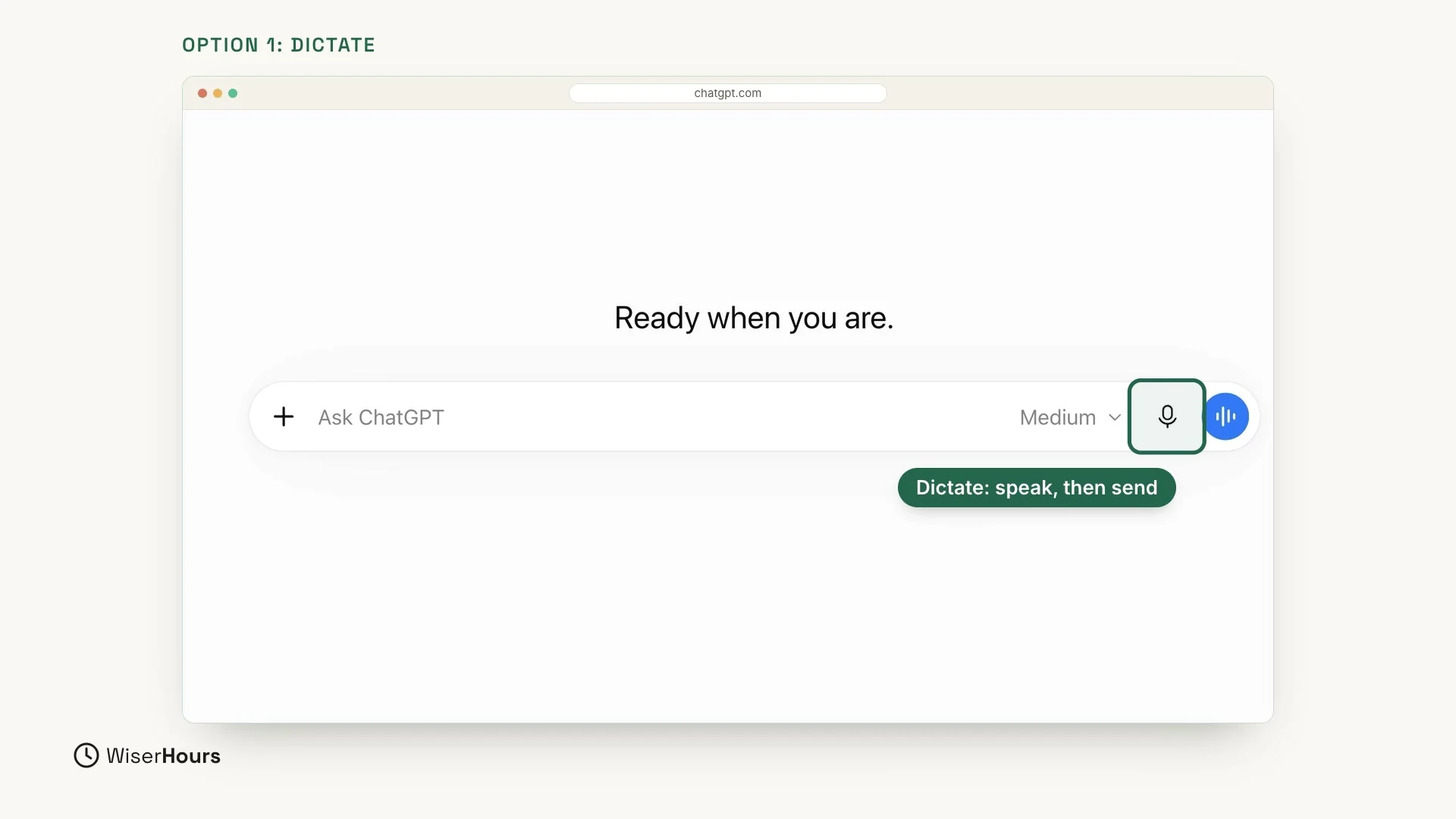
Look at the message box on the ChatGPT home page. At its right end are two buttons. The first one, the microphone, is called Dictate.
Click it and speak your question. Your words appear as text in the message box, so you can read them first. Then you send the question as usual, just like a typed one.
 (opens the full-size picture)
Start a voice conversation
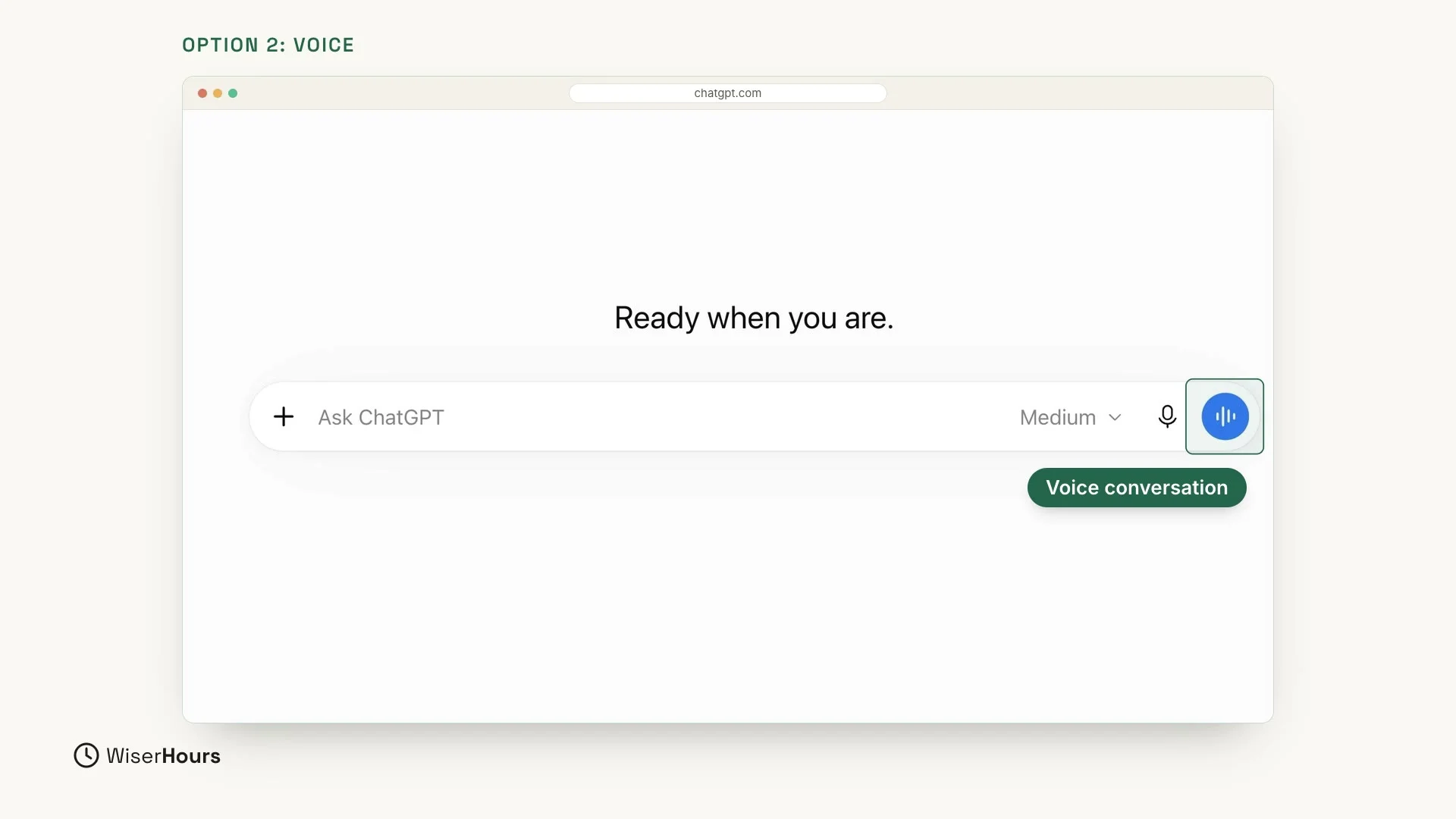
The second way is the round button at the very right end of the message box, the one with sound bars on it. It starts a voice conversation: you speak, and ChatGPT answers out loud.
 (opens the full-size picture)
Which one to choose
Use Dictate when you want to see your question as text before you send it. Use the voice button when you want to talk back and forth and hear the answers out loud.
Talk naturally, like on a phone call
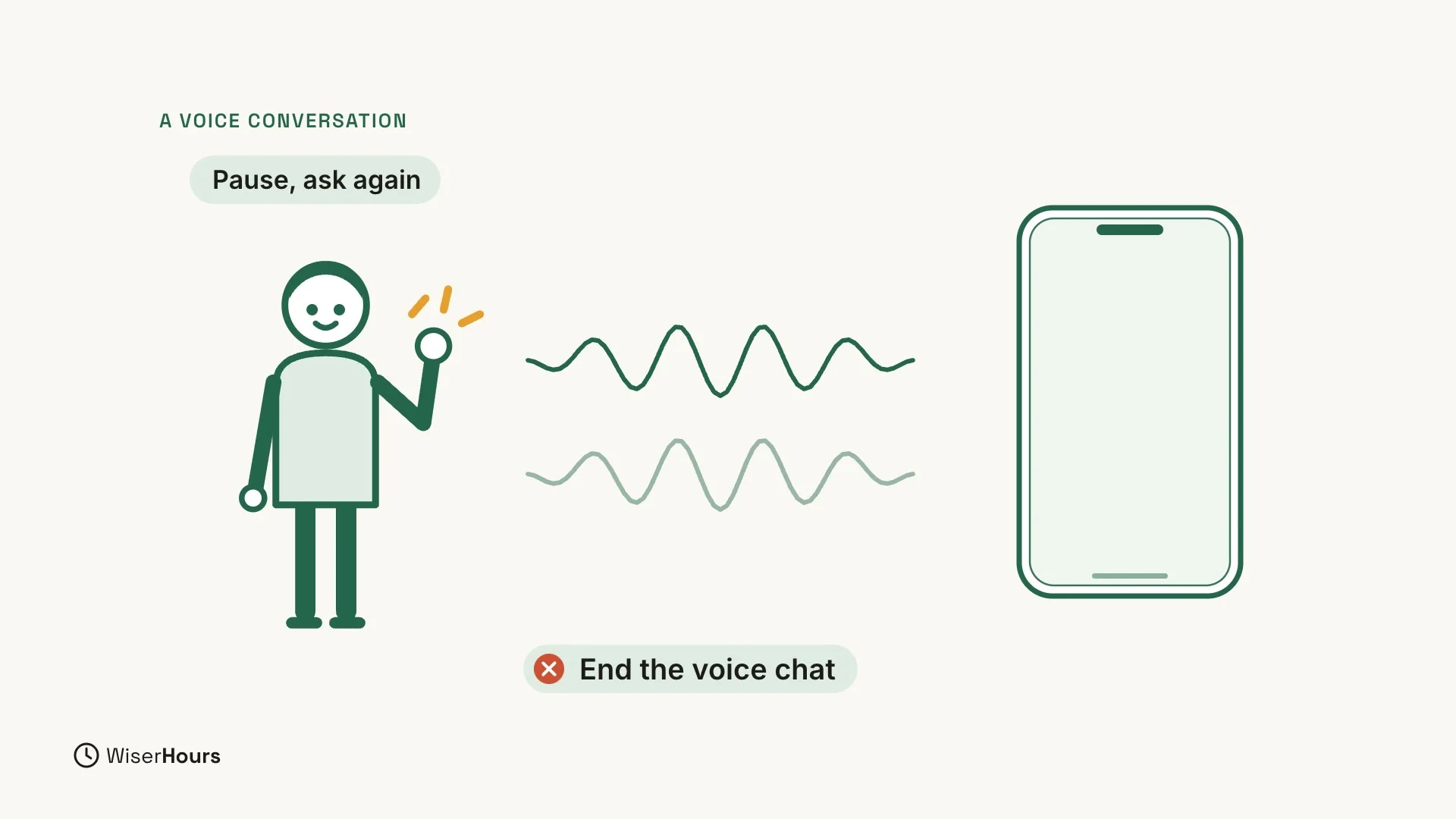
In a voice conversation, just talk naturally, like on a phone call. You don’t have to wait for ChatGPT to finish. You can interrupt it while it is speaking and ask something else. When you are done, end the voice chat with the End button.
 (opens the full-size picture)
Allow the microphone the first time
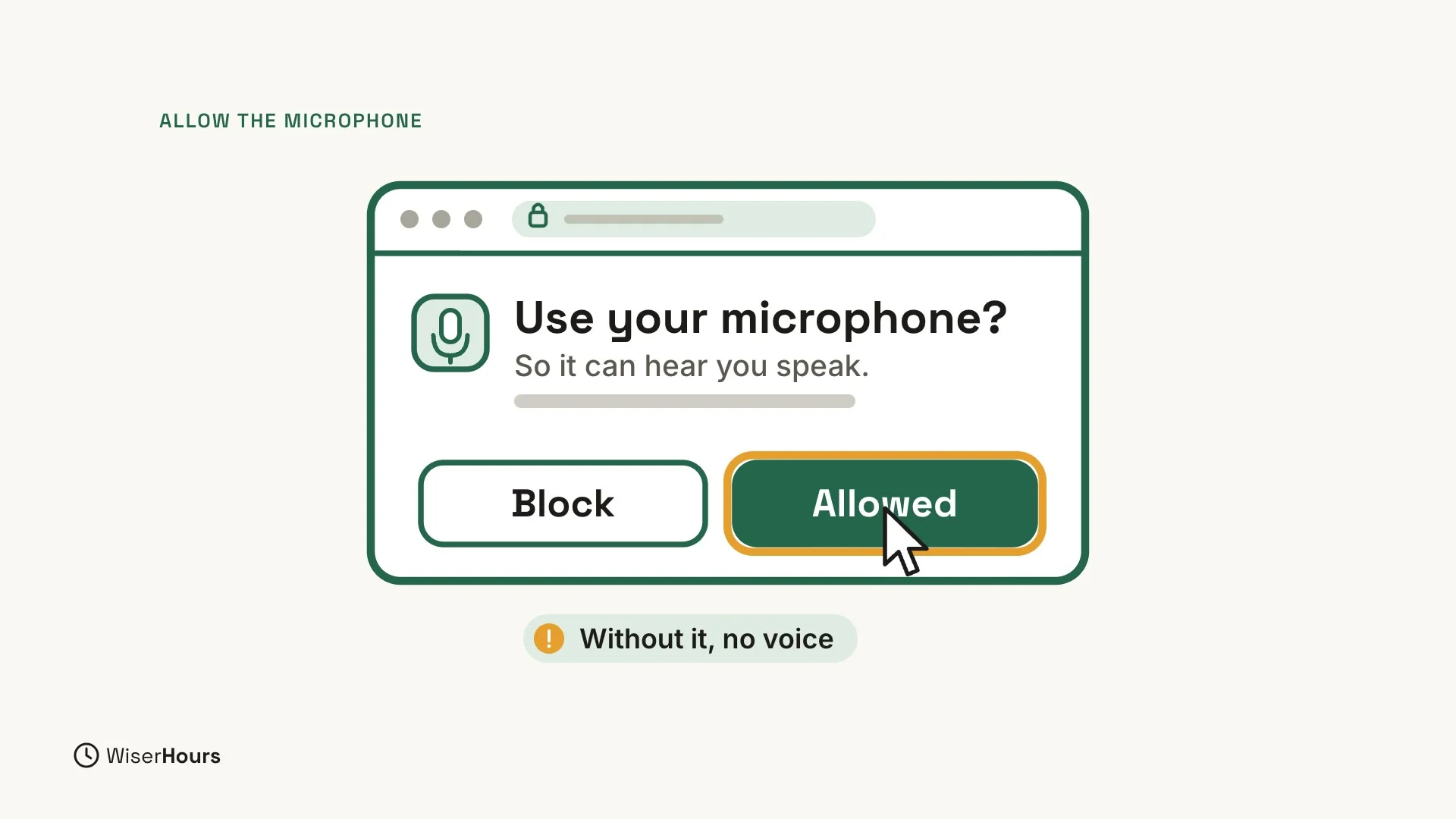
The first time you use your voice with ChatGPT, your browser or phone asks to use your microphone. Click Allow. Without it, ChatGPT can’t hear you.
 (opens the full-size picture)
When voice helps
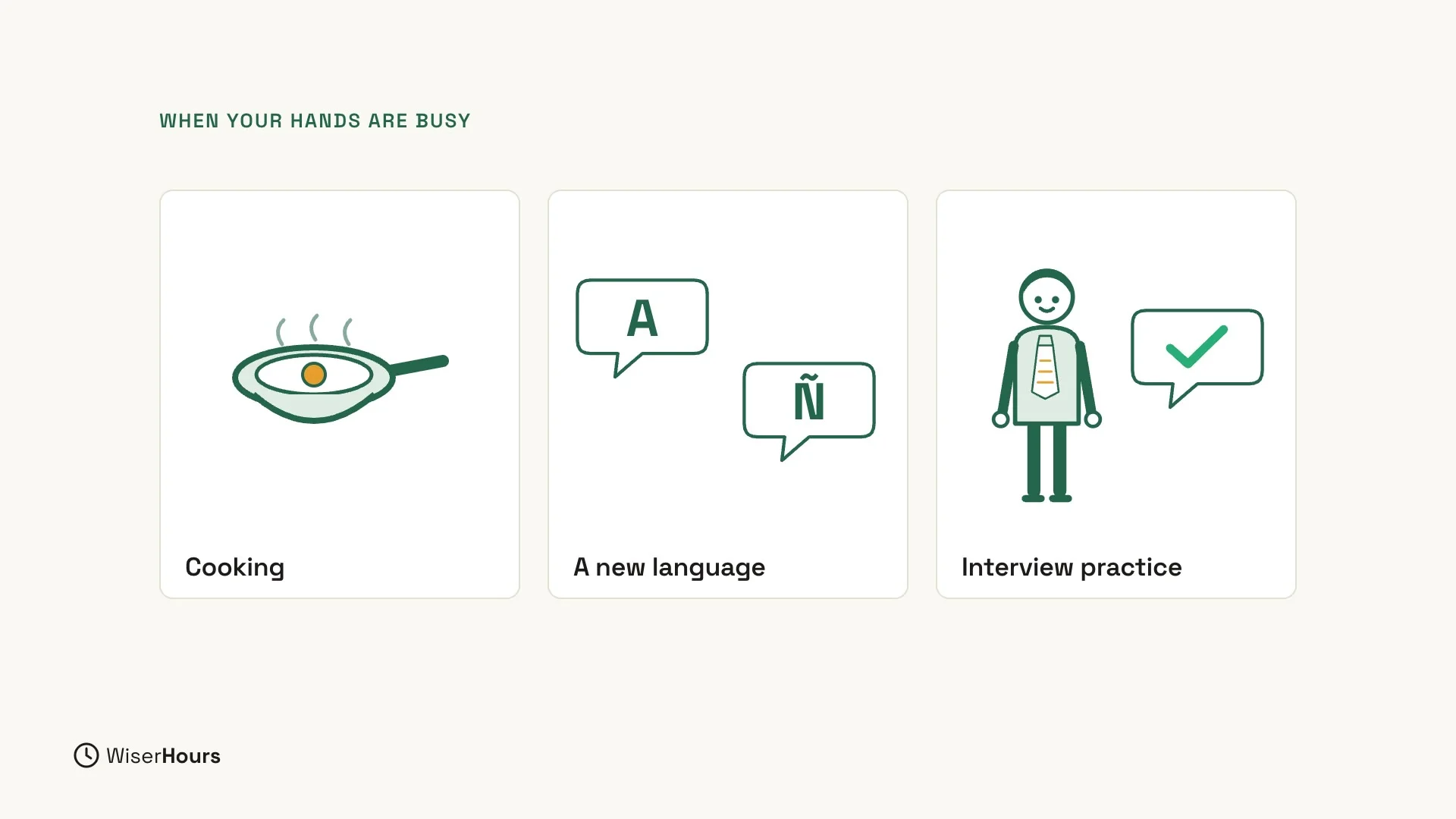
Voice is great when your hands are busy: ask for a recipe while you cook. You can also practice a new language out loud, or rehearse a job interview and then ask for feedback.
 (opens the full-size picture)
YOUR TURN
In the next lesson, you will see what to do when ChatGPT gets it wrong, and how to spot and fix its mistakes: When ChatGPT is wrong.
Read the full video transcript
In this lesson, you'll talk to ChatGPT out loud. There are two ways. You can speak instead of typing, or you can have a real voice conversation.
First, the microphone button, next to the message box. It's called Dictate. Click it, speak your question, and your words appear as text. Then you send it as usual.
Second, the round button at the right end. It starts a voice conversation. You speak, and ChatGPT answers out loud.
In a voice conversation, just talk naturally, like on a phone call. You can interrupt it while it's speaking, and ask something else. When you're done, end the voice chat.
The first time, your browser or phone asks to use your microphone. Click Allow. Without it, ChatGPT can't hear you.
Voice is great when your hands are busy. Ask for a recipe while you cook. Practice a new language. Or rehearse a job interview, and ask for feedback.
So remember: Dictate turns your speech into text, and the voice button starts a real conversation. Before the next lesson, ask one question out loud. Next, we'll see what to do when ChatGPT gets it wrong.
MAKE IT A SMALL WIN
Finished this lesson?
Mark it complete to save your progress on this device.