Get comfortable · Lesson 2 of 16
How to Sign Up for ChatGPT and Find Your Way Around
Create a free ChatGPT account, then take a short tour: the message box, the plus and microphone buttons, the sidebar and your settings.
English captions available in the player. Prefer reading? Follow the written lesson below.
In this lesson you create your free ChatGPT account and take a short tour of the screen. With an account, your chats are saved, so you can go back to them later. By the end, you will know where everything is.
Go to chatgpt.com
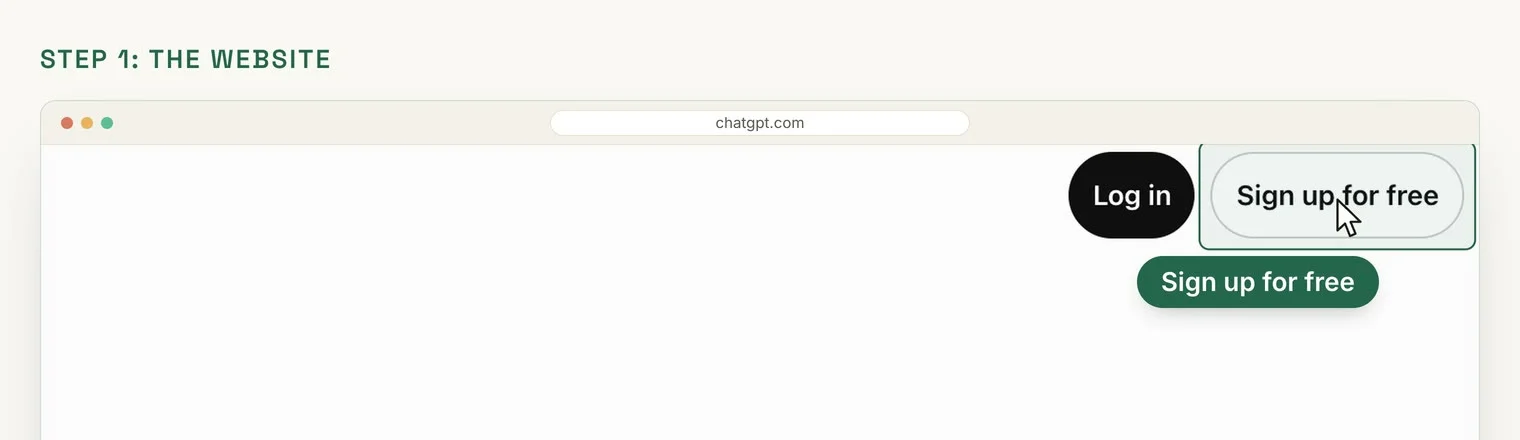
Open your web browser and type chatgpt.com into the address bar at the top. The page already has a message box that says Ask ChatGPT, and you can try a few questions there without an account. But to save your chats, click Sign up for free at the top right. (If you already have an account, click Log in next to it instead.)
 (opens the full-size picture)
Create your free account
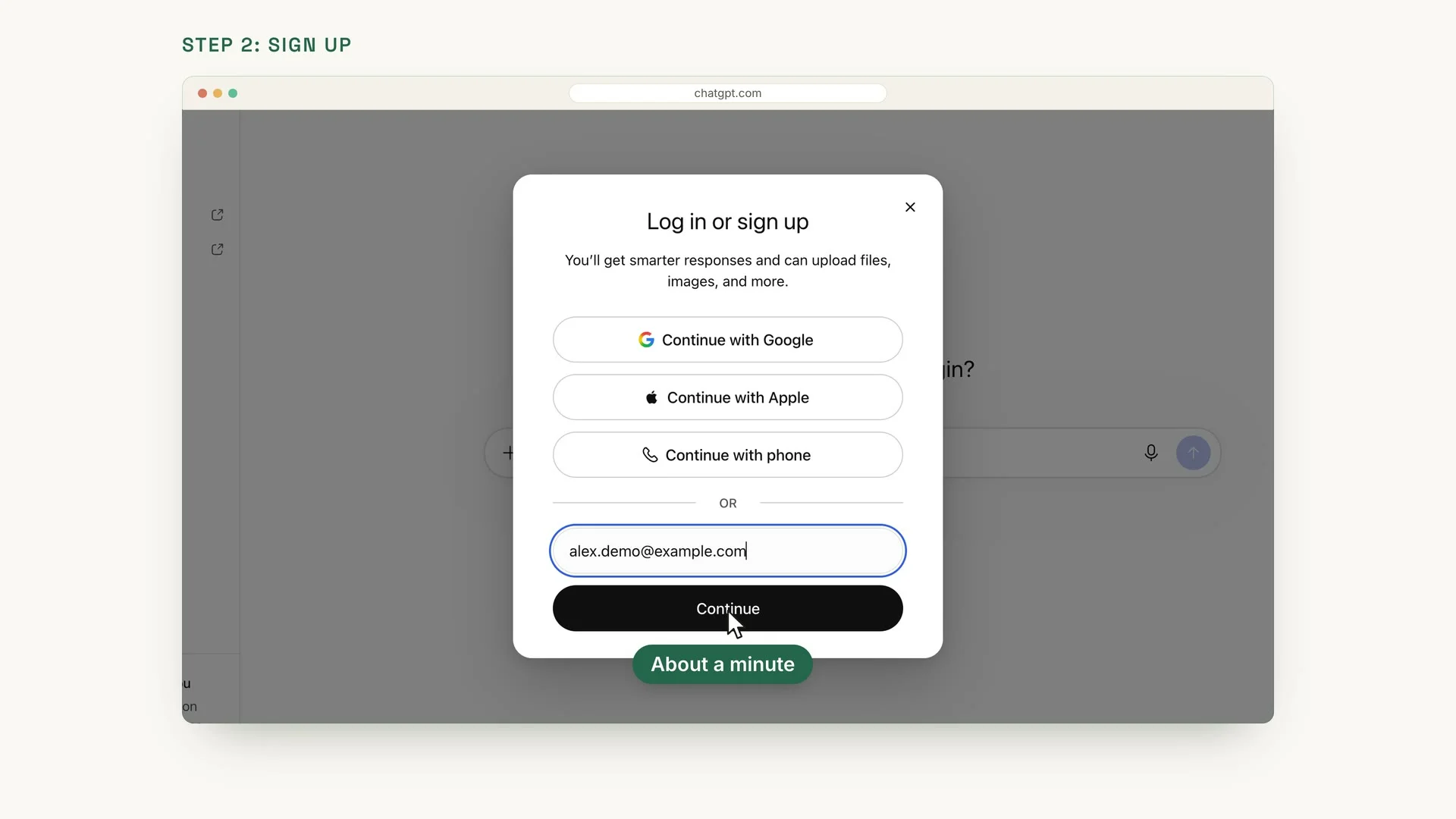
A small window opens, called Log in or sign up. You can continue with Google, with Apple or with your phone, using the three buttons at the top: Continue with Google, Continue with Apple and Continue with phone. Or type your email address in the Email address box and click Continue.
Then follow the steps on the screen. It only takes a minute. If you sign up with your email and the steps ask for a password, this guide can help: How to create passwords you can remember.
 (opens the full-size picture)
Find the message box
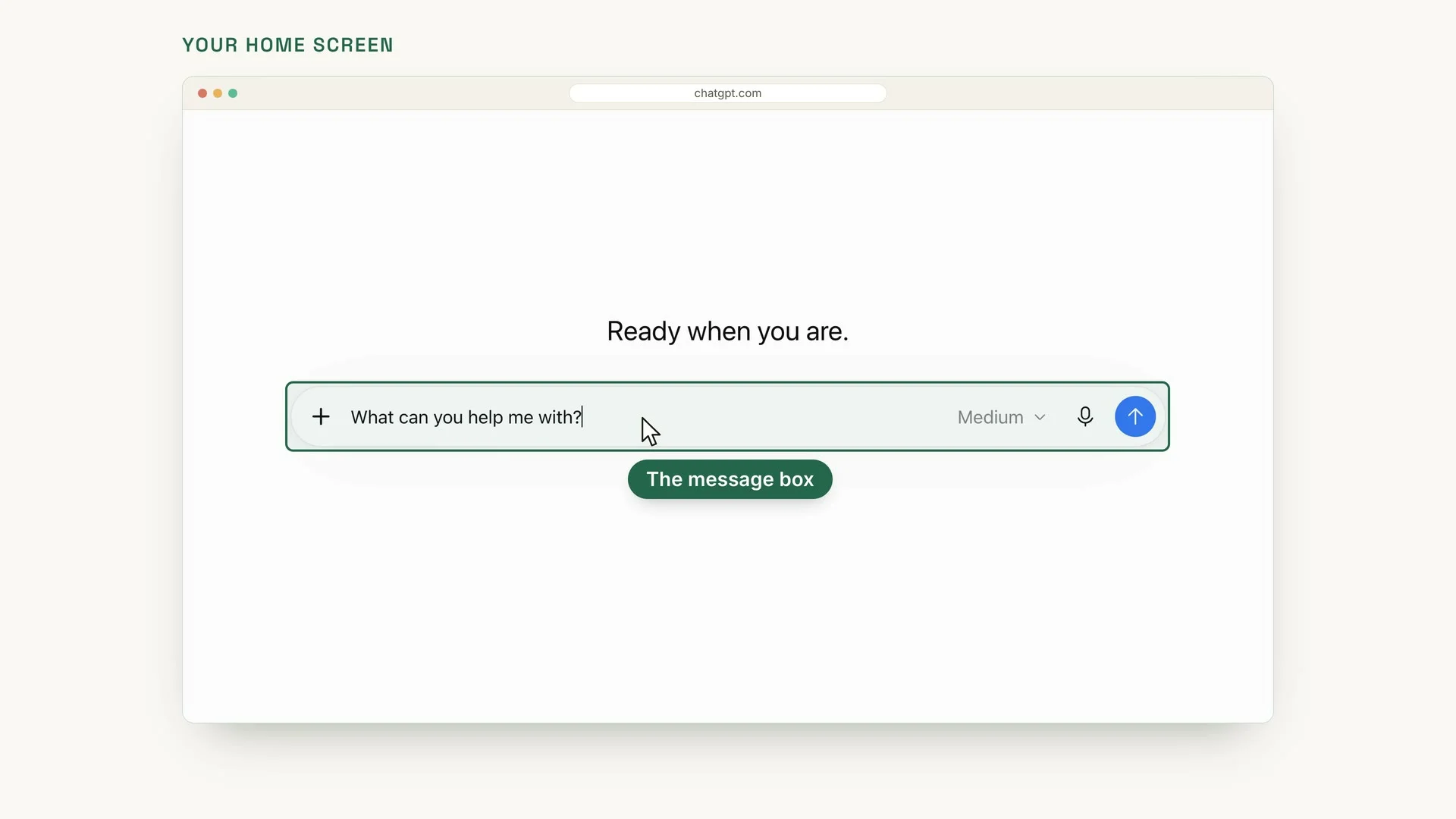
Once you are in, this is your home screen. In the middle is the message box. It says Ask ChatGPT until you start typing, and this is where you type your questions. In the picture, the question What can you help me with? is typed in.
 (opens the full-size picture)
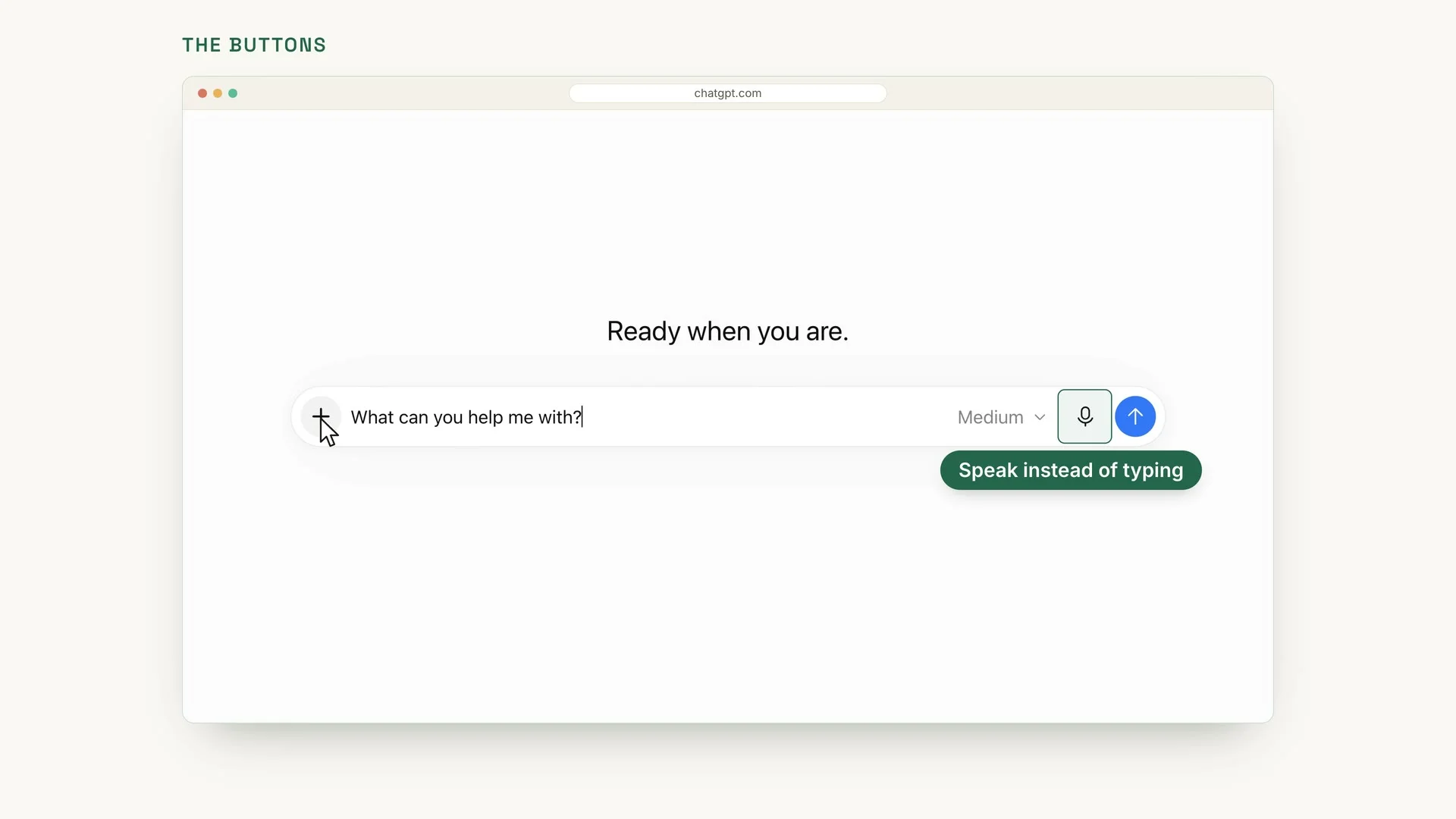
Know the plus and microphone buttons
Next to the message box are a few buttons. The plus button, at the left end of the box, lets you add photos and files: click it, and a menu opens with Add photos & files at the top. The microphone, near the right end, lets you speak instead of typing. You will use these in later lessons.
 (opens the full-size picture)
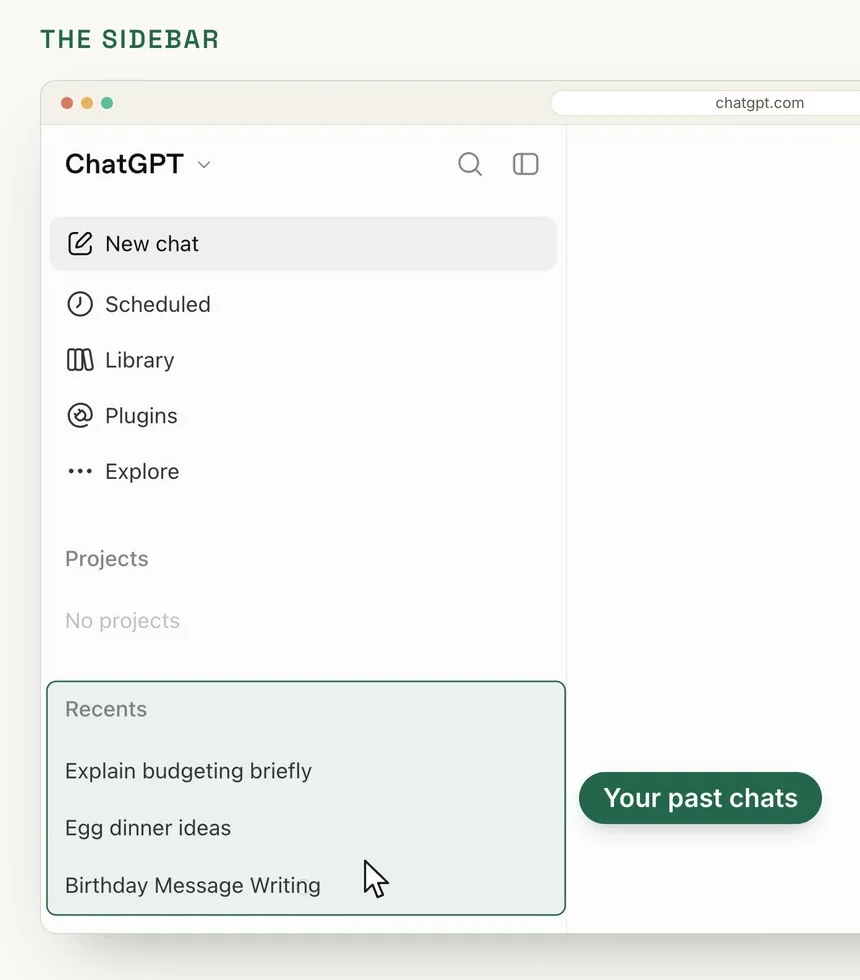
Use the sidebar
On the left is the sidebar. New chat, near the top, starts a fresh conversation. The magnifying glass, at the top next to the ChatGPT name, searches your old chats. And under Recents, you see your past chats, so you can go back to any of them: click one, and it opens again.
 (opens the full-size picture)
Find your account and settings
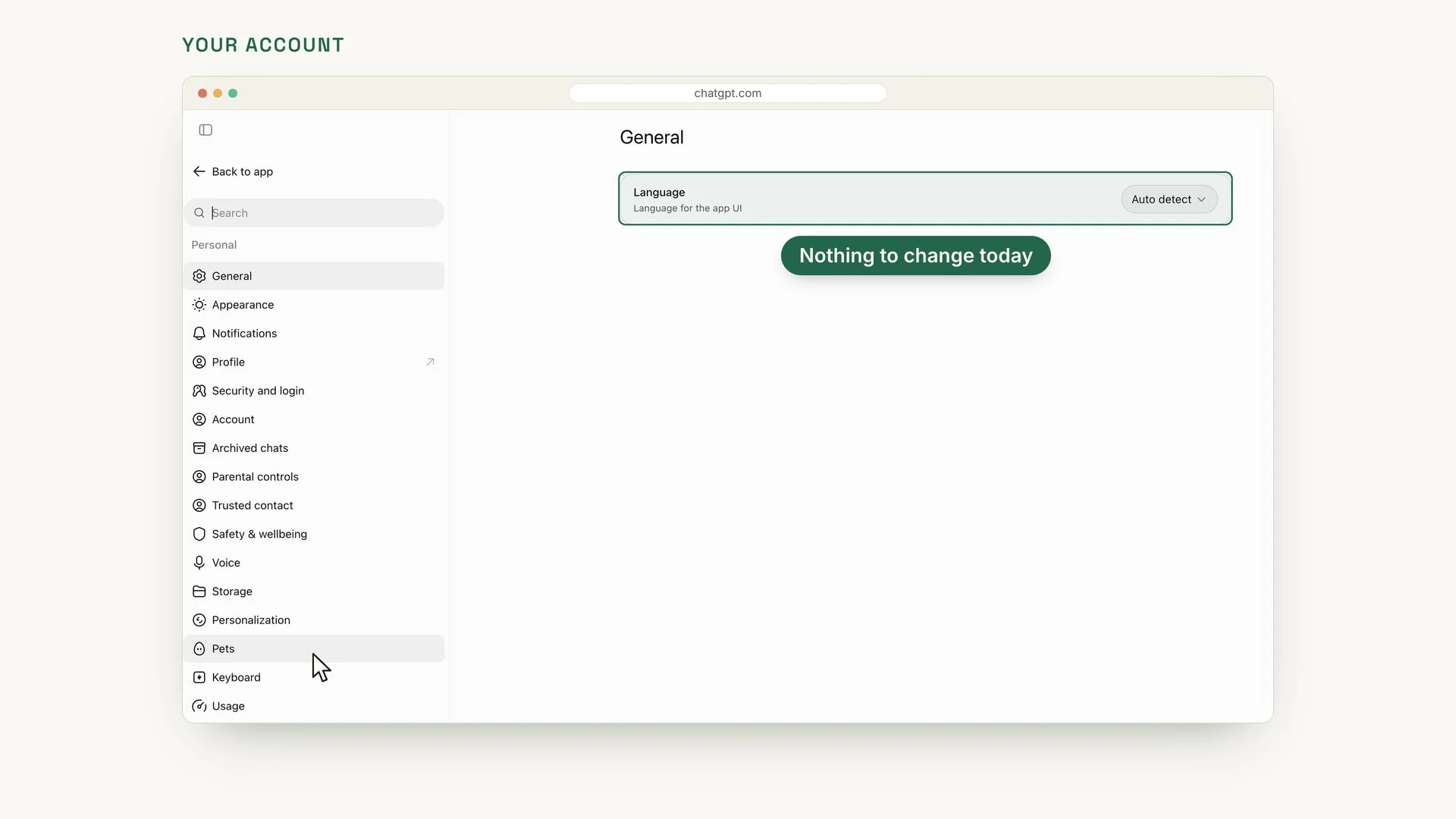
At the bottom left is your account, with your name next to it. Click it to open a menu with Personalization and Settings. Choose Settings, and you can change things like the language. The Language setting is on the General page. In the picture, it is set to Auto detect.
 (opens the full-size picture)
Nothing to change today
You do not need to change anything in Settings today. For now, it is enough to know where to find them.
YOUR TURN
In the next lesson, you will have your first real conversation: Your first ChatGPT conversation, step by step.
Read the full video transcript
In this lesson, you'll create your free ChatGPT account and take a short tour of the screen. By the end, you'll know where everything is.
Go to chatgpt.com. You can try a few questions without an account. But to save your chats, click Sign up for free, at the top right.
A small window opens. You can continue with Google, with Apple, or with your phone. Or type your email address, and click Continue. Then follow the steps on the screen. It only takes a minute.
Once you're in, this is your home screen. In the middle is the message box. This is where you type your questions.
Next to the message box are a few buttons. The plus button lets you add photos and files. The microphone lets you speak instead of typing. We'll use these in later lessons.
On the left is the sidebar. New chat starts a fresh conversation. The magnifying glass searches your old chats. And under Recents, you see your past chats, so you can go back to any of them.
At the bottom left is your account. Click it to open a menu with Personalization and Settings. In Settings, you can change things like the language. You don't need to change anything today.
So remember: sign up for free, type in the message box, and find your chats in the sidebar. Before the next lesson, sign up and find each of these on your own screen. Next, you'll have your first real conversation.
MAKE IT A SMALL WIN
Finished this lesson?
Mark it complete to save your progress on this device.